
Administrator configuration options Copied
Practice administrators should set order date preferences before providers use the redesigned New Order tab to ensure the use of preferred order scheduling options.
Order date settings
Practices and users must set the following order date settings for the redesigned New Orders tab. For more information on how to set these preferences, visit the Help site.
- Default New Order Date: Practices can select a Default New Order Date, which controls the perform date for all orders (callout 1). Moreover, by enabling the Allow Users to Customize setting (callout 2), practices can permit individual users to customize their Default New Order Date according to their preferences.

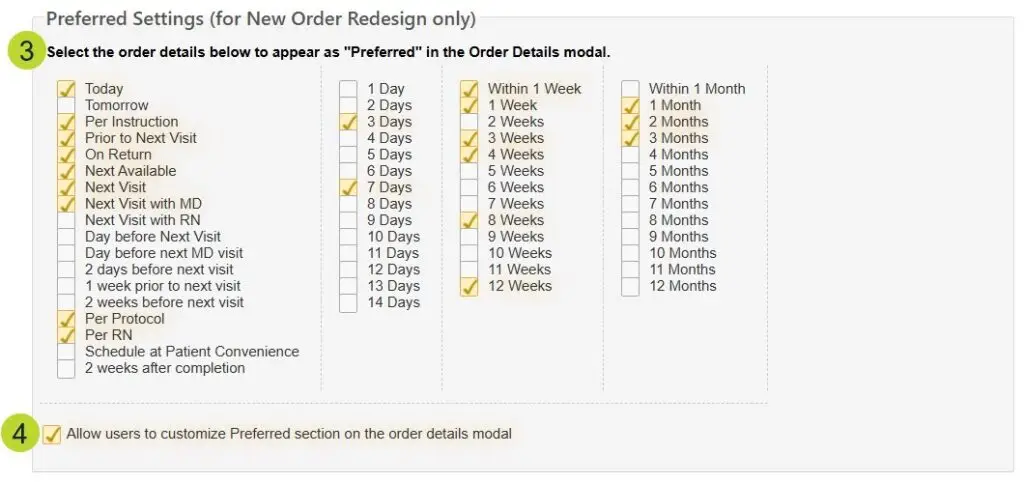
- Preferred Date Options: Choose from an expanded list of Preferred date options, which can be further customized by individual users, depending on your preferences. In the Preferred Settings section, choose the order date options you want to be available for all practice users (callout 3). These options will be displayed in the Preferred section of the order details window. To allow practice users to set their preferences, check the box next to Allow users to customize the Preferred section on the order details modal (callout 4).
Users access settings
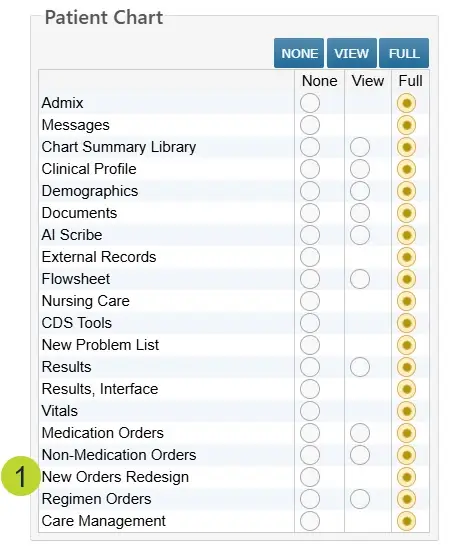
Lastly, update user permissions and grant access to the redesigned New Orders tab on the user’s Permissions screen. Under Patient Chart, set the New Orders Redesign permission to Full (callout 1).
For more information on how to set these permissions, visit the Help site topic on user preferences. Refer to these Help site instructions on applying these permissions to multiple practice users.
Related Articles:
|