
Task management enhancements Copied
We’ve made several updates to improve efficiency and customization in the task management window:
Preventing empty documentation from attaching to charts
To reduce unnecessary attachments in patient charts, the system will now prevent empty task documentation from being saved for tasks, electronic patient-reported outcomes (ePROs), and Care Management tasks.
NOTE: ePRO documents (such as PHQ-2 or PHQ-9 questionnaires) will still be attached to the patient chart even when task documentation is not generated.
By default, task documentation will not be sent to the patient’s Documents tab if:
- There is no Message to or from a patient in the Manage Task tab, AND
- There is no Task Documentation or Log Time on Task entry in the Manage Task tab
This setting is on by default but can be disabled based on practice preferences.
Automatic saving and removal of the Apply button
The Apply button has been removed from the left panel of the task management window.
Now, changes will be automatically saved after 5 seconds or upon exiting the task in one of the following ways:
- Clicking the X in the upper-right corner.
- Clicking the Keep Task Open button.
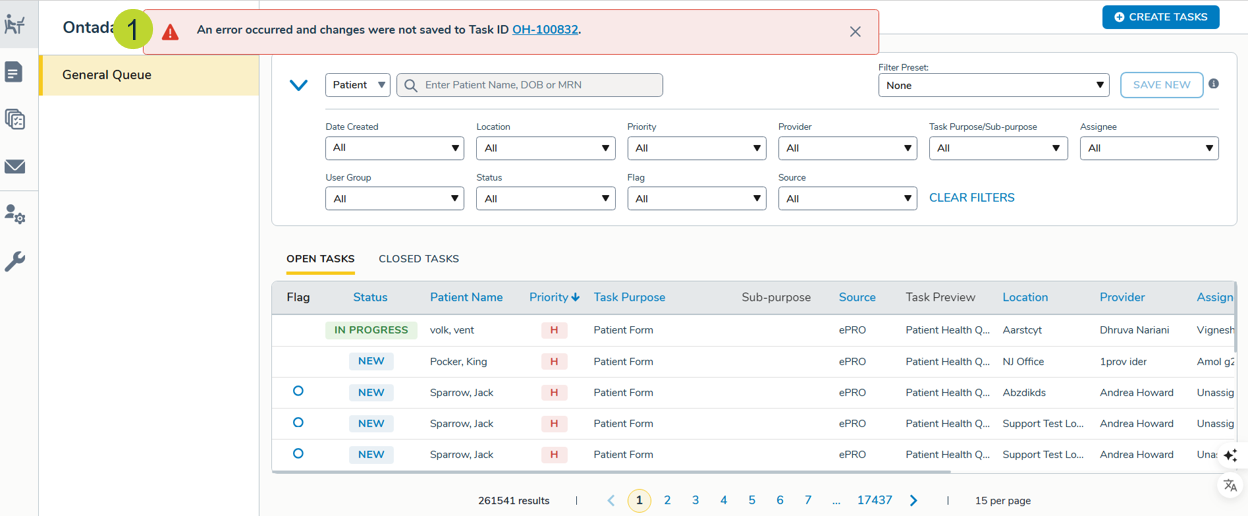
If any part of a task fails to save and the window is closed, an error message will appear on the General Queue screen and the message will include a clickable Task ID, allowing users to reopen the task and redo changes (callout 1).
The error message will disappear once:
- All changes are successfully saved.
- The user manually closes the message.
- A new task is opened from the General Queue.
- The user navigates away from the General Queue.
Practice configurable sections in the Manage Task tab
Previously, all sections in the Manage Task tab (Message, Task Documentation, and Log Time on Task) were displayed by default.
Now, only the Message and Task Documentation sections will display by default. Practices can also contact their Ontada Health account manager or open a ServiceNow ticket to configure which sections are shown.
NOTE: Whatever sections are configured to display on the screen are the same sections that will display in the PDF summary sent to the patient’s Documents tab in iKnowMed.