Spanish text message notifications for patients Copied
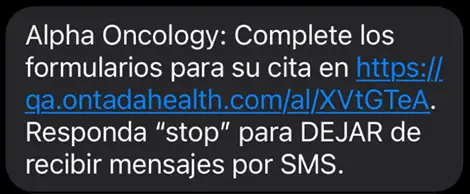
Timely text message reminders can help keep patients engaged and on track with form completion. With this release, patients and practices can set text message notifications from Ontada Health e-Registration to be received in Spanish, making it easier for Spanish-speaking patients to understand and respond.
NOTE: Your practice must be configured to allow multiple languages. To update your e-Registration preferences, please contact your Ontada Health e-Registration Account Manager.
How patients can choose Spanish messaging
Option 1: Using the text message flow
Patients can choose their preferred language directly from the e-Registration text messages without needing to visit the My Account page.
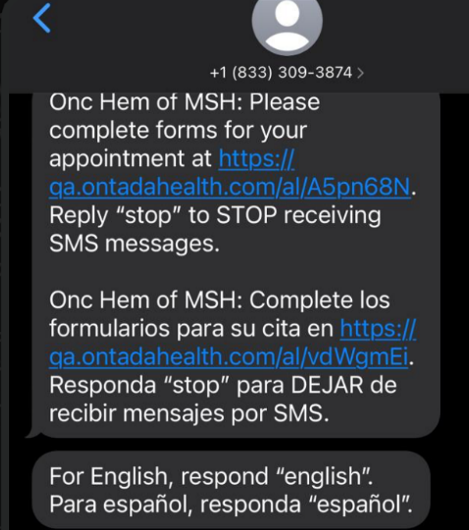
If your practice allows multiple languages, the first notification after the release will be sent in both English and Spanish.
Patients will receive an additional message prompting them to reply:
- For English, respond “English”
- For Spanish, respond “Español”
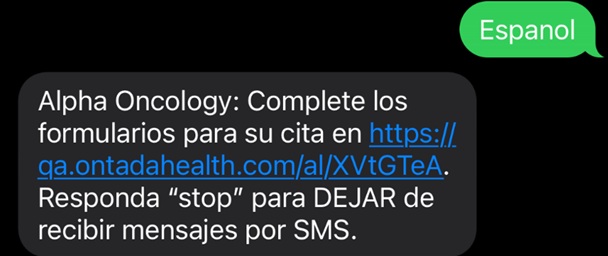
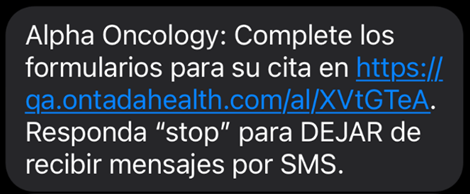
If the patient replies with “Español”, all the text messages the patient receives going forward will display in Spanish only. The selected language will also be applied to their My Account settings and your practice Support Tools.
Option 2: In the My Account Page
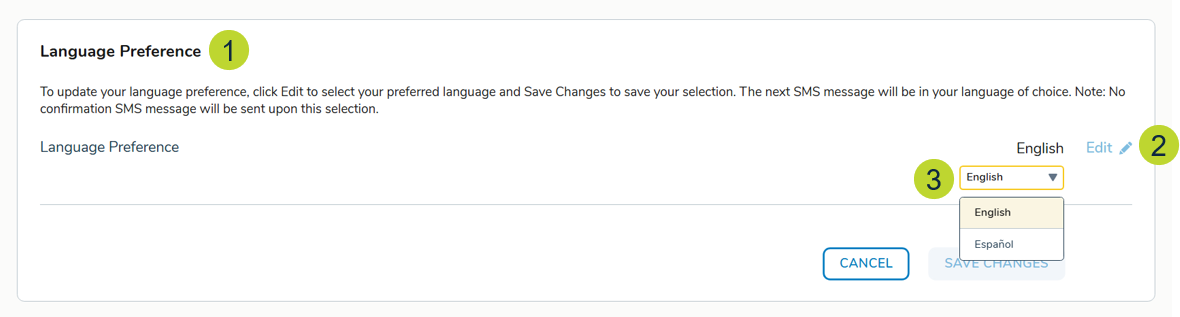
Patients can also update their text messaging language from their My Account page:
- Go to Account Settings
- Find the Language Preference section (callout 1)
NOTE: This section only appears if your practice allows multiple languages.
- Click Edit (callout 2)
- Select English or Español from the drop-down (callout 3)
- Click Save Changes (callout 4)
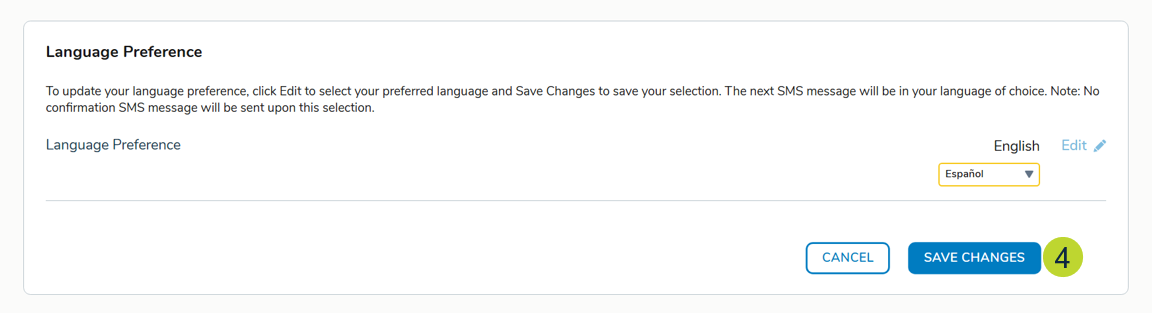
Going forward, all the text messages the patient receives will display in Spanish only, and the selected language will be applied to the patient in the Support Tools.
How practices can choose Spanish messaging
Option 1: Demographics tab
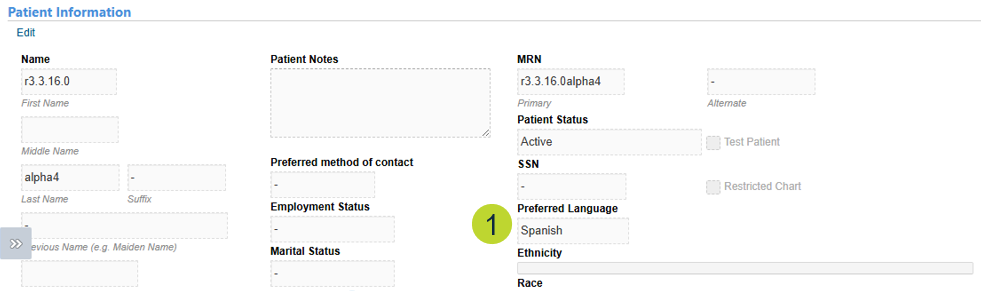
Your practice can update a patient’s preferred text messaging language using the Demographics tab in the patient’s chart.
- Open the patient’s chart and go to the Demographics tab
- Set the patient’s Preferred Language to Spanish (callout 1)
- Once saved, the selected language will be applied to all future text message notifications, the patient’s My Account settings, and your practice Support Tools
Option 2: Support Tools
Your practice can also update a patient’s preferred text messaging language using the e-Registration admin tools.
- Go to the Patients page in Support Tools
- Locate a patient using the search field or filters
- Click on a patient from the results to see their details
- Find the Language Preference section (callout 1)
NOTE: This section only appears if your practice allows multiple languages.
- Click Edit (callout 2)
- Choose English or Español from the drop-down
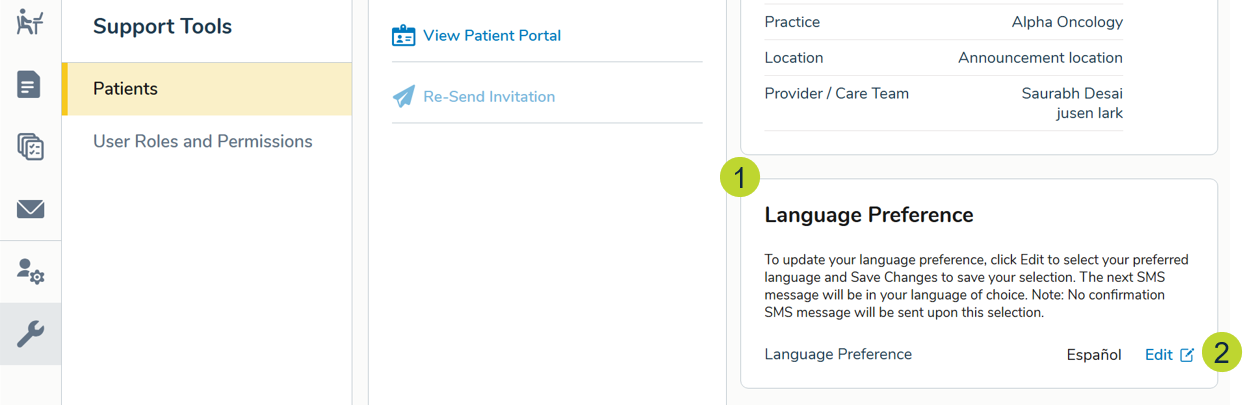
Going forward, all the text messages the patient receives will display in Spanish only, and the selected language will be applied to the patient’s My Account preferences.