Simplified data management with Data Integrations Error report Copied
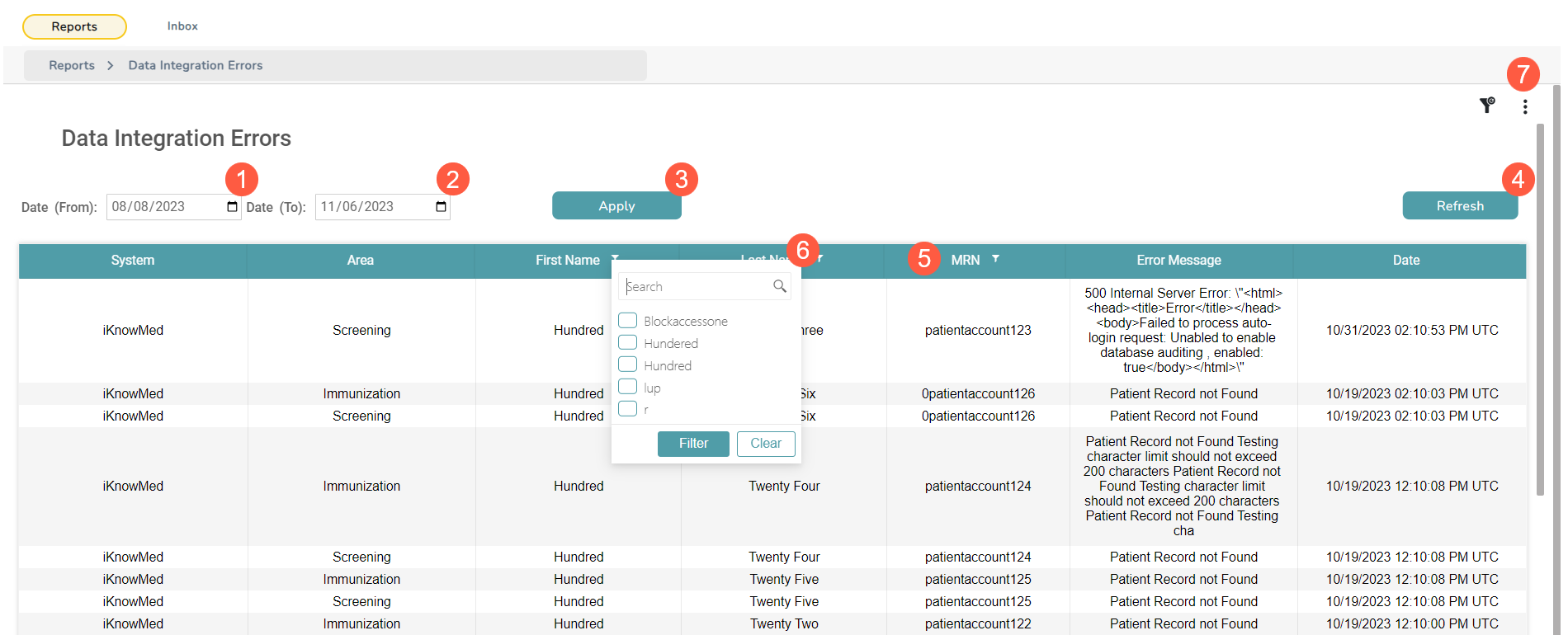
The new Data Integrations Error report is a valuable tool designed to help you stay on top of data integration issues and take prompt action to resolve them. This feature provides you with critical insights into where errors have occurred, the nature of the errors, and which patients may be affected.
NOTE: The reports are permission-based and will appear based on your role in the practice. Please work with your practice administrator to access this report.
How to use the report:
- Go to Admin > Reports from the top navigation.
- Click the Data Integrations Error report title to open it.
- Filter your report using the from/to date fields (callouts 1 and 2).
- Once you select your filters, click Apply to generate the report (callout 3) or click Refresh to update your results in the table (callout 4).
- Further refine the results by sorting the information in ascending or descending order for the patient’s First Name, Last Name, MRN, or Error Message. Simply click the column header to sort the information (see callout 5 for example).
- To locate a specific patient, click the funnel icon on the First Name, Last Name, or MRN fields (see callout 6 for example). Manually enter information in the search field or use the checkboxes next to the pre-populated data.
- To export the report, click on the 3 dots in the upper right corner (callout 7) and then select your preferred download option.