New self-service Help website Copied
We’re launching an updated, self-service Help option inside iKnowMed. With the new Help platform, you can find instant answers to product-related questions, whether you need assistance with troubleshooting, learning about new software updates, or just need a refresher.
Key features and benefits
1. Search for answers: Quick access to tutorials and guides covering a wide range of topics can help unlock the full potential of using iKnowMed.
2. Step-by-step tutorials: Learn and explore iKnowMed through step-by-step tutorials. These visually engaging resources explain complex concepts and functionalities with ease.
3. Contextual content: Learn in the flow of work. Access Help content while in a patient chart or when completing daily tasks in iKnowMed.
How it works
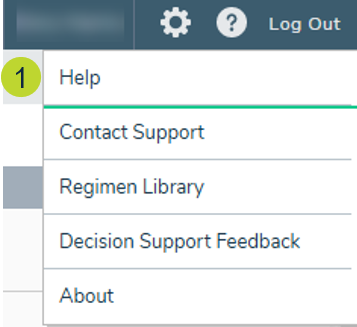
- After logging in, click the question mark in the top navigation next to the gear icon and select the Help option (callout 1).
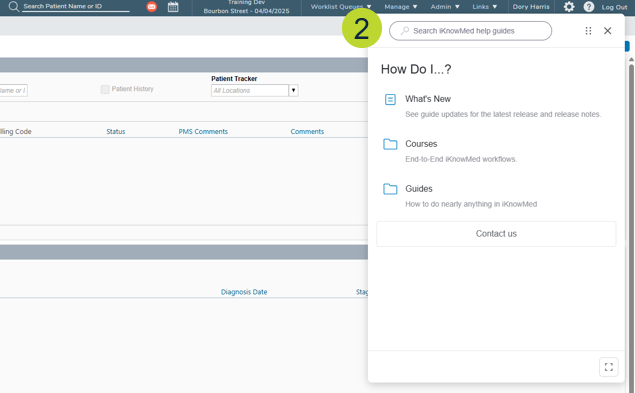
- This will open the Help content in a pop-up in the top-right corner of the application (callout 2).
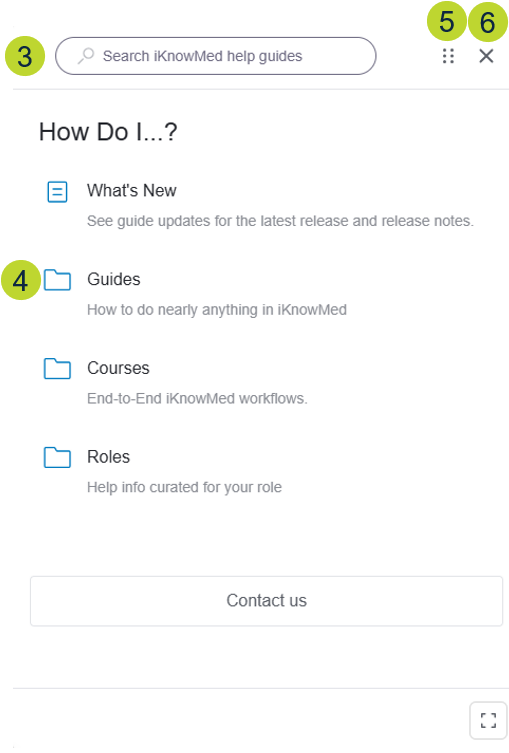
- To learn more about iKnowMed and its features, type what you are looking for in the search field or browse through the available guides (callouts 3-4).
- Use the six dots in the upper-right corner to click and drag the window around the screen (callout 5).
- Use the adjacent X to close the window when you have finished viewing the content (callout 6).
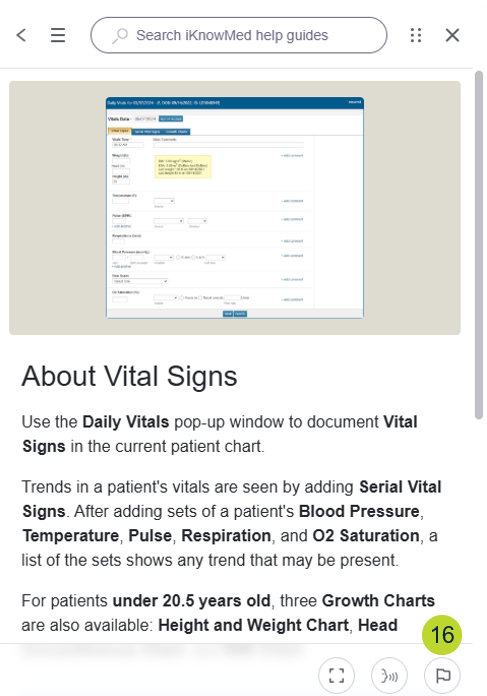
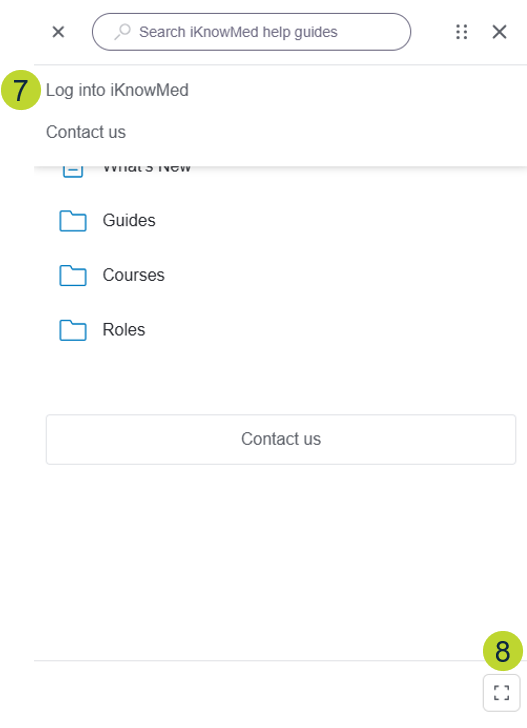
- Use the hamburger menu to get to a quick link to Log into iKnowMed or to Contact Us (callout 7).
- To see the content in full screen mode, use the full screen button (callout 8).
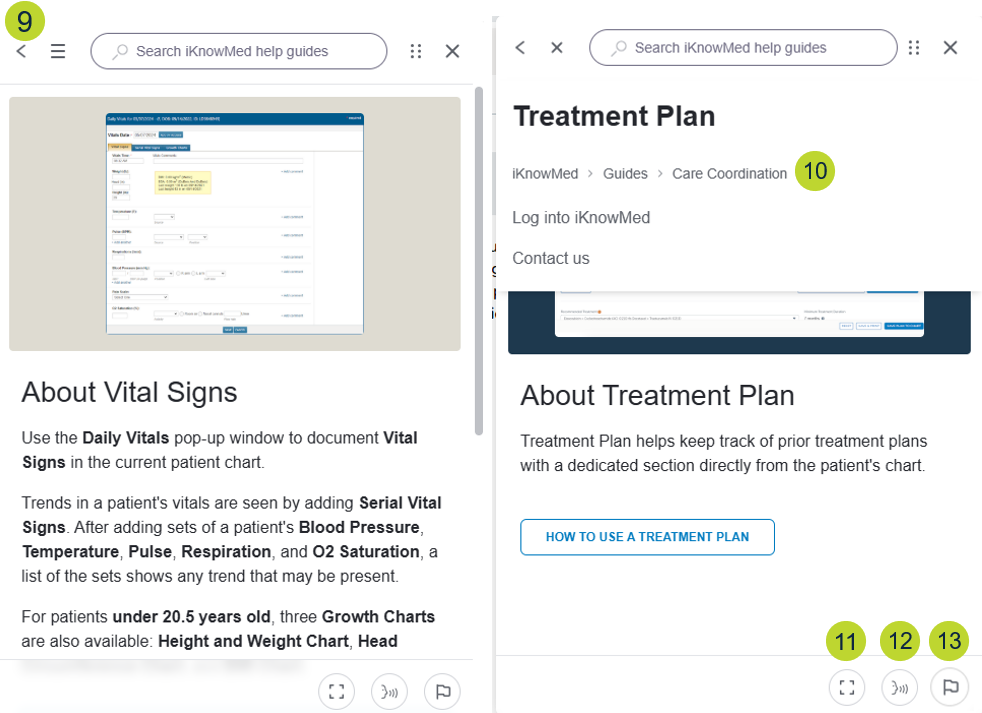
- Once viewing a guide, click the arrow to the left of the search field to close the guide and return to the list of available Help content (callout 9).
- Alternatively, select the hamburger menu to use the breadcrumbs to navigate to other help content (callout 10).
- To see the guide in full screen mode, use the full screen button (callout 11).
- To listen to a guide, select the guide-to-speech option (callout 12).
- To send feedback regarding a guide, use the Report an Issue button to submit comments (callout 13).
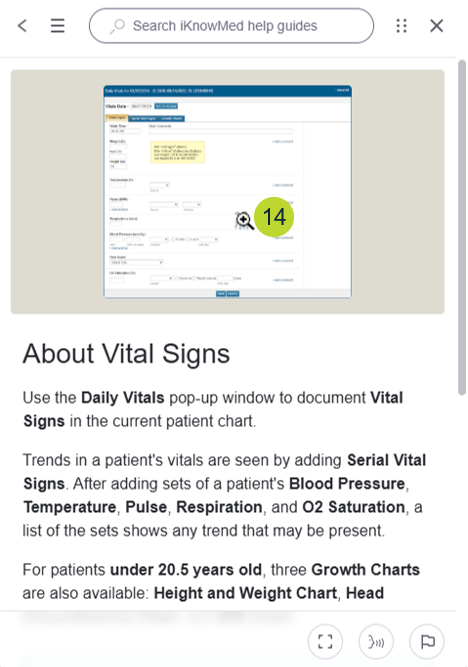
- To view an image more closely, click the image to make it full screen (callout 14). Re-click the enlarged image to revert it to its original size.
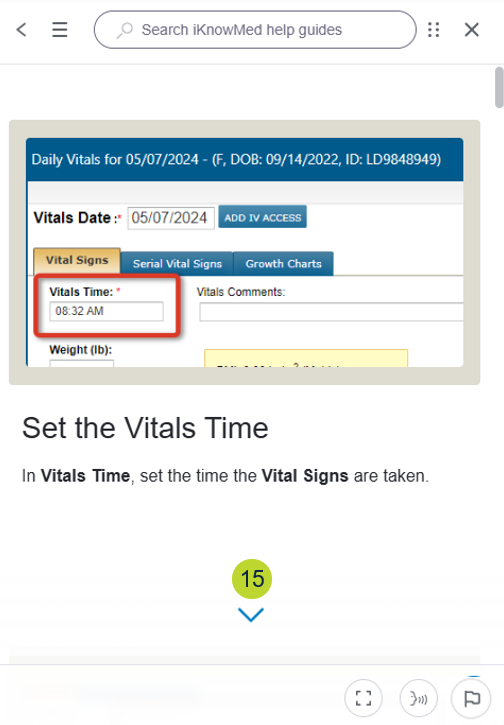
- To progress through a guide, click the buttons or tiles at the bottom of the guide. If an arrow is displayed at the bottom, simply scroll to the next section (callout 15).
Your feedback matters
We are dedicated to constantly improving the Help site and ensuring that it meets your needs. Your feedback is invaluable, so please do not hesitate to share your thoughts, suggestions, or concerns with us by using the Report an Issue on any step feature (callout 16).