
Molecular Results Mapping Copied

Note: This functionality is currently available to US Oncology Network practices, that also have agreements with both the Sara Cannon Research Institute and Genospace. If you have questions about access to this functionality, please contact your Ontada Technology Account Manager.
Overview
Molecular results mapping allows users to save results from Caris Life Sciences, Foundation Medicine, Tempus, and Guardant Health directly to the Problems tab and Clear Value Plus for supported diseases in iKnowMed.
We’ve expanded the capabilities of the existing Molecular Results tab through our partnership with Genospace, supporting automatic results population for a broader range of diseases and biomarkers, including:
- Anal Cancer
- Bile Duct Cancer
- Bladder Cancer
- Breast Cancer
- Cervical Cancer
- Colon Cancer
- Esophageal Cancer
- Fallopian Tube
- Gallbladder Cancer
- Gastric Cancer
- Hypopharyngeal (Head & Neck) Cancer
- Kidney (Renal) Cancer
- Laryngeal (Head & Neck) Cancer
- Liver Cancer
- Melanoma
- Neuroendocrine Cancer
- NSCLC (Non-Small Cell Lung Carcinoma)
- Oropharyngeal Cancer
- Ovarian/Primary Peritoneal Cancer
- Pancreatic Cancer
- Prostate Cancer
- Rectal Cancer
- SCLC (Small Cell Lung Cancer)
- Uterine Cancer
Additionally, mapping functionality is available in the Unified Sign Queue. This enhancement allows users to map molecular results while reviewing and signing lab results in the queue.
By surfacing the most current and relevant biomarker data at the point of care, your team can make more informed, timely decisions on personalized treatment.
Results mapping in the Unified Sign Queue
To use the molecular results mapping feature in the Unified Sign Queue:
- Go to Worklist Queues > Unified Sign Queue from the top navigation.
- In the queue, select a patient with biomarker results (callout 1).
- Click on the report in the Lab Results section (callout 2).
- After reviewing the report, click the Save To Problems List button (callout 3).
- The Save To Problem List button will not be enabled if the results are not from a supported solid tumor diagnosis/vendor/panel or mappings are not yet available.
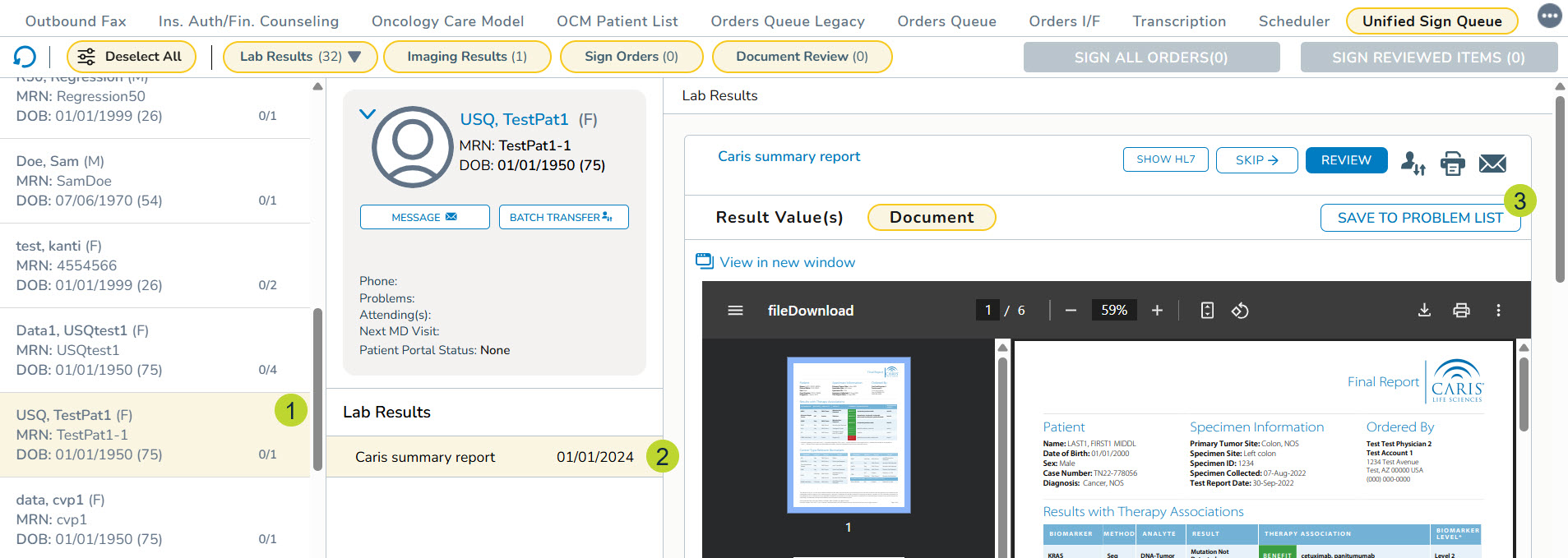
- The Save To Problem List button will not be enabled if the results are not from a supported solid tumor diagnosis/vendor/panel or mappings are not yet available.
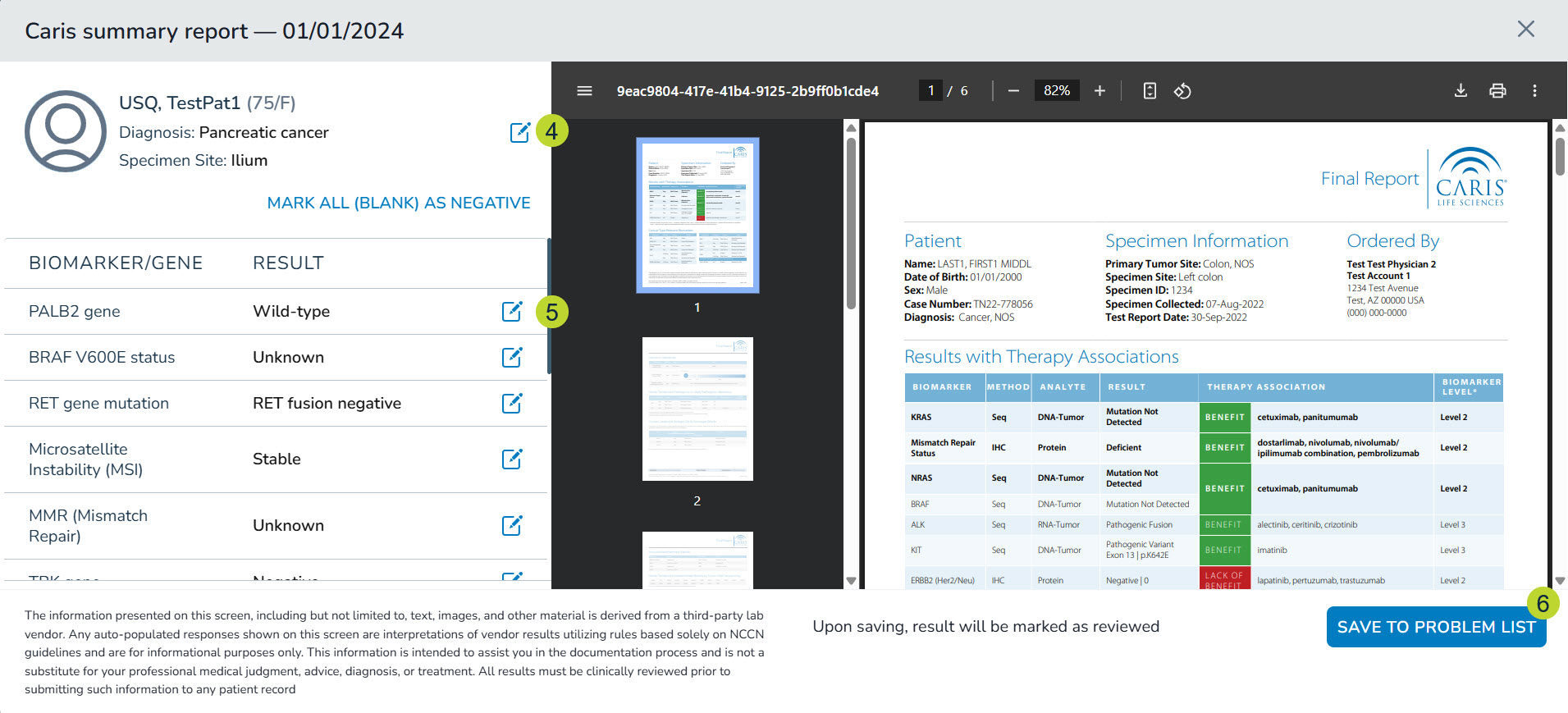
- This will open a new window displaying the results.
- In the left-hand panel, the patient’s diagnosis will be prepopulated. If it’s not prepopulated or you need to change the diagnosis, click the edit icon (callout 5) to select a diagnosis from the list of the patient’s charted diagnoses.
- If a diagnosis is charted twice and both the diagnoses are active, e.g., both diagnoses are available in the drop down, then deactivate the older diagnosis in the patient’s chart under Clinical Profile > Problems> Problem List before proceeding.
- Below the diagnosis section, certain biomarkers will have results prepopulated in the Result column. For other biomarkers, you must manually select a result.
- Choose or modify the results as needed using the edit icon (callout 5).
- Once the information is accurate, click the Save To Problems List button at the bottom of the screen (callout 6).
- If the patient has more than one results report, you can also choose to click the Save & Go To Next Result button to navigate through each report.
- If there are previously recorded results for a biomarker, the system will prompt you to select which results to save to the Problems tab.
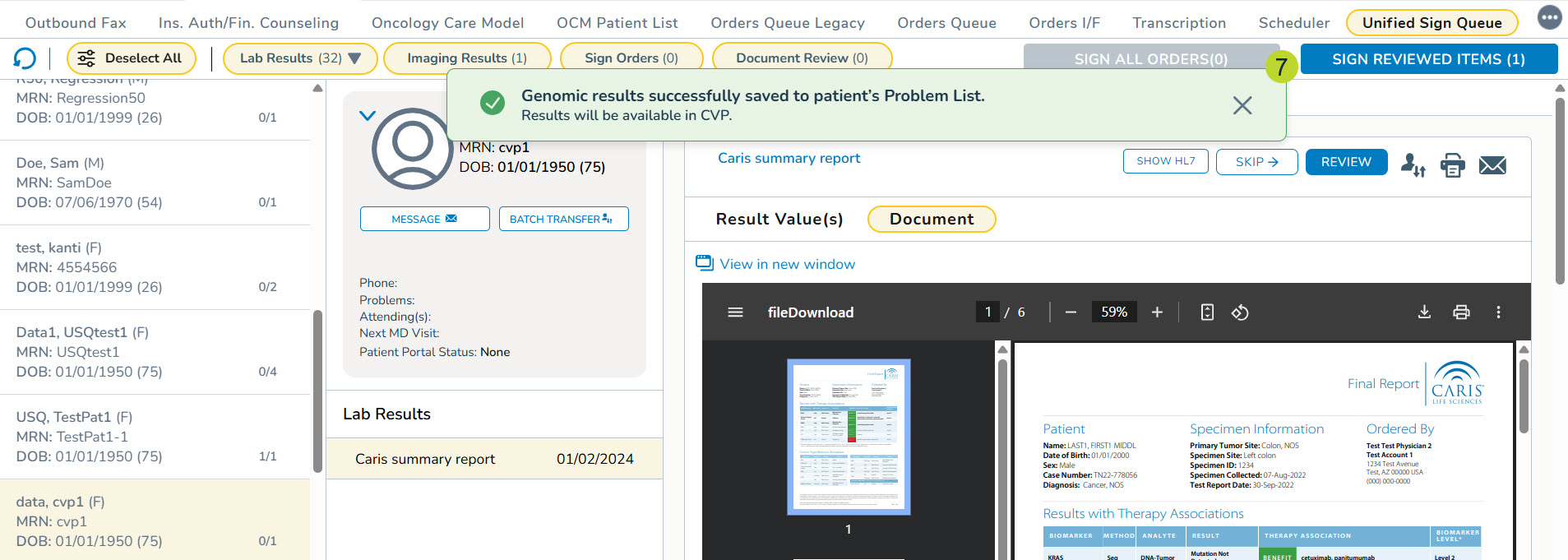
- A success message will display on the screen when the results are saved to the Problems tab (callout 7).
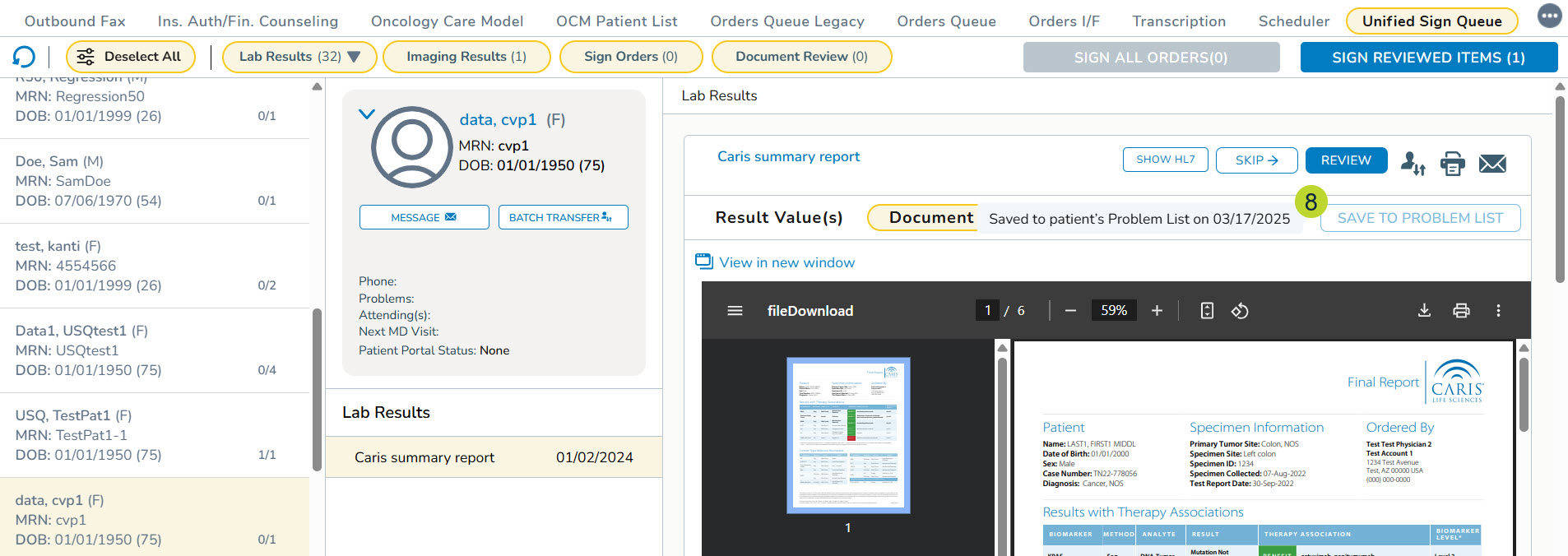
- Hovering over the grayed-out button to see when these results were saved to the Problems tab (callout 8).
- To view all results saved to the Problems tab, navigate to Clinical Profile > Problems.
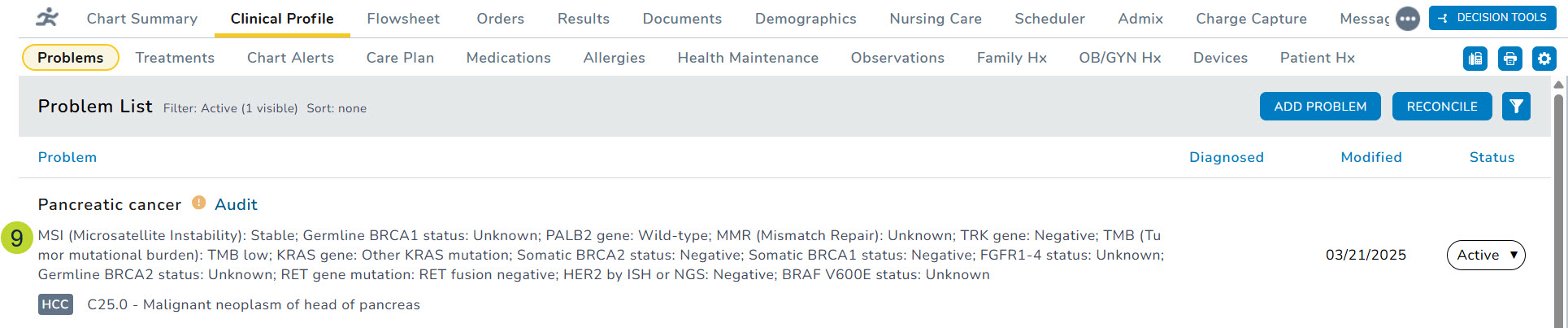
- The results will be displayed below the diagnosis on the Problems List (callout 9).
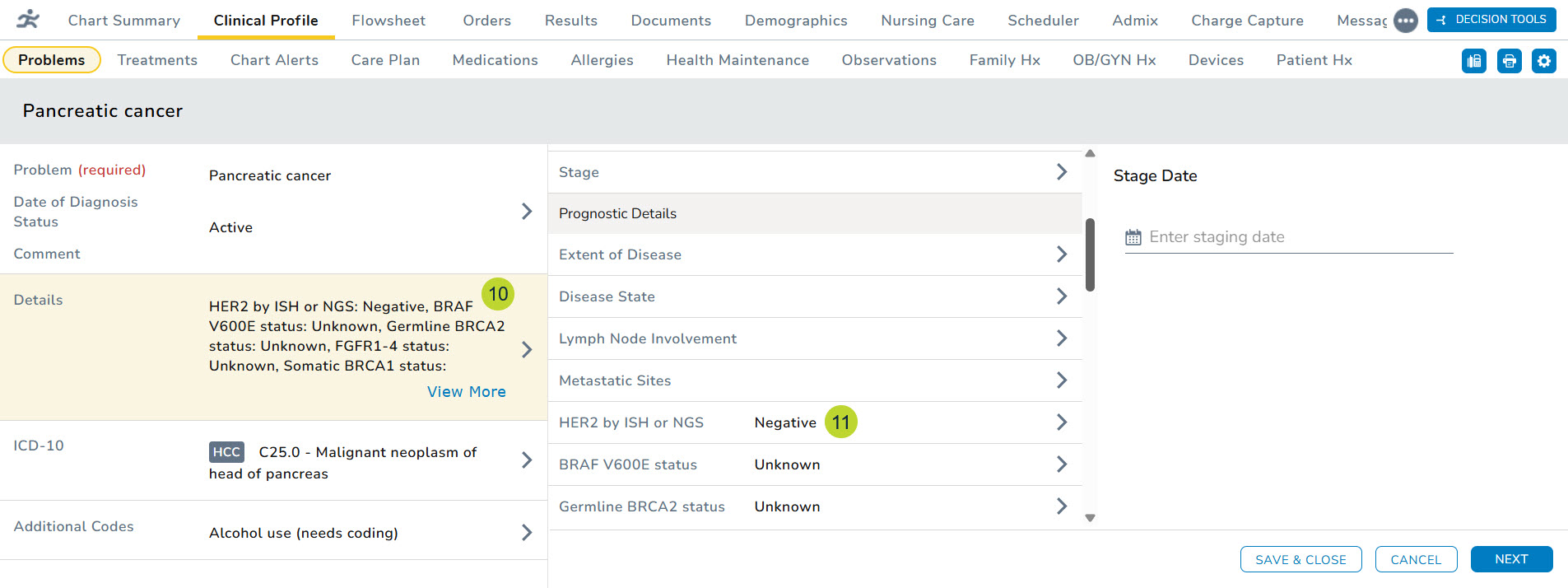
- You can also open the diagnosis and examine the information in the Details section on the left side (callout 10) and under Prognostic Details section of the expanded details (callout 11).
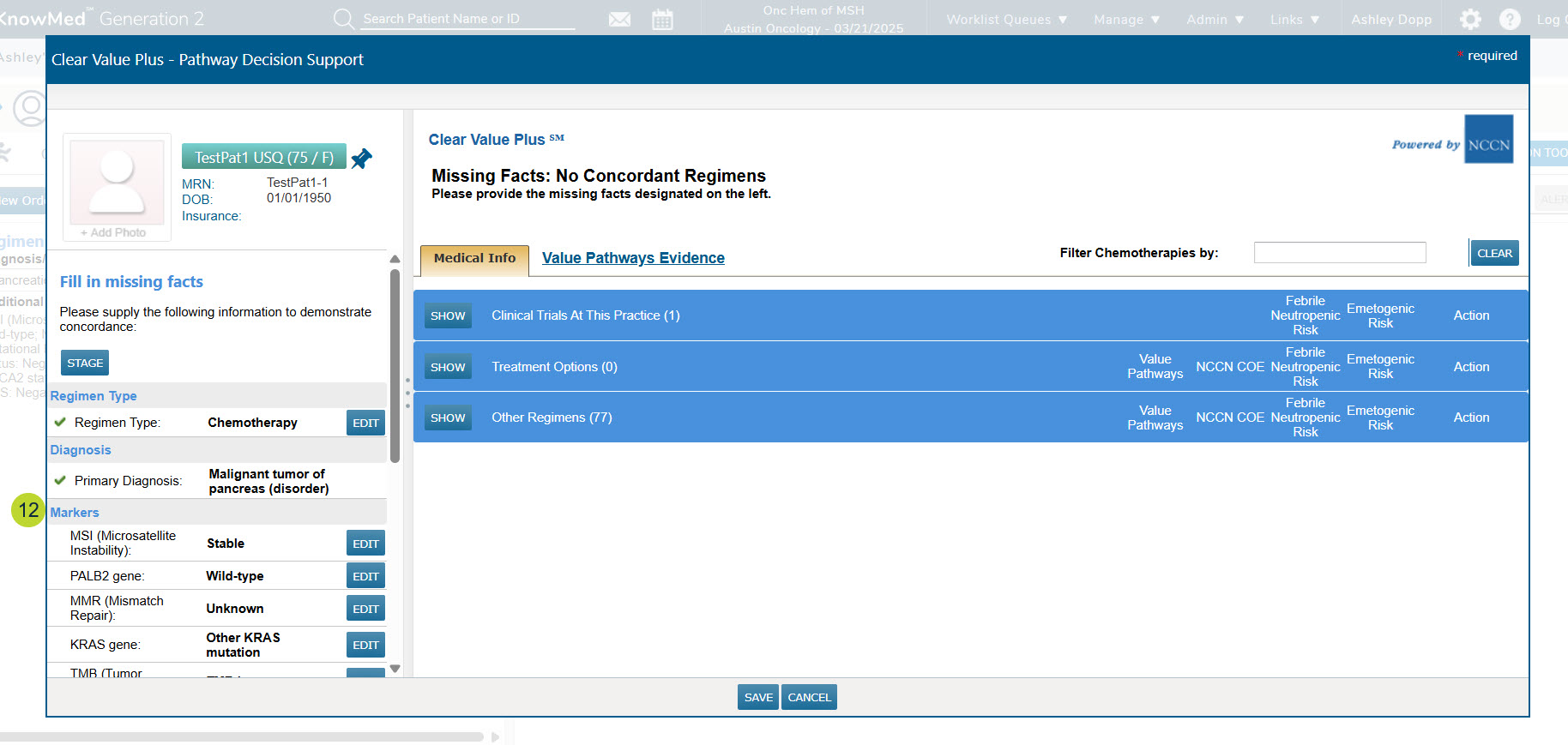
- If your practice also uses Clear Value Plus, these results will seamlessly appear in the patient details section in the left column of the window, further enhancing your patient care and management capabilities (callout 12).
Additional information
Highlights of the Molecular Results Mapping powered by Genospace in iKnowMed Generation 2 with relevant examples:
- Tier 1 Level A variants with FDA approved therapeutic associations (companion diagnostic biomarkers).
- Example: BRAF V600E result selects V600E mutation
- Example: C-KIT W557R result selects Detected in Melanoma
- Tier 1 variants with strong clinical evidence denoted as known/likely pathogenic variants by testing vendor that do not have any therapeutic associations.
- Example: KRAS G12D result selects Other KRAS mutation or Other non-actionable finding depending on the diagnosis.
- Differentiate Wild-type/Negative versus Not Tested/Unknown depending on specific vendor and test used together with absence of relevant alterations, where relevant alterations are driven by ‘Positive’ biomarker definition.
- Example: BRAF Wild type in Melanoma is selected if results show absence of any mutation and fusion, and if the test used tests for both BRAF mutations and fusions.
- Example: BRAF Unknown in Melanoma is selected if results show absence of any mutation and fusion, yet the test used does not test for both BRAF mutations and fusions.
- IHC and genomic signatures such as PD-L1, TMB (tissue-based results only), MSI (excluding MSI-H “Not Detected” by blood-based tests), MMR, and Homologous Recombination status.
- Example: Tissue-Based MSI-H selects “High”
- Example: Blood-Based MSI-H “Not Detected” does not auto-select any value by design
Noted below are the result groups that were deemed out-of-scope for the integration meaning providers will either manually select a response or the result group is removed from workflow:
- EGFR in Colon and Rectal cancers: Only “Negative” will be selected by the Genospace integration given the significance of pertinent negatives and therapeutic associations in these cancers. Otherwise, EGFR is out-of-scope for these cancers.
- HER-2/neu IHC and ISH results, as well as ER and PR IHC results, are excluded and will not surface in this workflow given lack of coverage across most testing vendors.
- Lynch Syndrome results for Uterine and Colon cancers.