Generate and attach task summary to patient charts Copied
Easily generate a task summary PDF when closing tasks and attach the PDF to the patient’s chart.
- In the General Queue, locate an open task and click it to view the details.
- Click the Close Task button to complete the task.
- This action will generate a PDF of the task summary to attach to the patient’s chart or download for your records.
- To download and view the PDF, go to the Closed Tasks tab.
- Locate the task just closed and click on it to open it in a new window.
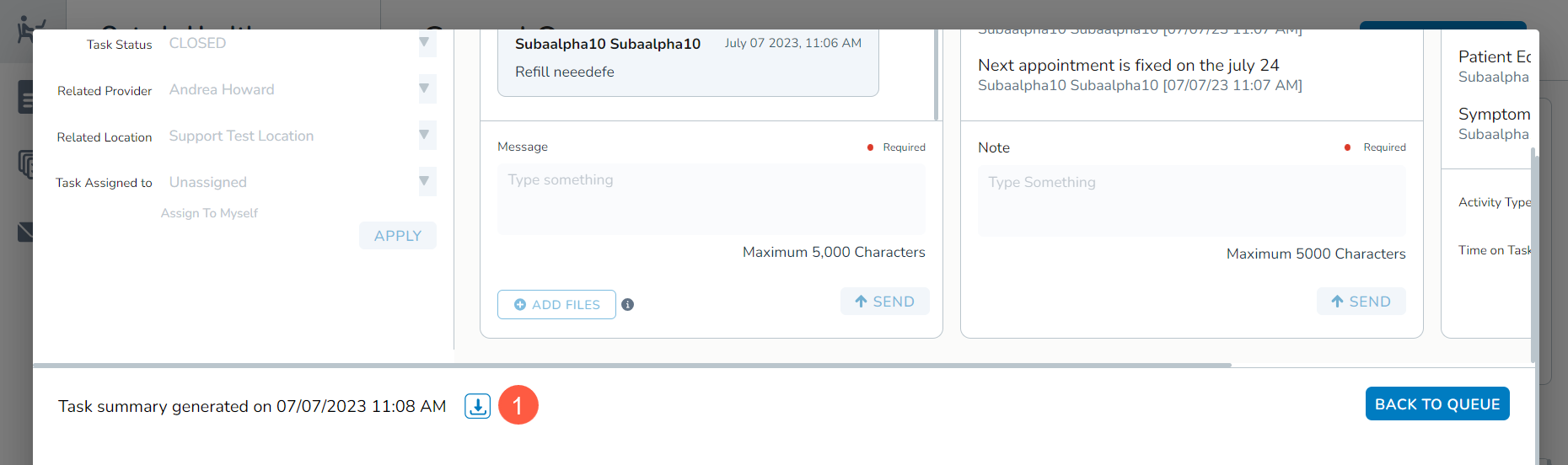
- Scroll to the bottom of the window and click on the download icon (callout 1).
- Attach the downloaded PDF to the patient’s chart using the Attach Documents queue.
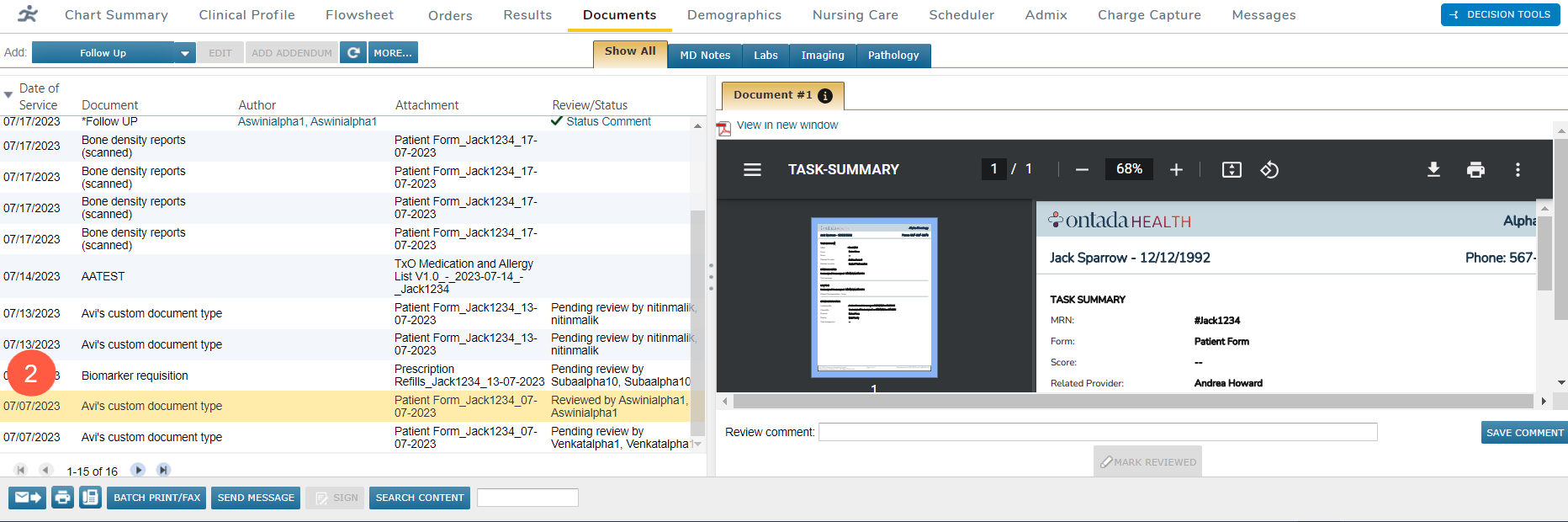
- Once complete, go to the Documents tab, locate the item in the table, and click on it to preview the PDF on the screen (callout 2).