First iteration of Support Tools allows you to resend patient invitations Copied
We are hard at work to ensure practice super users and practice administrators have more control over patient portal users. The Support Tools queue will allow these users to resend portal invitations to patients, deactivate or reactivate patient accounts, reset passwords, unlock accounts, update patient email addresses, and update patient phone numbers.
The first iteration of this queue provides a table view where these users may search for patients, filter the results, save filter presets, and resend invitations as needed.
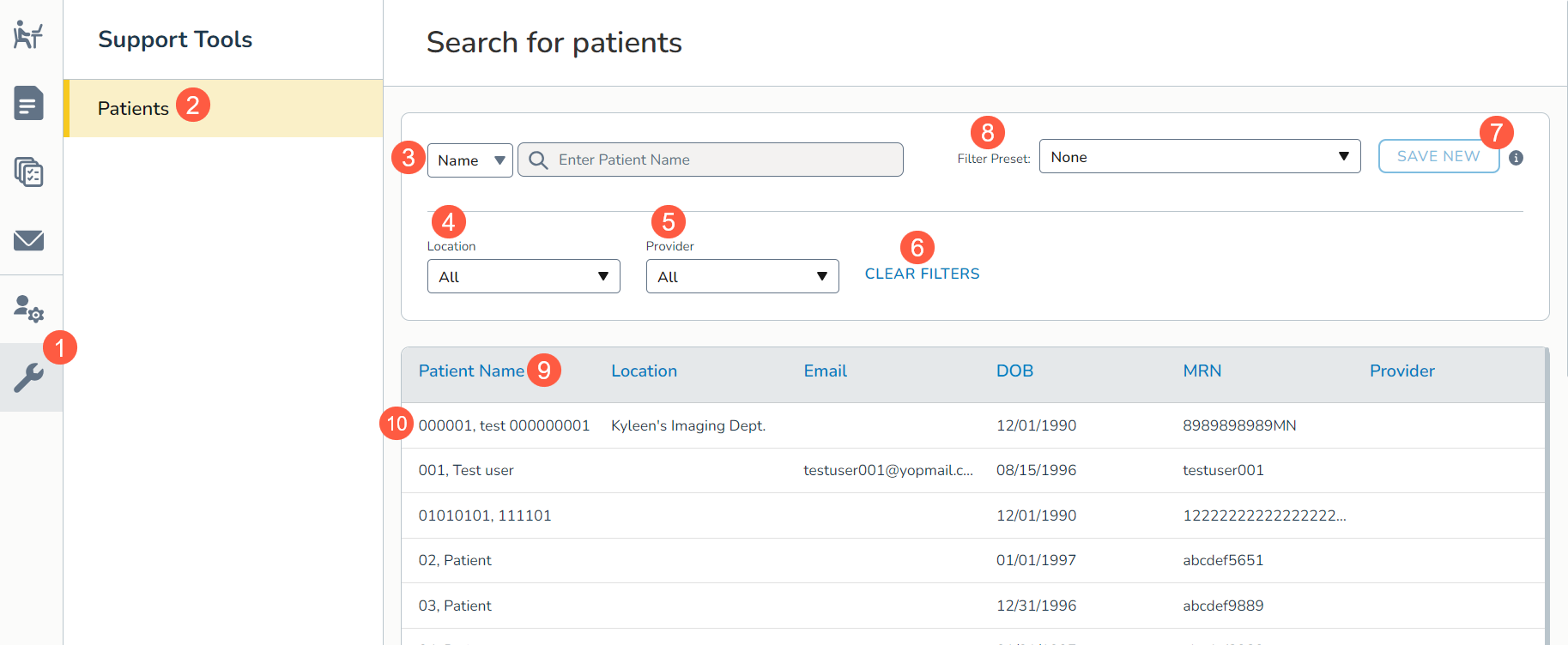
To use the Support Tools queue:
- Go to Admin > Ontada Health.
- Click the wrench icon (callout 1) to access the Support Tools queue.
- In the left-hand column, select Patients (callout 2).
- This will open the Support Tools queue in the preview pane.
- Use the drop-down and search bar (callout 3) to search for patients by Name, MRN, or DOB.
- Use the additional options (callouts 4 and 5) to filter the list by:
- Location: choose one or more sites where the patient is treated.
- Provider: choose one or more physicians treating the patient.
- Use the Clear Filters link to remove or reset the filters (callout 6).
- You can keep the filtered view by saving it as a preset. Click Save New in the upper-right corner (callout 7).
- You can save up to five presets and switch between them using the Filter Presets drop-down (callout 8).
- Further refine your results by sorting each column. Click the column name to sort the information by ascending or descending order (callout 9).
- Click on a patient to view more information (callout 10).
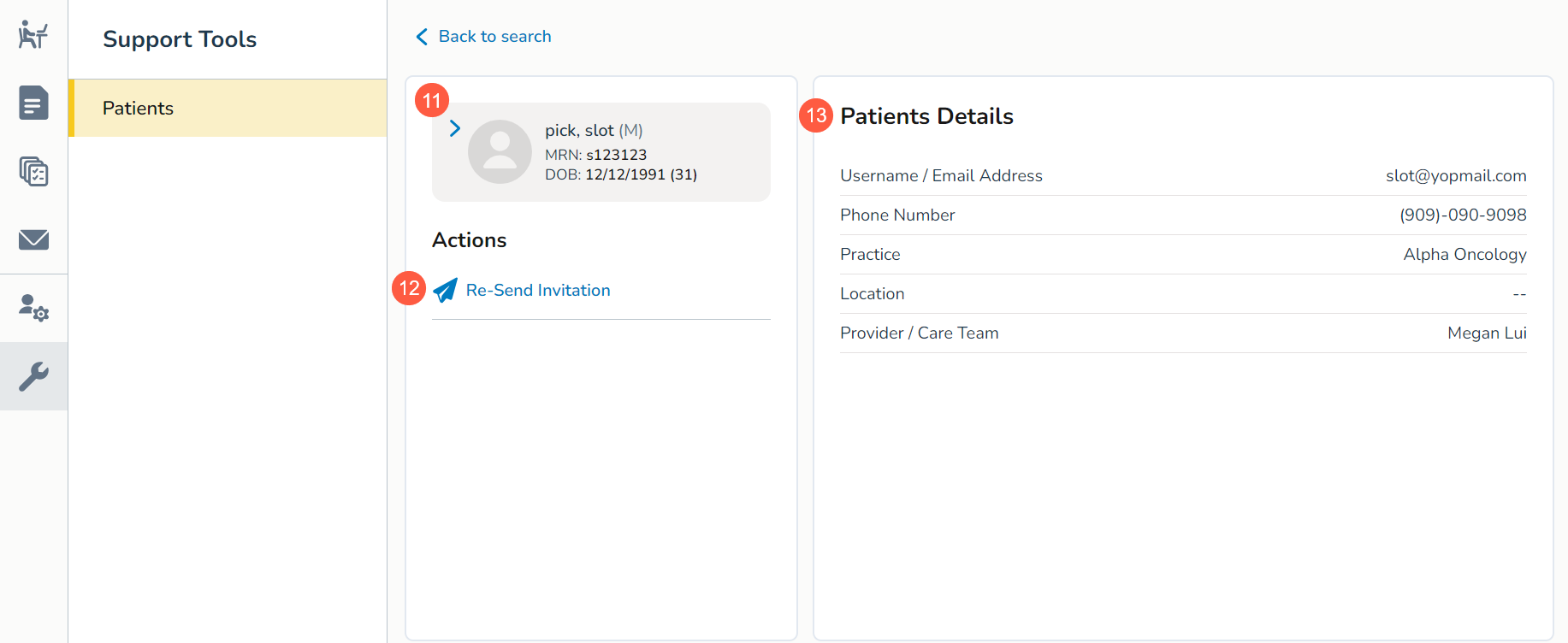
- On the left side of the preview pane, you can view information from the patient’s chart (callout 11) and select the option to resend the patient portal invitation to this patient (callout 12).
- On the right side of the preview pane, you can view the information associated with the patient’s Ontada Health account, such as their email address and phone number (callout 13).
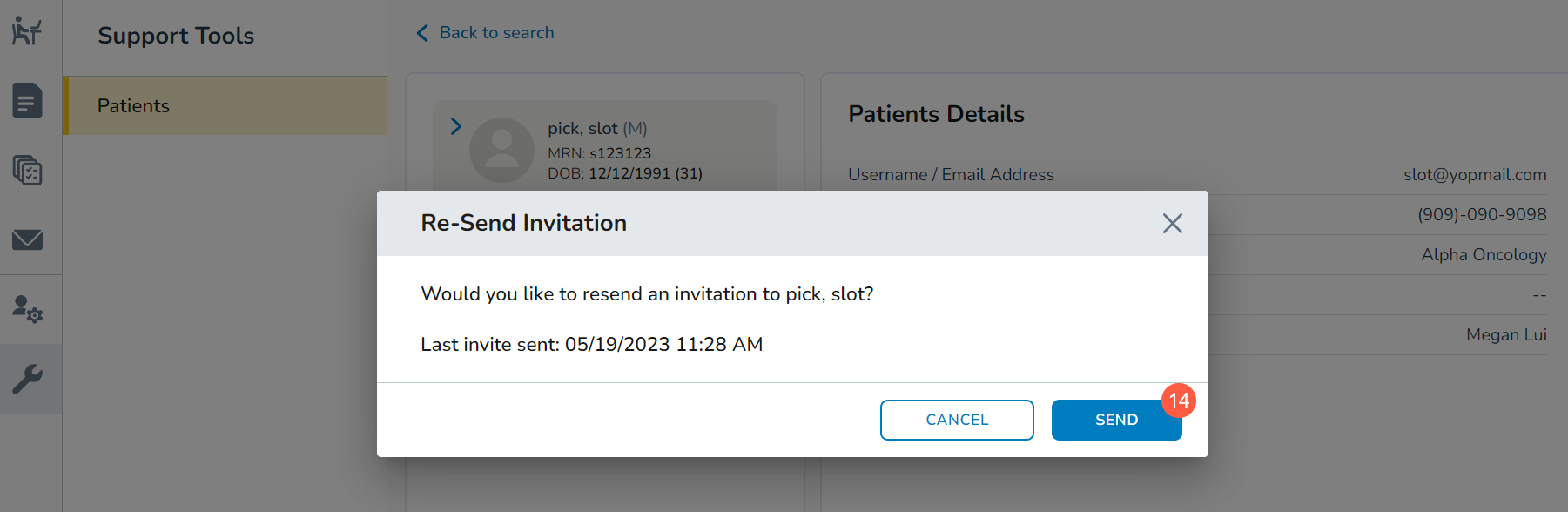
- If you choose to resend the invitation to the patient, you will be presented with a message to confirm the action. Click the Send button (callout 14) to resend the invitation.
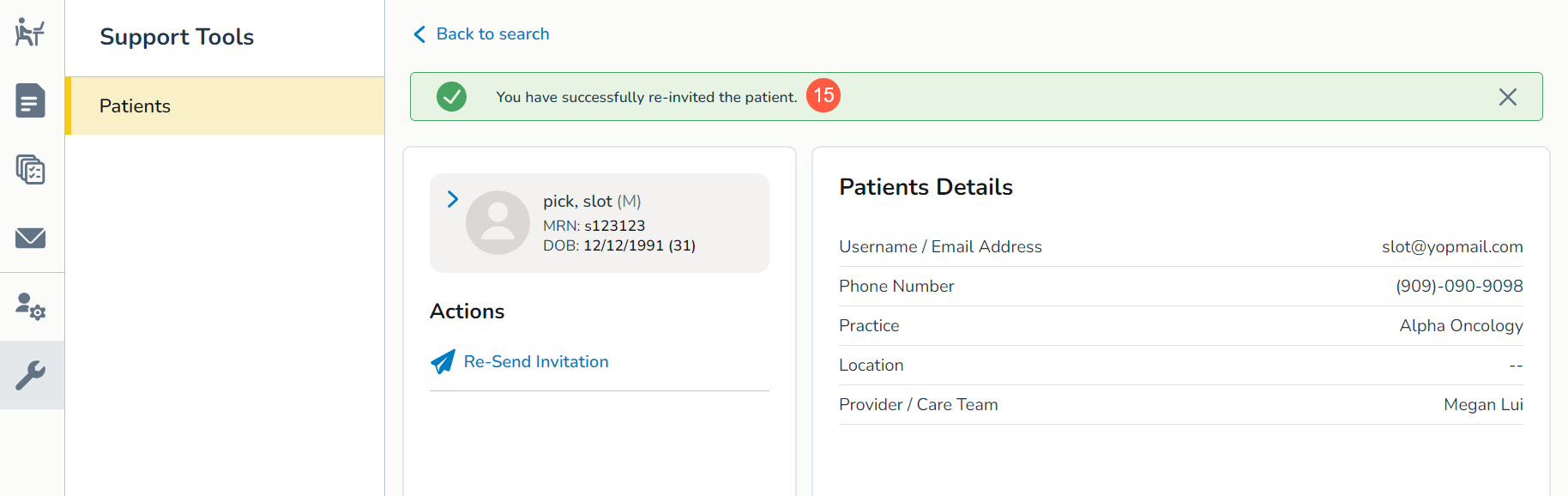
- You will see a success message appear on the screen (callout 15) and the invitation will be resent immediately.