Ability to change patient’s email address Copied
The Support Tools queue now empowers you to change a patient’s email address, ensuring their account is linked to the most appropriate email.
To change a patient’s email address:
- Open the Support Tools queue.
- Locate the patient and access their account details.
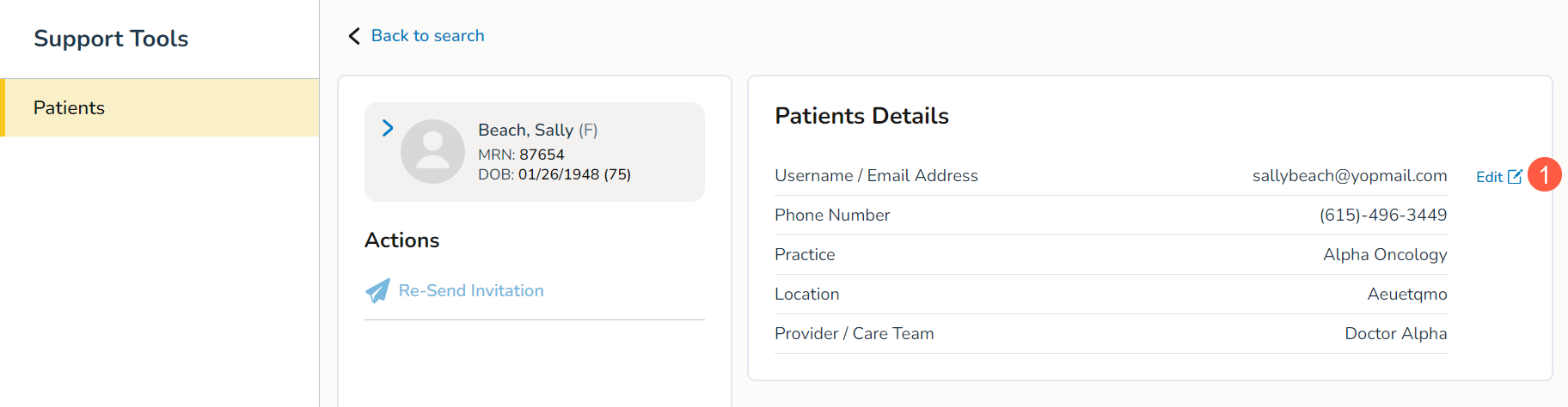
- In the Patient Details section, click the new Edit icon next to the Username / Email Address field (callout 1).
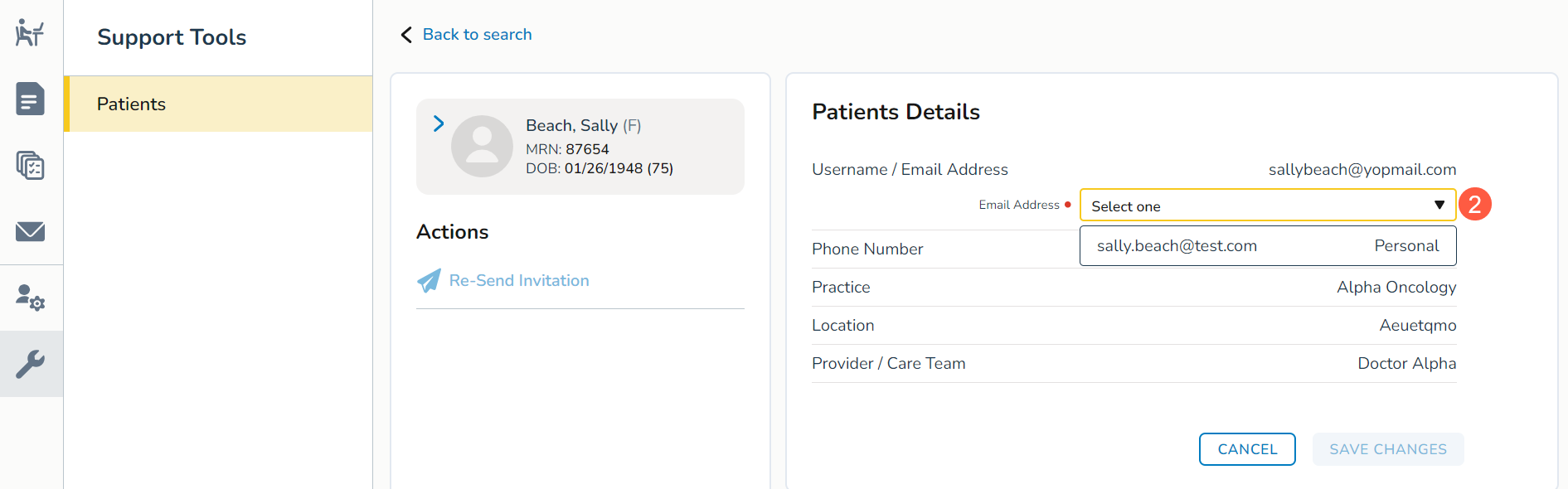
- This will open a new Email Address drop-down to select an email associated with the patient’s iKnowMed patient chart (callout 2).
NOTE: A notification will appear if an Ontada Health account already exists for the chosen email.
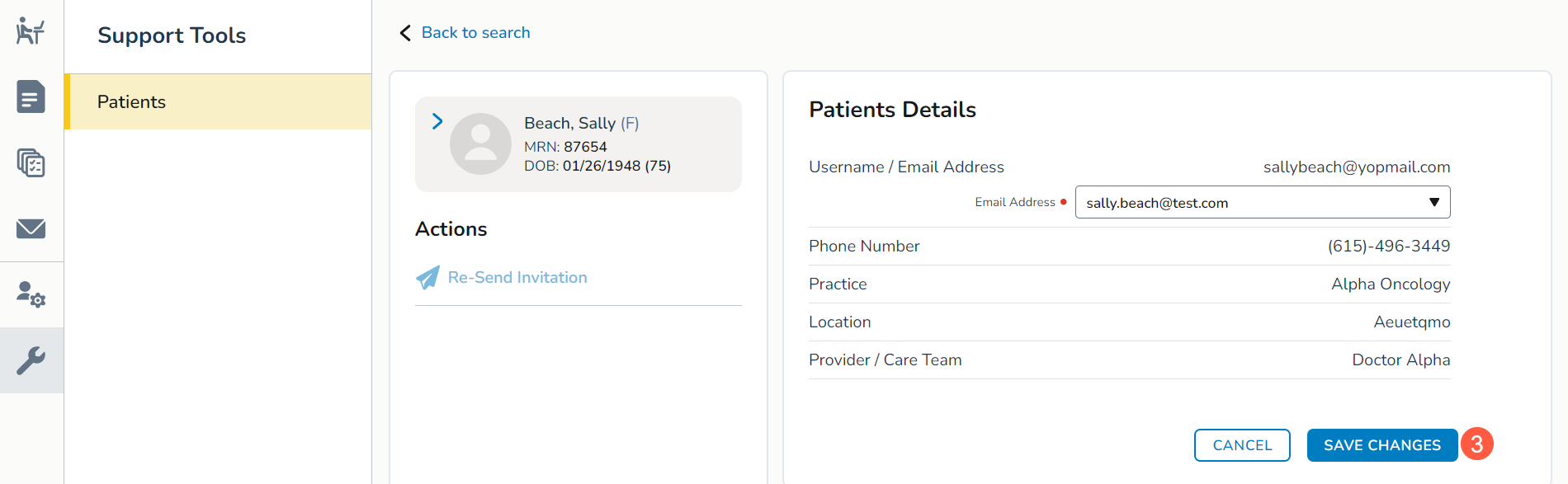
- After choosing a different email address, click the Save button (callout 3)
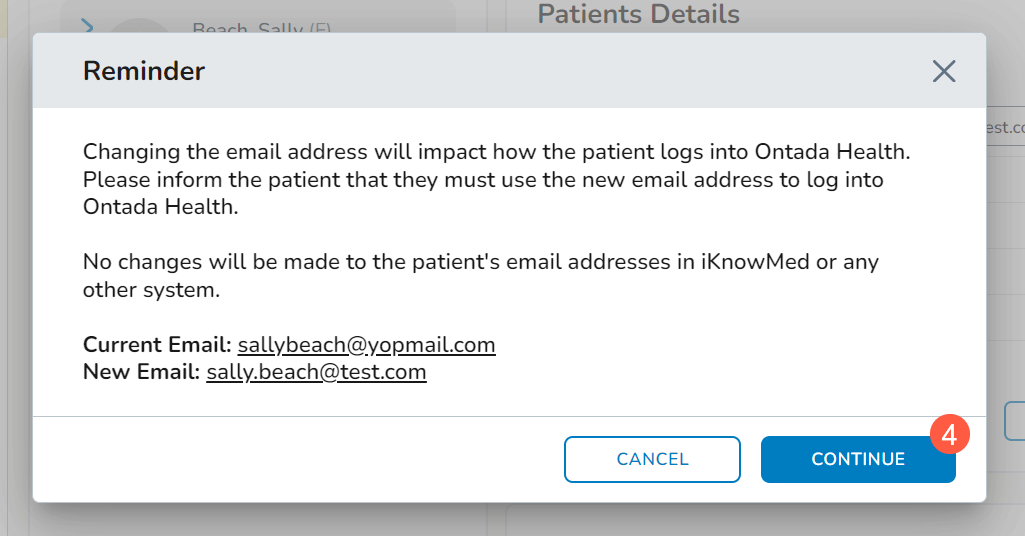
- A confirmation window will prompt you to click Continue to finalize the process (callout 4).
- If the patient hasn’t created an Ontada Health account, an invite will be immediately sent to the selected email.
- If the patient has already created an Ontada Health account, they must log in using the newly selected email address going forward.
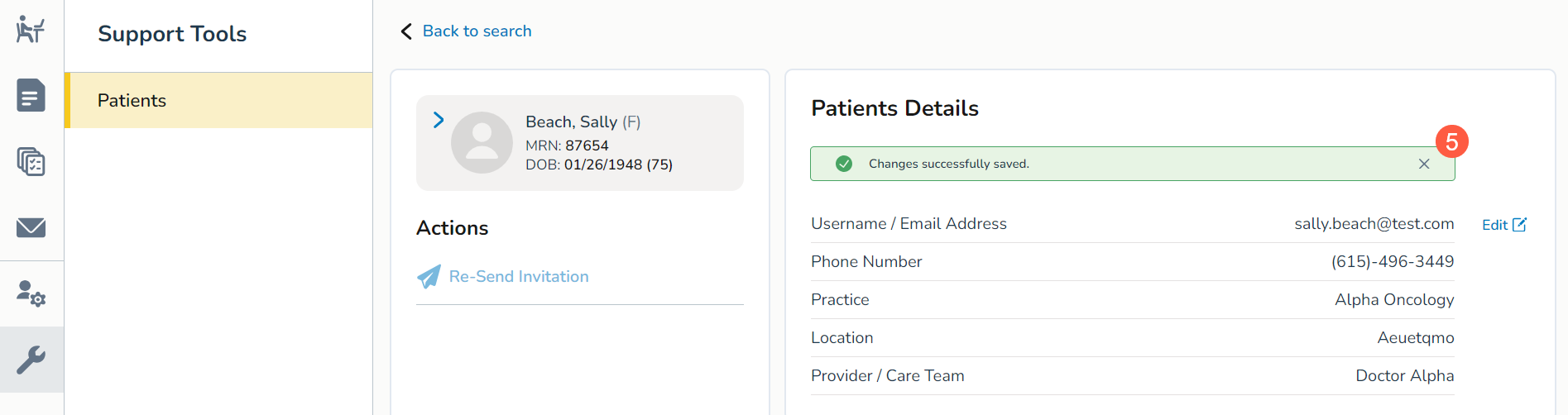
- A success message confirms the completion of the process, while an error message appears if unsuccessful (callout 5).