
Document EOM episodes in the VBC Care Plan Copied
he Centers for Medicare & Medicaid Services (CMS) is introducing a new program called the Enhancing Oncology Model (EOM) on July 1, 2023. To support this program, we added a new EOM section to the VBC Care Plan. To use this feature, practices must be enabled to document in the VBC Care Plan. Please reach out to your Transformation Lead for EOM support and your Account Manager for technology enablement.
To document EOM episodes and charges:
- Open a patient chart and go to Clinical Profile > Care Plan.
- Add a new VBC Care Plan or edit an existing one.
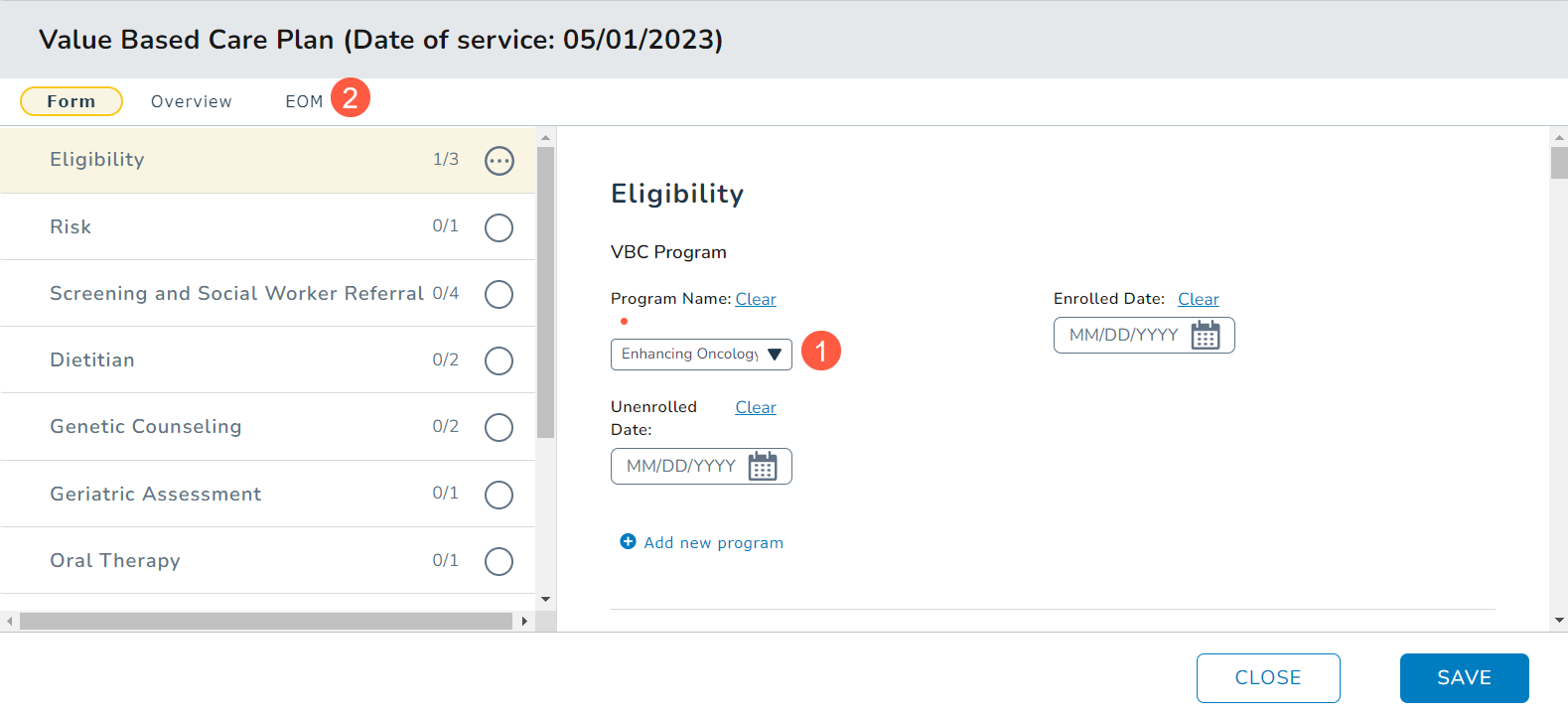
- Choose Enhancing Oncology Model as the Program Name (callout 1).
- This will create an EOM section in the plan (callout 2).
- You can click on the EOM section to begin your documentation.
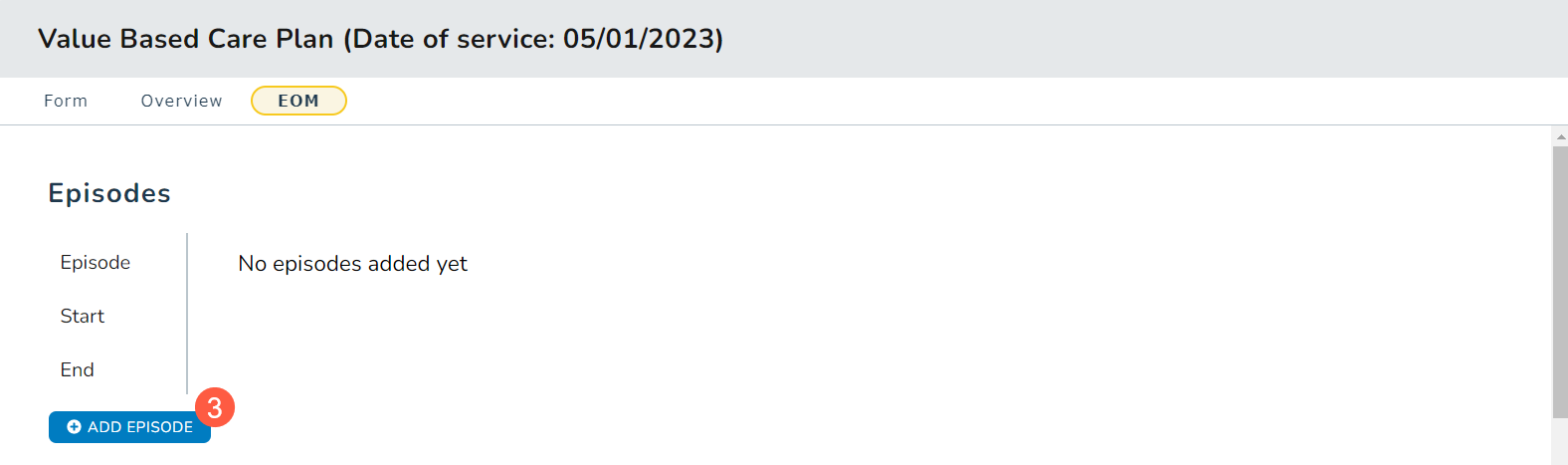
- To add a new episode, click the Add Episode button (callout 3). Any existing episodes will be listed under the Episodes section.
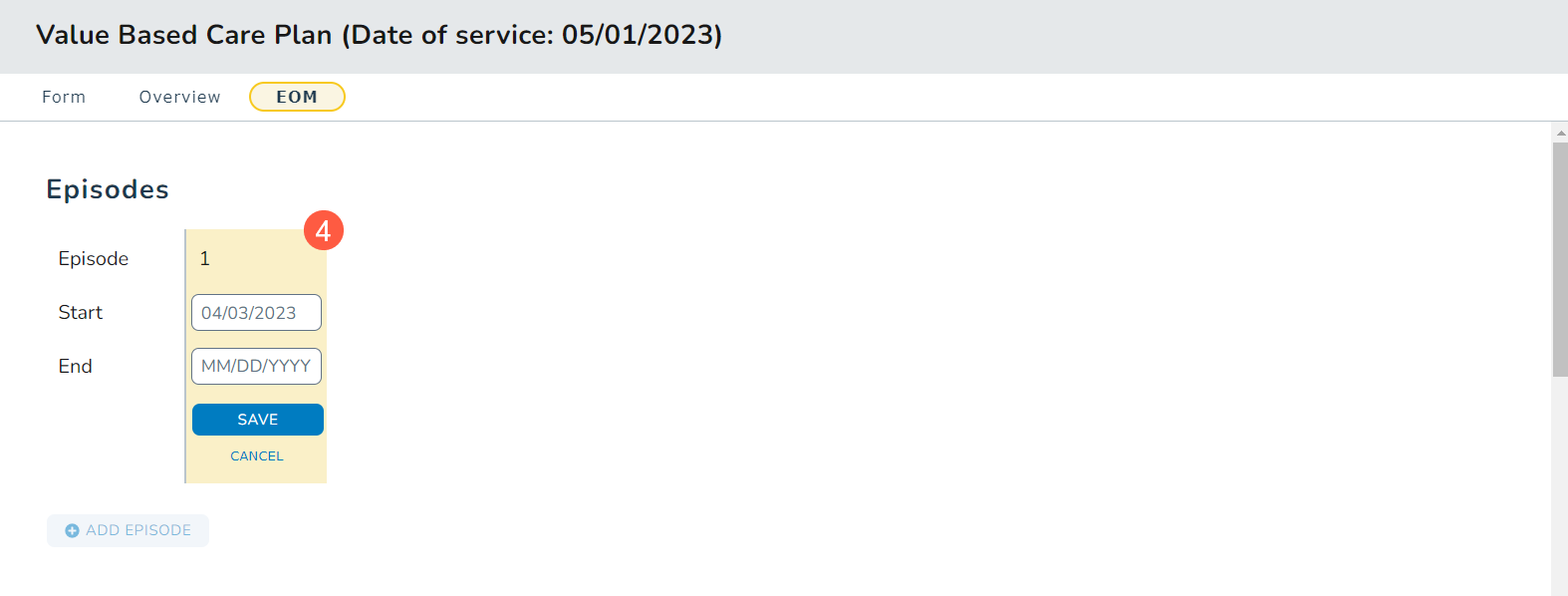
- Add a Start date and End date for this episode (callout 4) and save your changes.
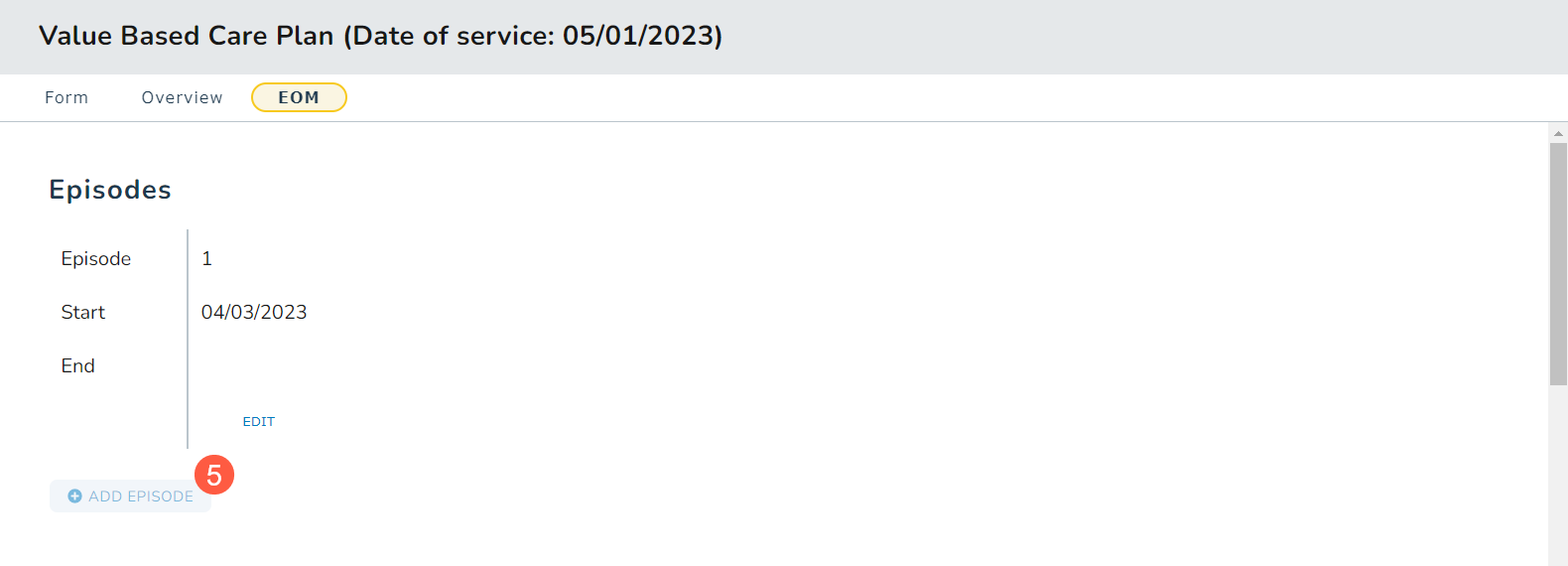
- The Add Episode button will be disabled until you select and save an end date (callout 5).
- The EOM care plan will allow you to enter up to 10 episodes during the duration of the EOM program.
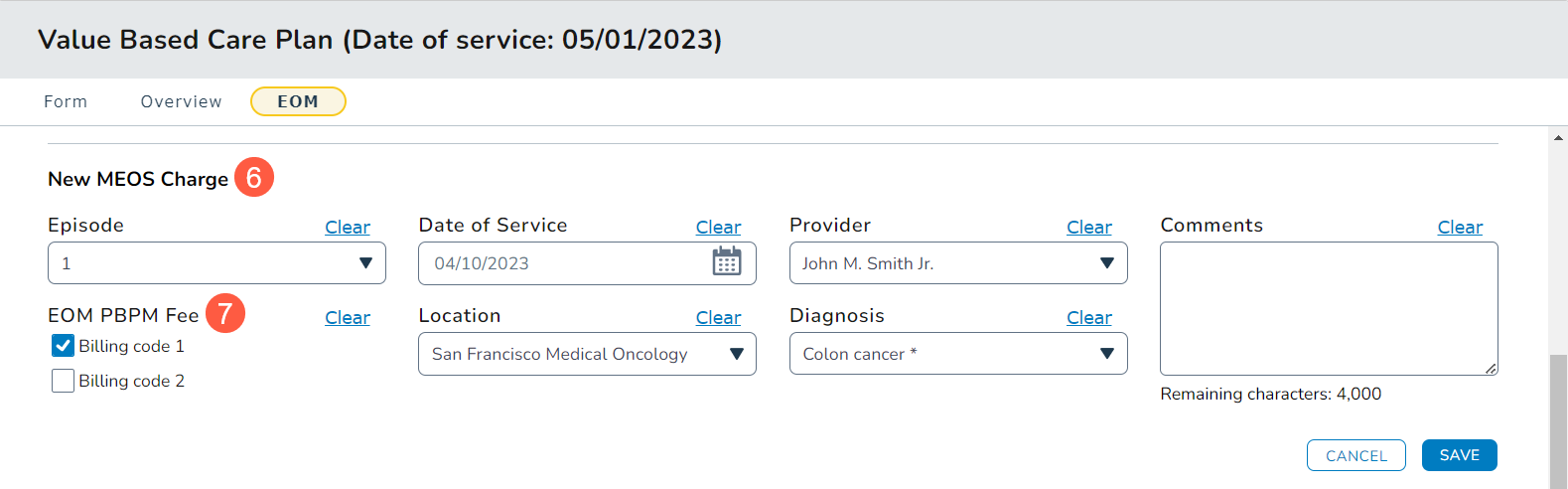
- Once an episode is created, you can document charges associated with the episode under the New MEOS Charge section (callout 6)
- Choose an Episode from the dropdown and document the Date of Service, Provider, Location, Diagnosis, and/or any needed Comments for that episode.
- The Date of Service field will default to today’s date. You may change this date to one in the past, but the care plan will not let you select a future date.
- The Provider field will automatically populate if the patient has a single attending provider. If more than one attending provider is present, you will need to select the correct provider.
- The Location field allows you to select from the list or begin typing to search for the appropriate location.
- The Diagnosis field will automatically populate if the patient has a single principal diagnosis. If more than one principal diagnosis or no principal diagnosis is designated, you will see all diagnoses in the dropdown menu.
- Once an initial charge is made, the Provider, Location, and Diagnosis fields will retain the most recent selection. You may make changes as needed.
- Choose a billing code under the EOM PBPM Fee area (callout 7).
NOTE: We are waiting for CMS to publish the billing codes for EOM. The billing codes in this area will be updated to reflect the actual codes in the July 2023 release.
- Save your changes.
- Any charges saved will appear under the Billing History section (callout 8).
- After completing the episode or charge information, save the care plan.
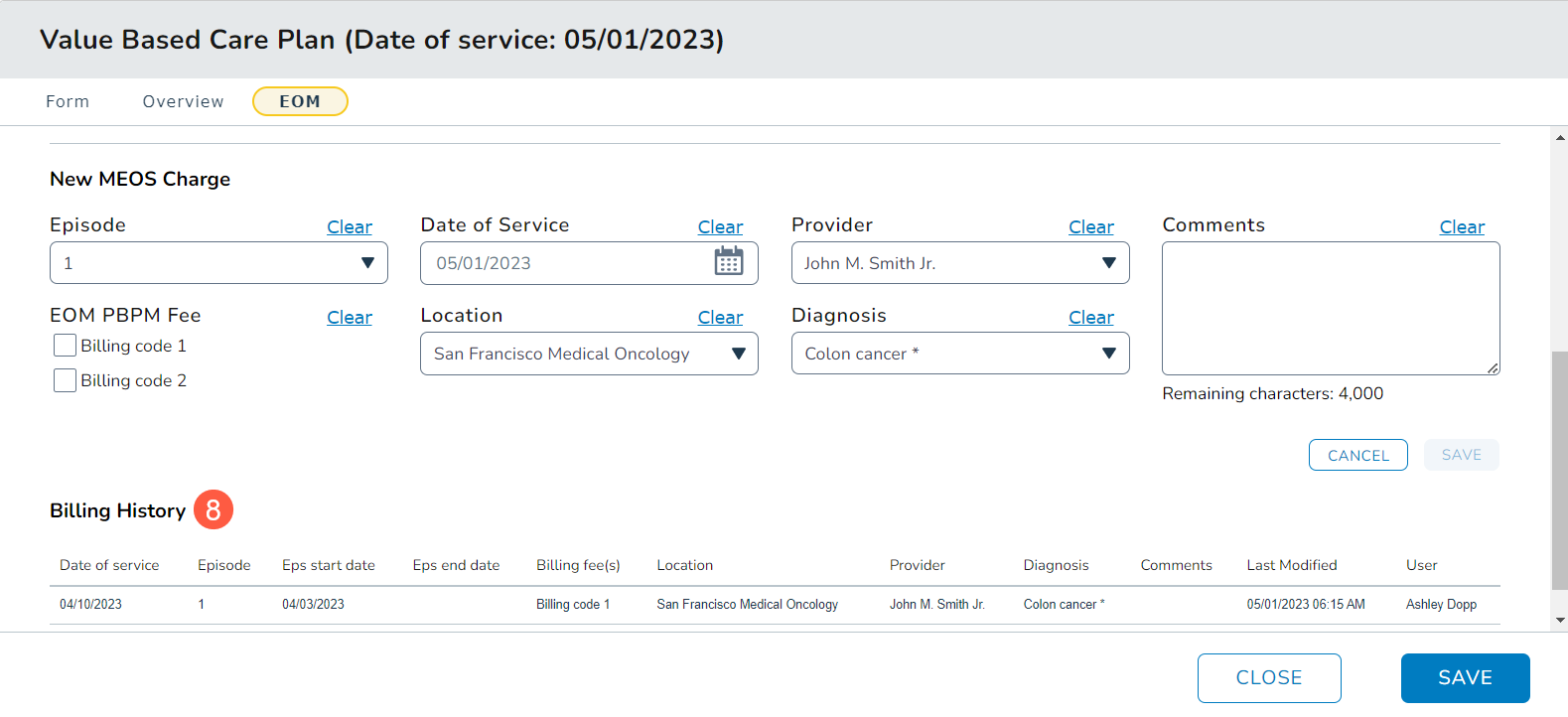
- If you need to change any billing information for an episode, create a new charge and call out the change in the Comments and save it.
- The update will appear in the Billing History in descending order so most recent updates appear at the top.