
iKnowMed Support Chat Copied
We’re introducing new chat functionality in iKnowMed to offer you a seamless way to connect with technical support directly within the application. With this feature, you can expect quicker responses to inquiries, whether through automated responses or by connecting with a live agent.
Powered by Natural Language Processing (NLP) technology, our support chat is designed to understand user intent, decipher context, and deliver accurate responses.
As beta testers, you will help validate the accuracy of and identify common queries for our NLP-driven support chat. Your participation will not only enhance the performance of our support chat but also contribute to a smoother experience for all users.
We appreciate your commitment to testing and utilizing this feature before its full rollout. Your feedback is invaluable in shaping the future of iKnowMed’s support services.
How to use this feature
- From the top navigation, click the question mark icon (callout 1).
- Select Contact Support (callout 2).
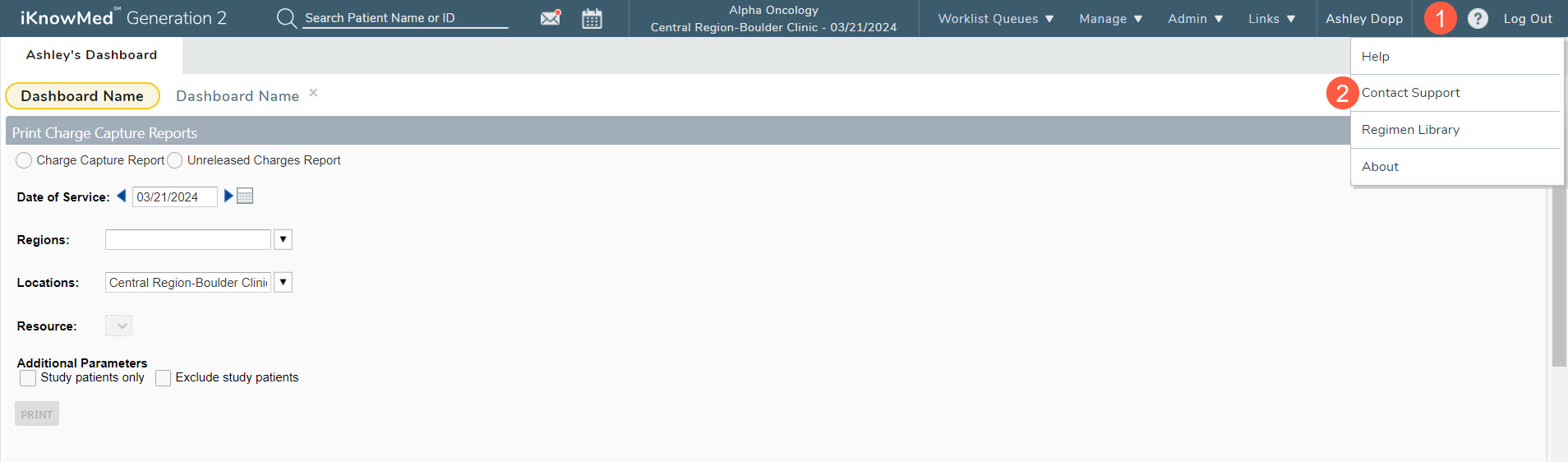
- This will open a Chat tab at the bottom of the screen (callout 3).
- You can drag and drop the tab anywhere on the bottom of the screen so that you may continue to view what’s open on your screen.
- Click the tab to open the chat window.

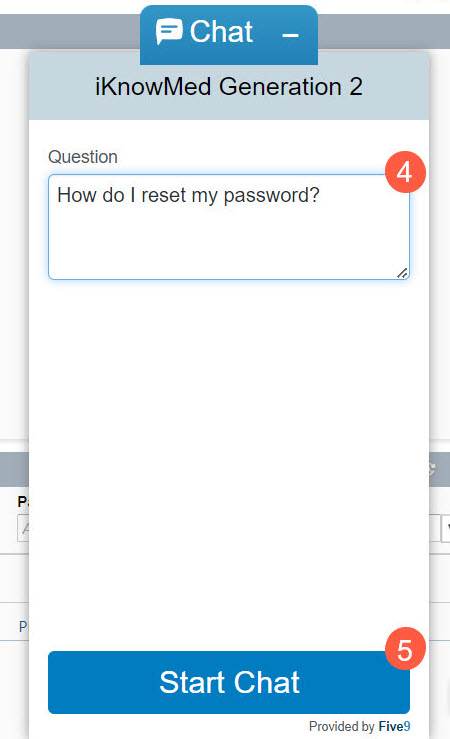
- Enter your question in the text box (callout 4) then select Start Chart (callout 5) to initiate the conversation with a virtual assistant.
NOTE: Once a chat is initiated, a ServiceNow ticket is created to track your inquiries until they’re resolved.
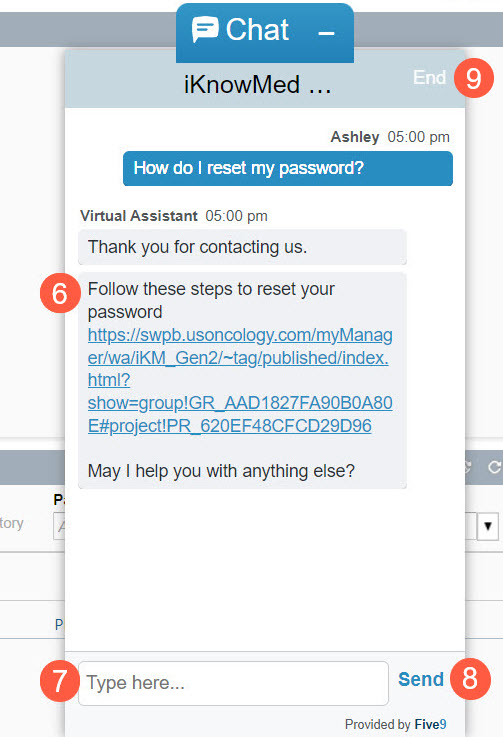
- Some questions may be answered automatically with preapproved answers and instructions (callout 6), or they require users to share more details.
- Use the text box to enter more details or ask additional questions then select Send (callouts 7 and 8).
- If you need to leave the chat at anytime, click End in the upper corner of the chat box (callout 9).
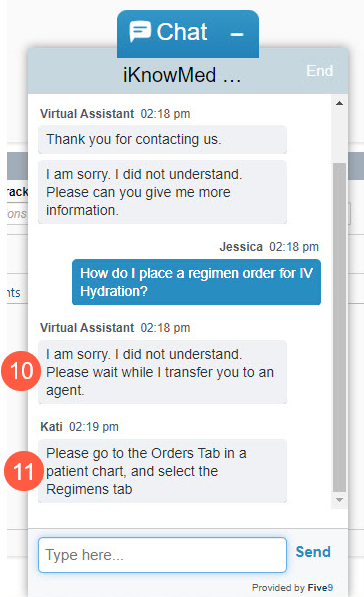
- For more complex questions, an automated response may not be available. The virtual assistant will connect you to an agent (callout 10).
NOTE: Agents are available during normal support business hours, Monday through Friday, 6 a.m. to 6 p.m. CT.
- A live agent will join and do their best to answer your inquiry and provide assistance through the chat (callout 11).
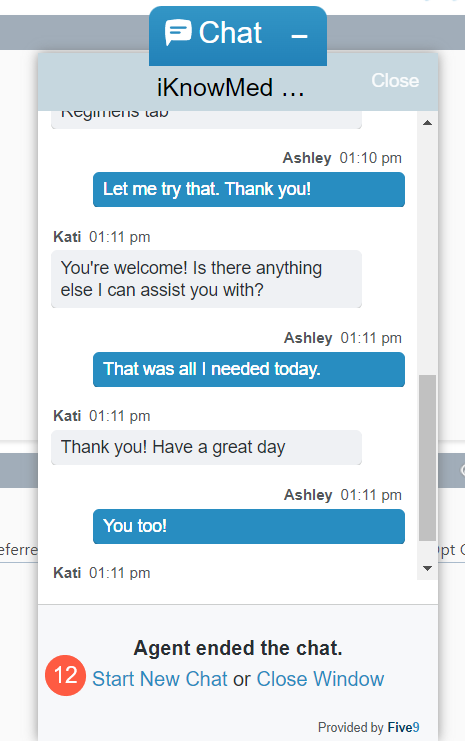
- Once your concern is addressed, the agent will end the chat.
- You can start a new chat or close the chat by selecting one of the links at the bottom of the chat window (callout 12).
- If the agent is unable to assist virtually, they may reach out to you separately by phone to gather more details and help resolve your inquiry.
- The ServiceNow ticket created during chat initiation will remain open to track your inquiry until it is resolved.
- To fully close the chat and remove the tab from your screen, click on the X in the upper corner of the Chat tab (callout 13).
