Send messages faster and easier with enhanced messaging experience Copied
This release introduces improvements to the messaging experience, making it easier for users to compose or reply to messages, including messaging directly in patient charts.

Message Center enhancements
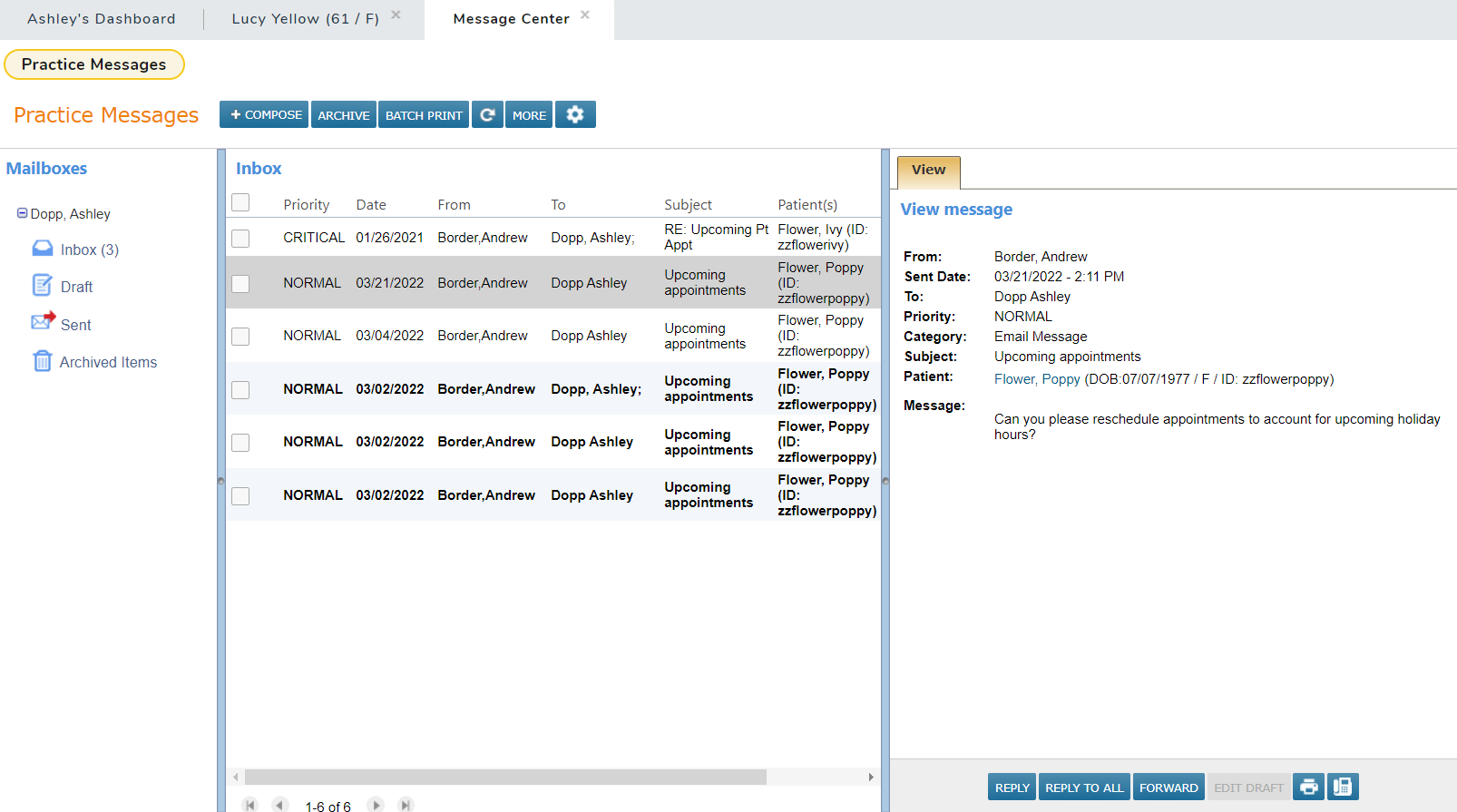
Now when composing or replying to messages, the messaging feature appears on the right side of the page instead of as a pop-up in the middle of the page. The feature retains its existing functionality but allows users to still see and use their mailboxes.
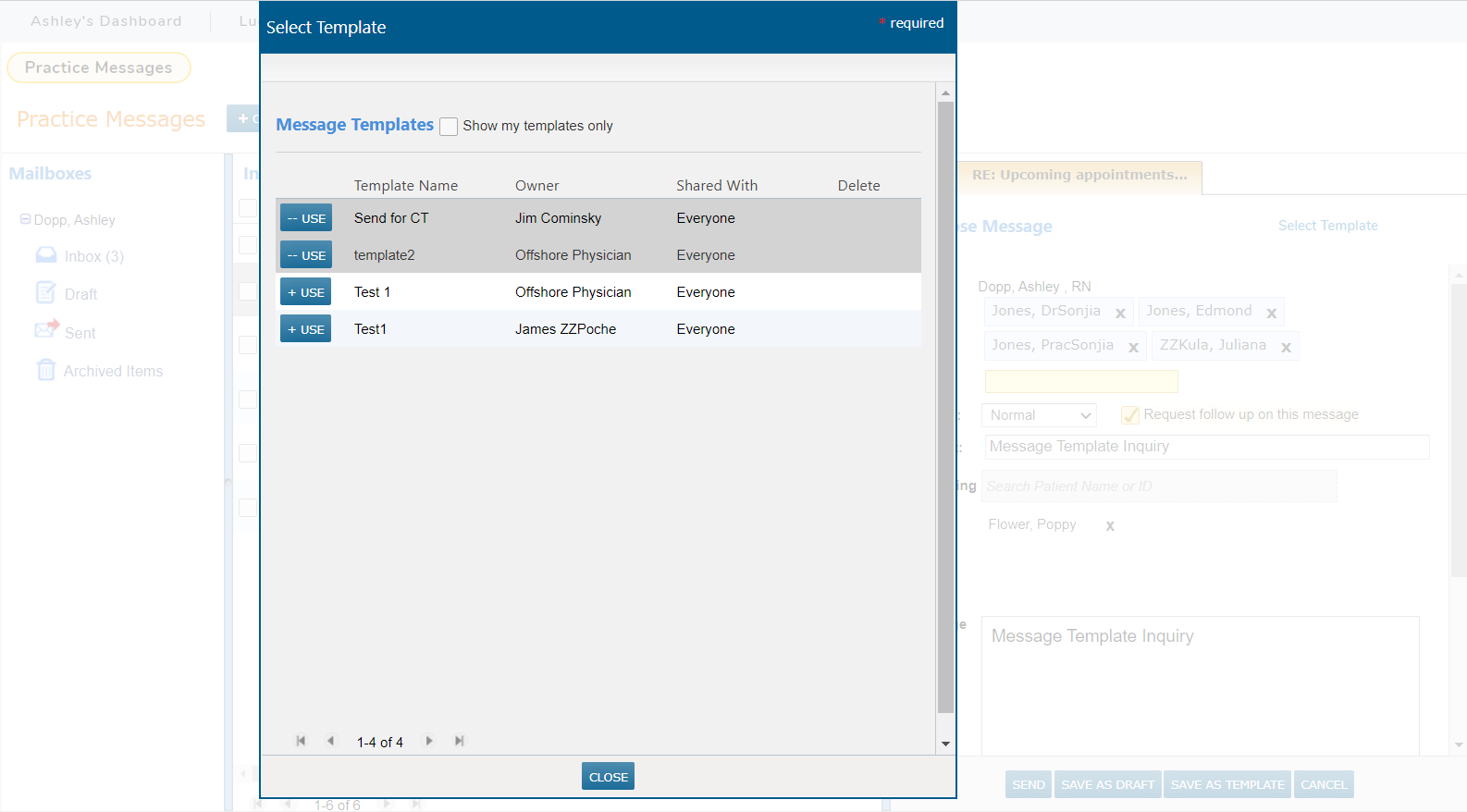
When composing or replying to a message, the Select Template feature will now appear as a pop-up in the middle of the page. This update allows users to see their drafted message on the right side of the screen, including the message recipients. Users can also choose more than one template simply by clicking the templates they wish to apply to the message. The selected templates will appear in a gray highlight. Additionally, users can delete a selection from this screen.
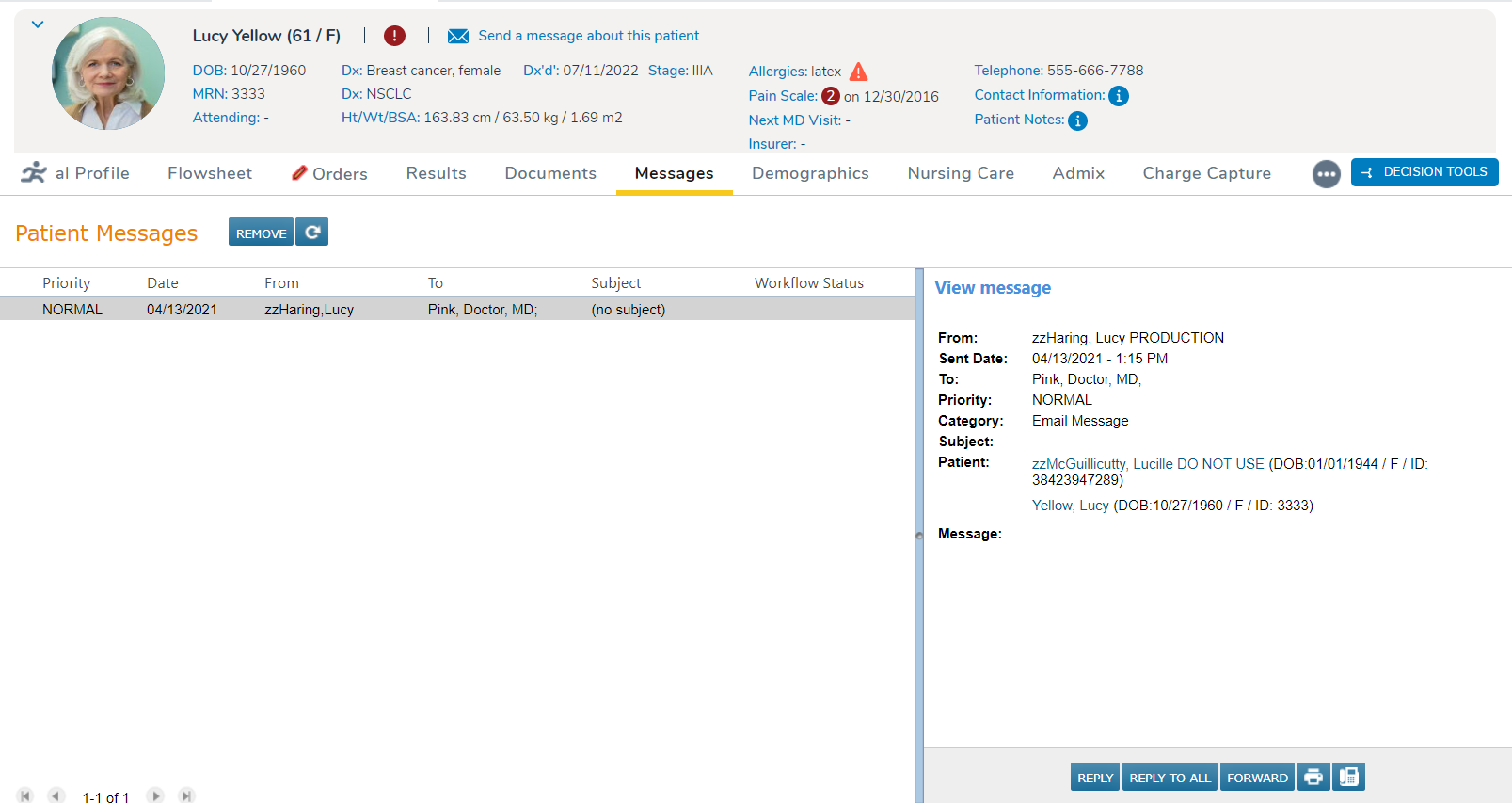
New Messages tab in patient charts
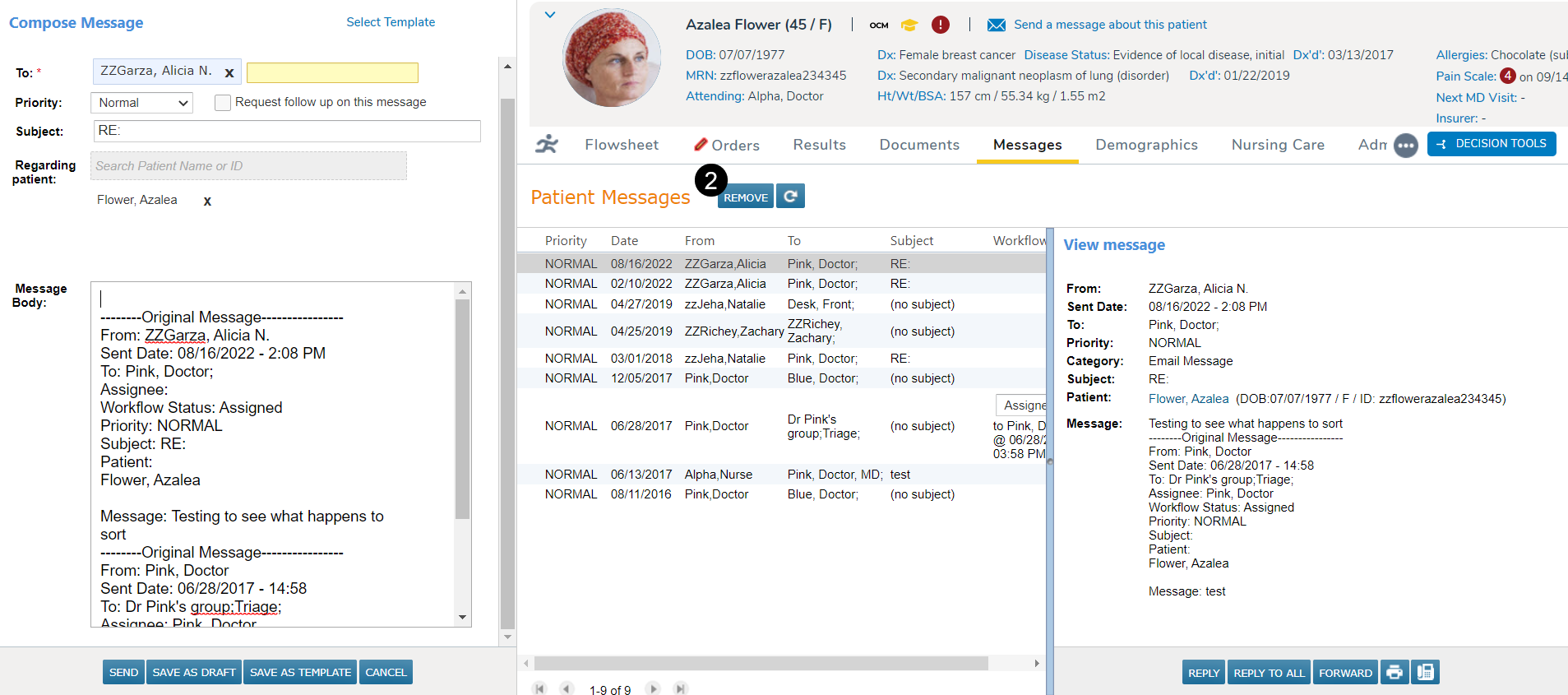
We are also introducing a new Messages tab to patient charts. Users must be granted permission to access this tab. Please talk to your practice administrator for access.
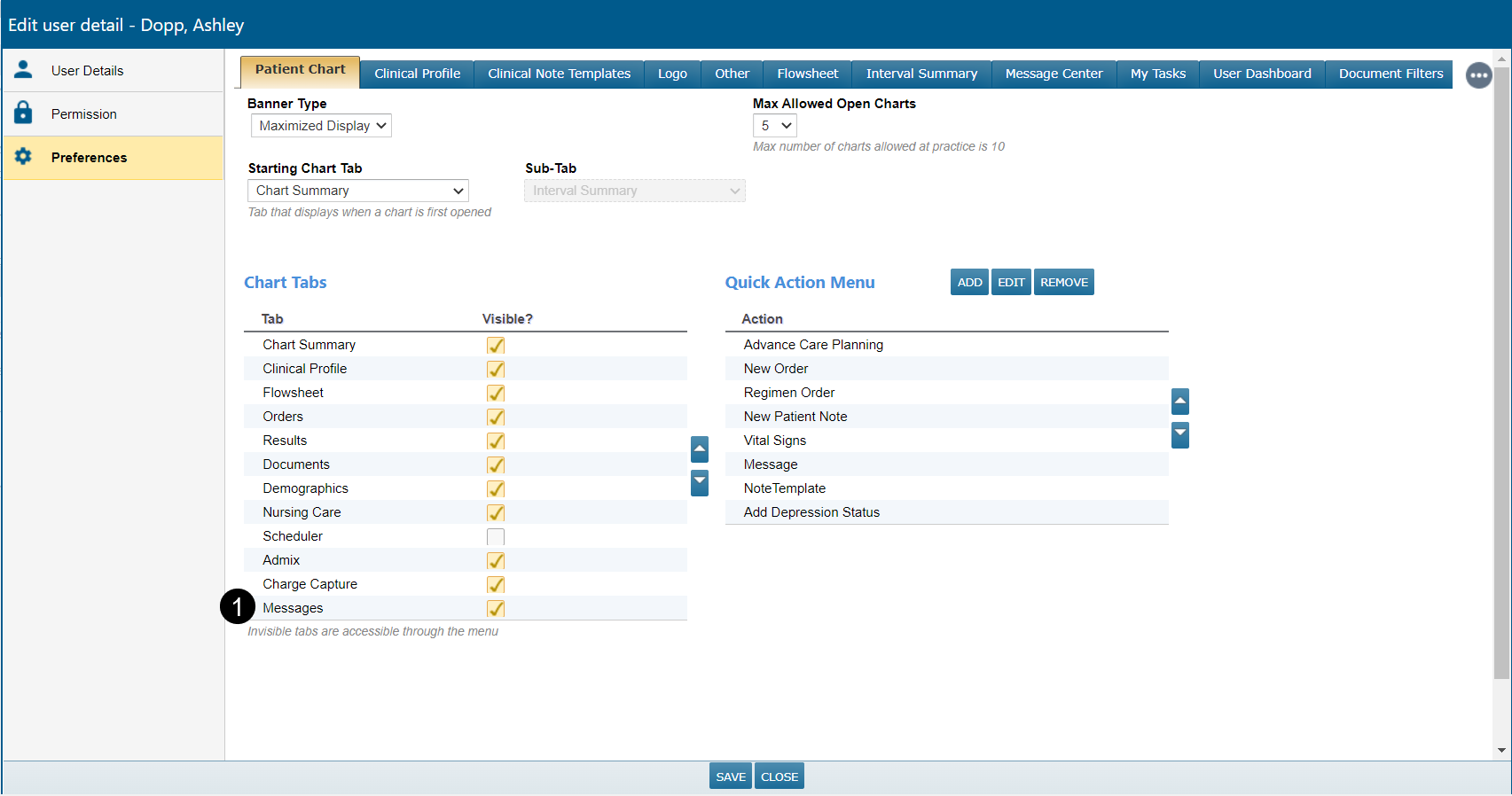
NOTE: If granted permission for this tab but it does not display in patient charts, users can uncheck and recheck the box next to the Messages option in their Preferences (callout 1). Users must save their changes and log out and back in for this change to take effect and see the tab as expected.
Users can also move this tab up or down using the arrows under Chart Tabs so that it displays in their preferred order.
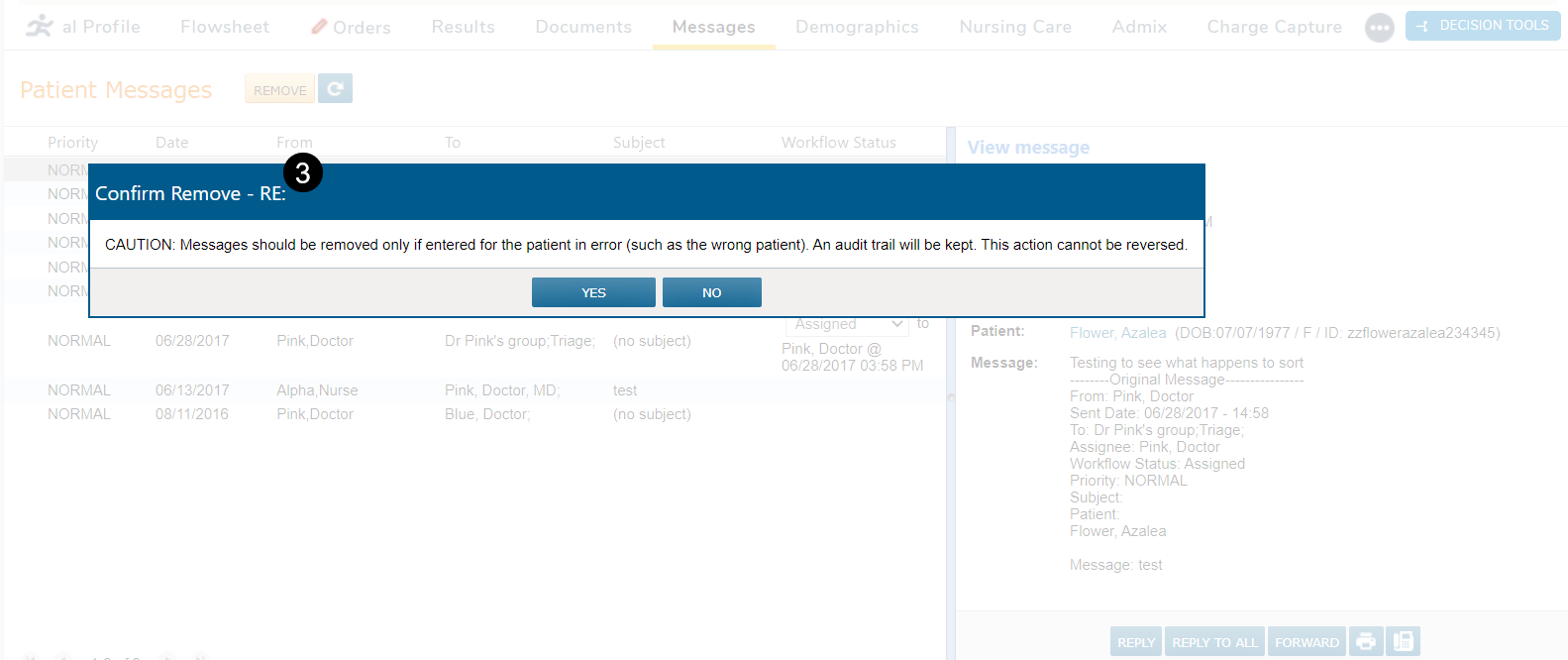
The Messages tab functions similarly to the enhanced Message Center, but the messaging feature appears on the screen’s left side. Furthermore, when clicking the Remove button (callout 2), users will be presented with a confirmation message before the action is completed (callout 3).