
Save a click with clinical notes copy forward feature Copied
The new Copy Forward Recipients setting for clinical note templates saves providers a step by automatically adding recipients from the most recently sent note to the current note.
This feature is template based. To activate this feature:
-
Go to Manage > Clinical Note Templates.
-
Locate and select the preferred notes template.
-
Click the EDIT button.
-
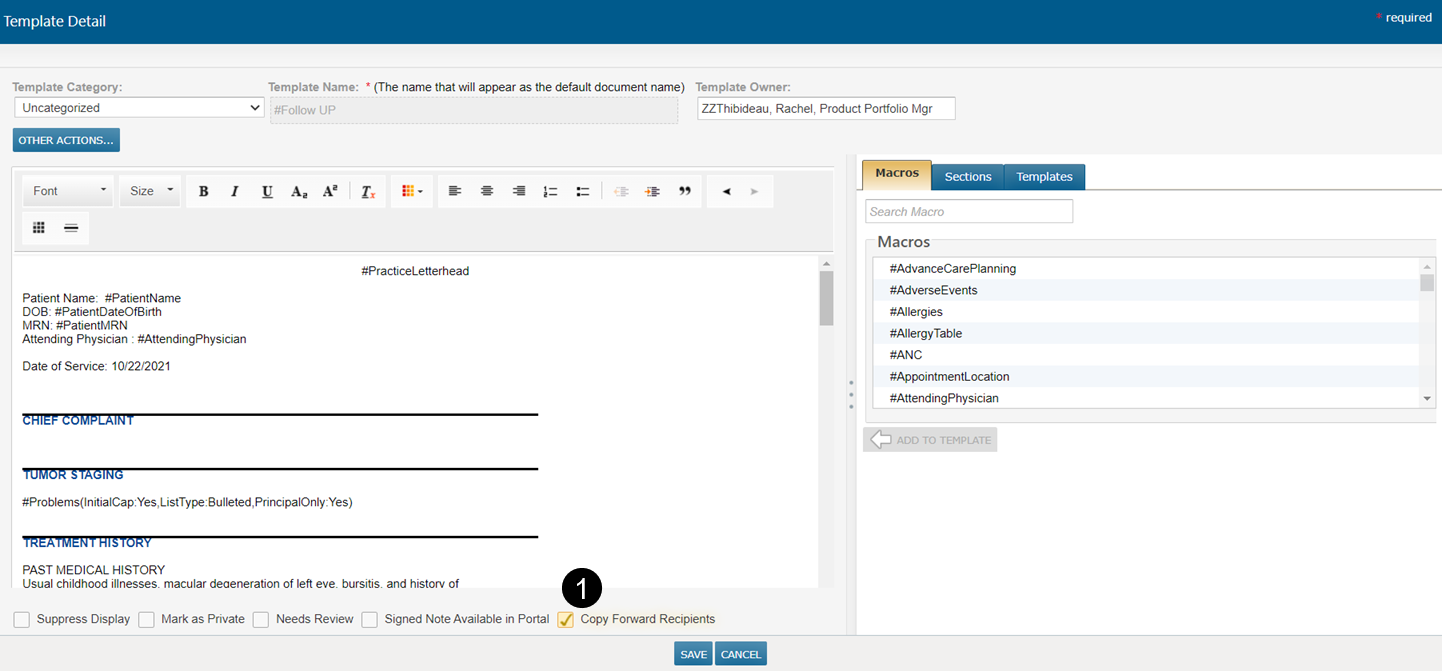
Ensure the new Copy Forward Recipients setting is turned on (see callout 1).
-
SAVE your changes.
In a future release, users will be able to do bulk updates for Copy Forward Recipients.
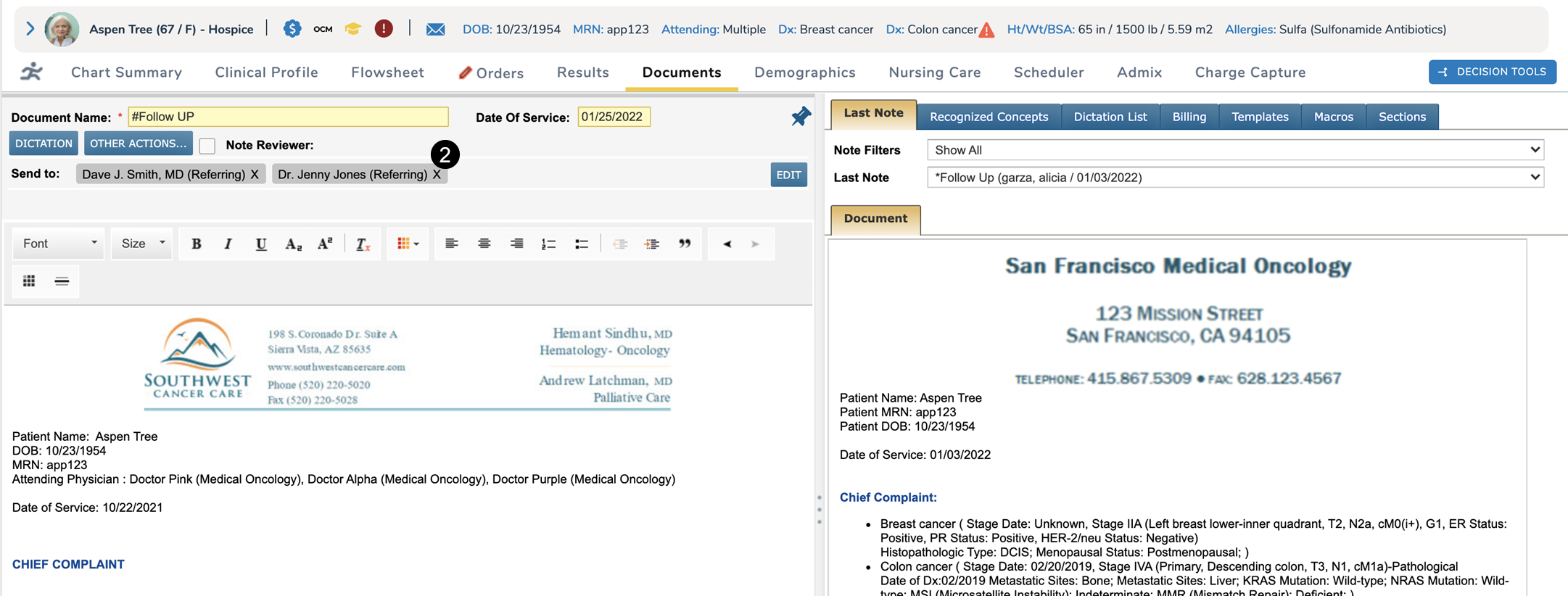
The first time a note is created post-release, users must still add their intended recipients. After the initial note is signed and sent, the copy forward feature activates, and those same recipients will be automatically added to subsequent notes in the Send to line (see callout 2).
NOTE: If a user sends a note to additional providers after the initial send, the next note created will only include the recipients of the most recent send. For example, if two providers are sent a note upon signing and then an additional provider is sent the note by fax or direct exchange from the Documents tab, only the additional provider will be visible in the Send to line in the next note. This is because the code only looks for the most recently sent set of recipients. On the subsequent note the 2 original providers will need to be added back into the recipients list.