
Regimen Templates: Search for Non-Medication Orderables by CPT Code Copied
What’s changing
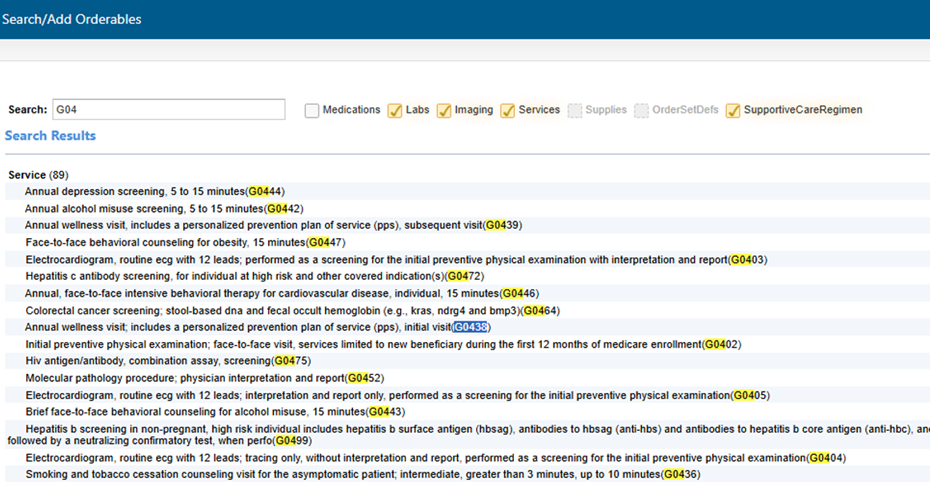
When building or editing a Regimen Template, users can search for non-medication orderables using a CPT code in addition to searching by orderable name.
To access this, go to Manage > Regimen Templates, select a current template or create a new one, and choose the option to add orderables under the Regimen Items section. This will open the window to search for items.
Previously, entering a CPT code in the search field returned no results, even when a CPT code was stored for that item. Users were required to know the exact name to locate it.
Going forward, entering at least 3 CPT code characters will initiate a search, which refines as more characters are entered. The results will display the Orderable Type, Orderable Name, and associated CPT Code(s).
Supported orderable categories include Labs, Imaging, Services, and Supportive Care Regimens, among others.
Why this matters
Clinical trial regimen builders reference CPT codes when configuring regimens to ensure alignment with protocol specifications. Without CPT-based search, staff had to manually identify orderable names before they could locate and add them, introducing friction and the risk of selecting an incorrect item. This enhancement eliminates that workaround and reduces configuration errors during regimen setup.