New health records sharing feature in patient portal Copied
We’re introducing a new feature in the Ontada Health patient portal that allows patients and caregivers to share health records, making health record management easier and more efficient. This enhancement can also help patients and their loved ones better manage health conditions, adhere to treatment plans, correct errors in their health records, and monitor progress over time.
How to share health records:
- Log into the Ontada Health patient portal.
- From the top navigation, select Health Records.
- On the Health Records page, select the new Download/Send Records sub-page (callout 1).
- On top of the page, a notice explains that while you can choose a date range, a full history will always be included for problems, medications, allergies, and immunizations (callout 2).
- Select a date range.
- If choosing a custom range, use the date picker fields to select specific dates (callout 3).
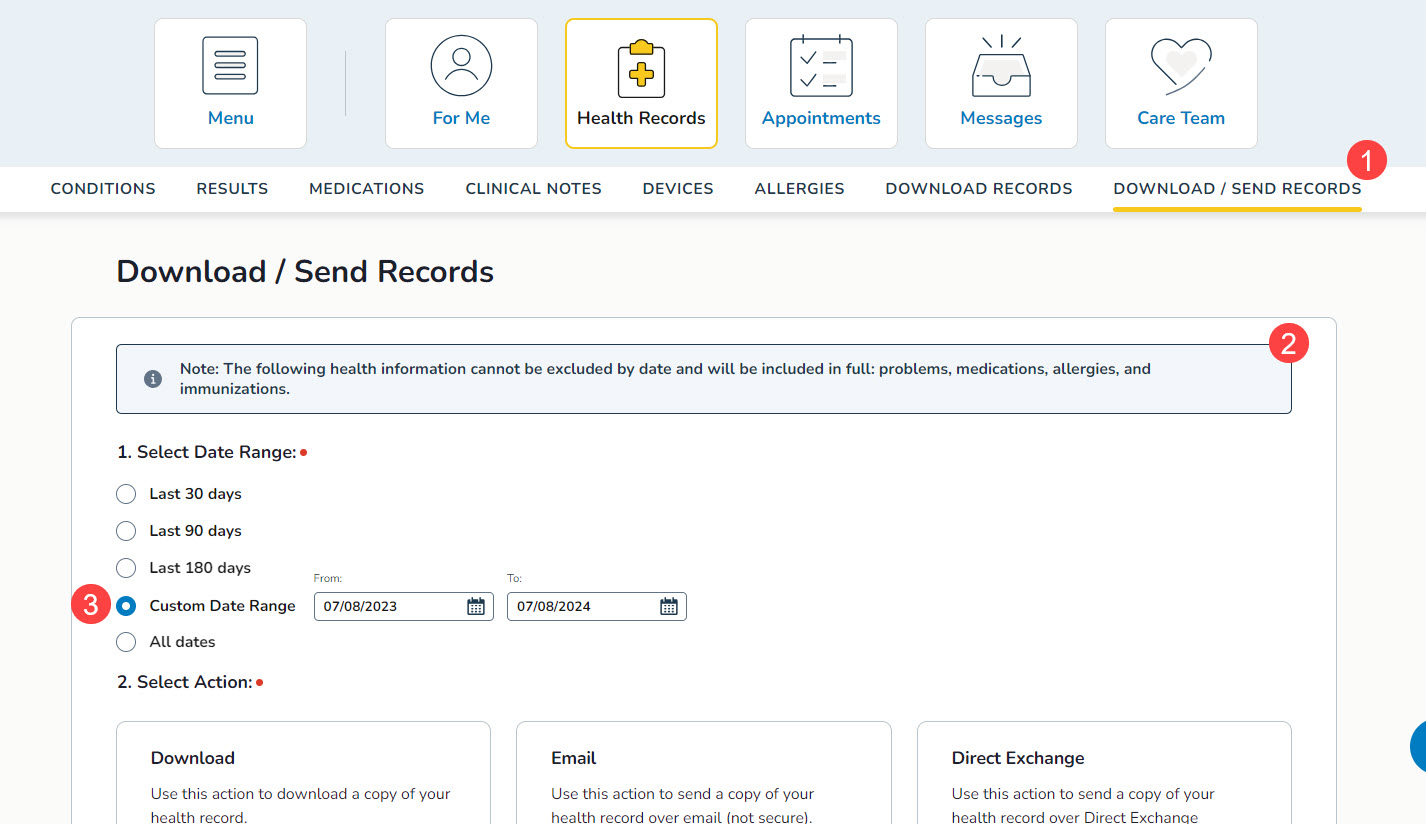
- If choosing a custom range, use the date picker fields to select specific dates (callout 3).
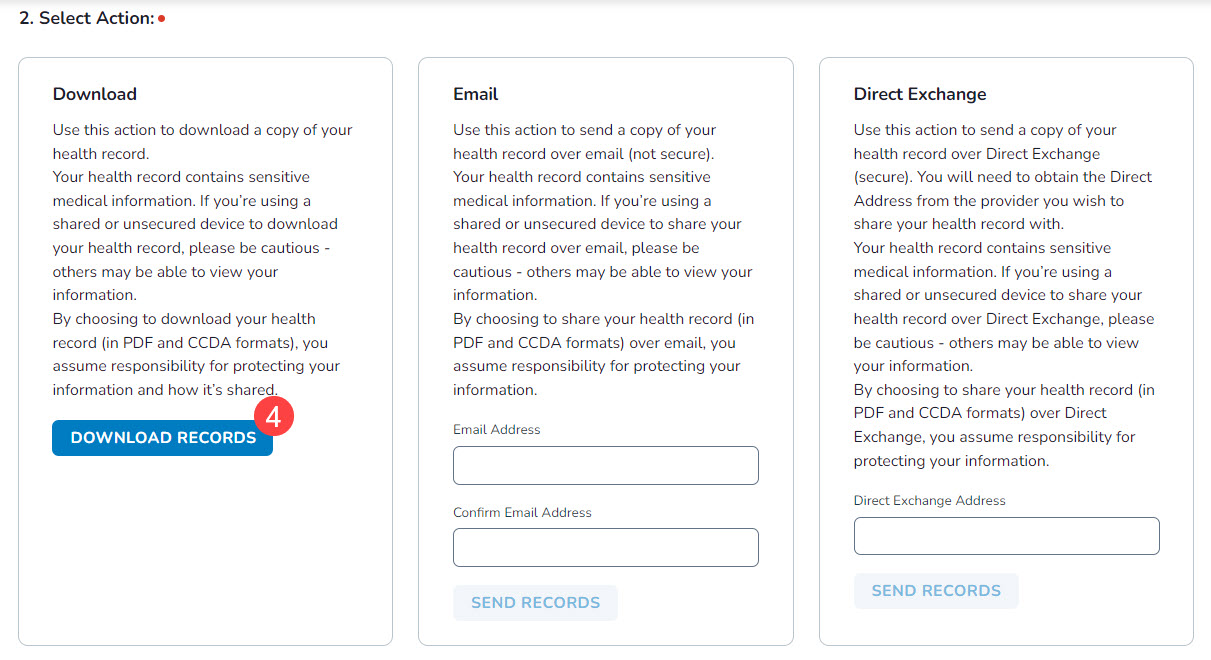
- Choose a record-sharing method.
- Download:
- Click the Download Records button (callout 4).
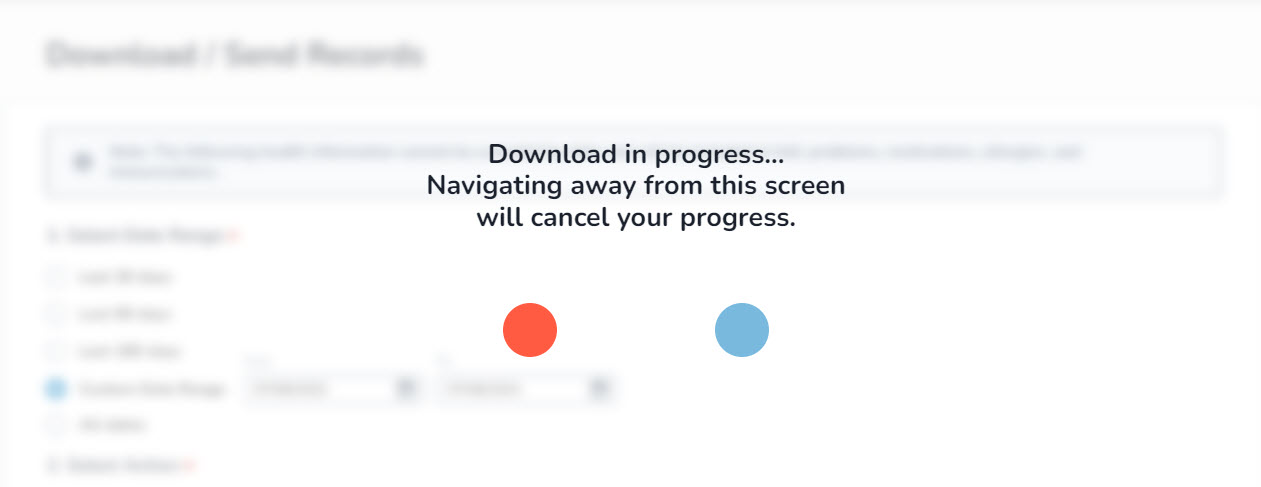
- A loading message will appear; stay on the page until the download completes.
- Records will be downloaded as a ZIP file containing PDF and XML versions. Use the PDF file to save and share.
- Click the Download Records button (callout 4).
- Email:
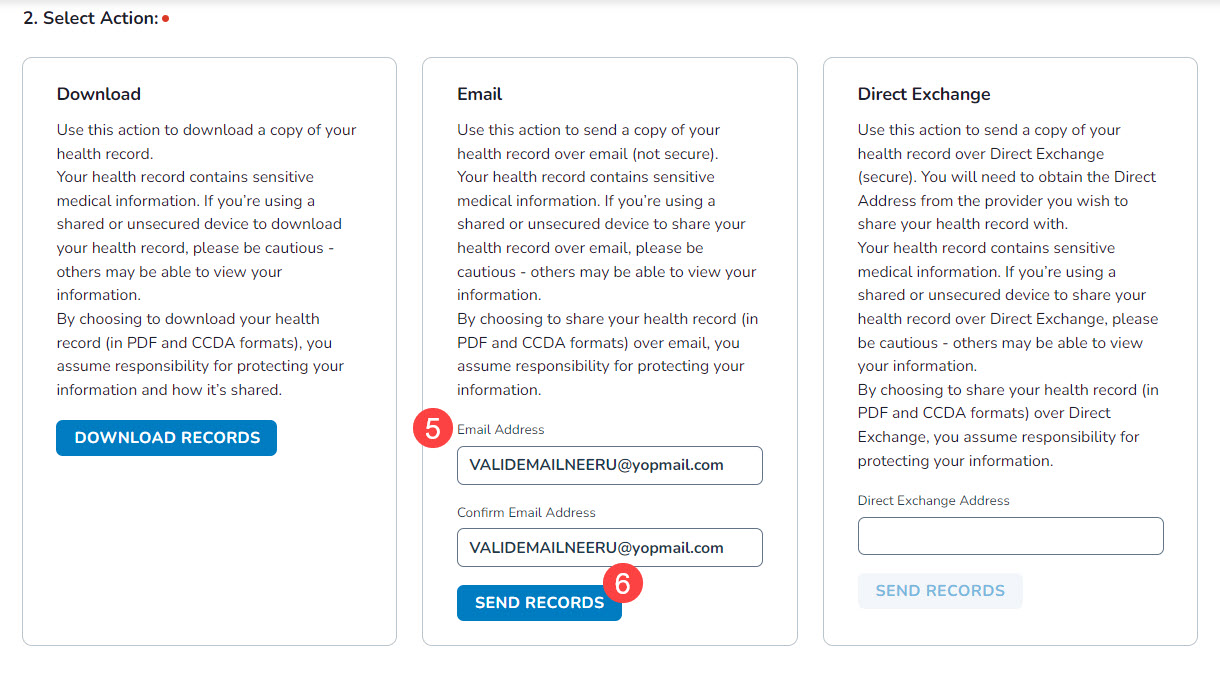
- Enter the recipient’s email address and click Send Records (callouts 5-6).
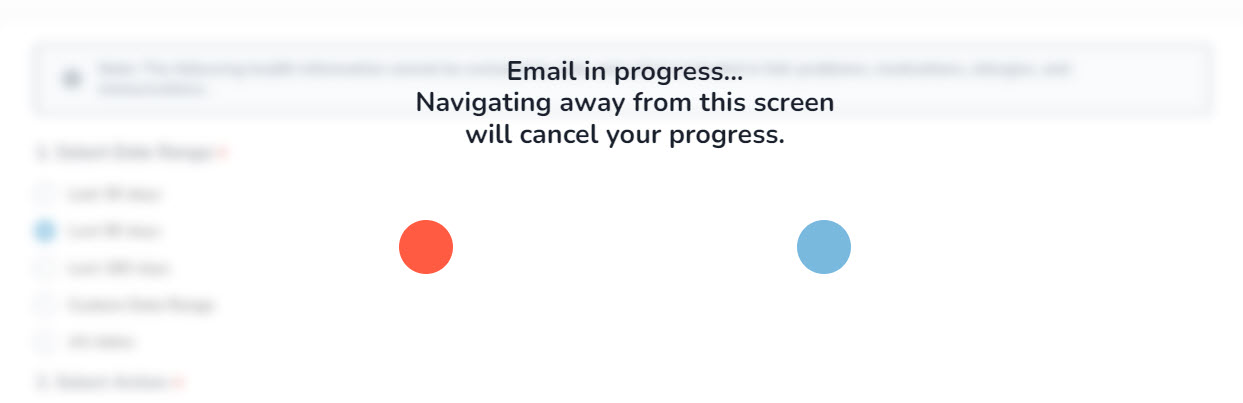
- A loading message will appear; stay on the page until the email is sent.
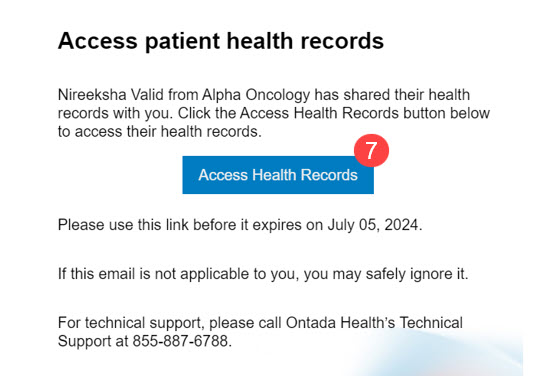
- The recipient will receive an email from your practice with a link to access the health records. Access is available for 7 days.
- The recipient can click the Access Health Records button in the email (callout 7).
- They will be taken to the portal where they must enter the patient’s date of birth to access the records for download.
- Records will be downloaded as a ZIP file containing PDF and XML versions. Use the PDF file to save and share.
NOTE: These emails can include your practice logo. Contact your Ontada Health Account Manager for configuration.
- Enter the recipient’s email address and click Send Records (callouts 5-6).
- Direct Exchange:
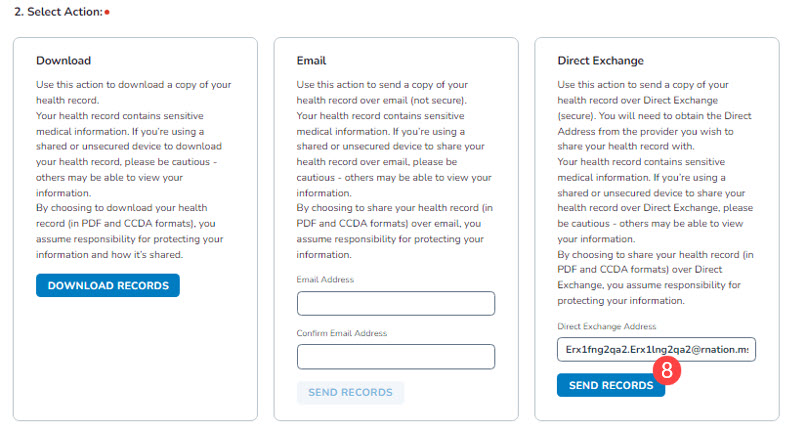
- Enter the provider’s Direct Exchange address and click Send Records (callout 8).
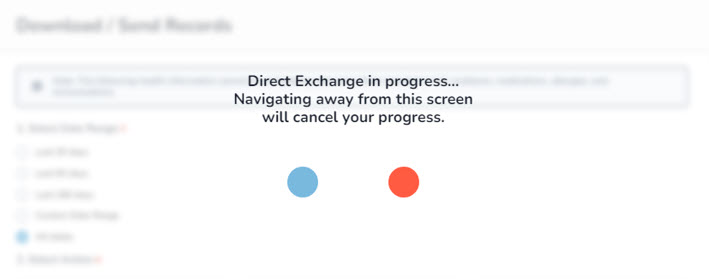
- A loading message will appear; stay on the page until the direct message is sent.
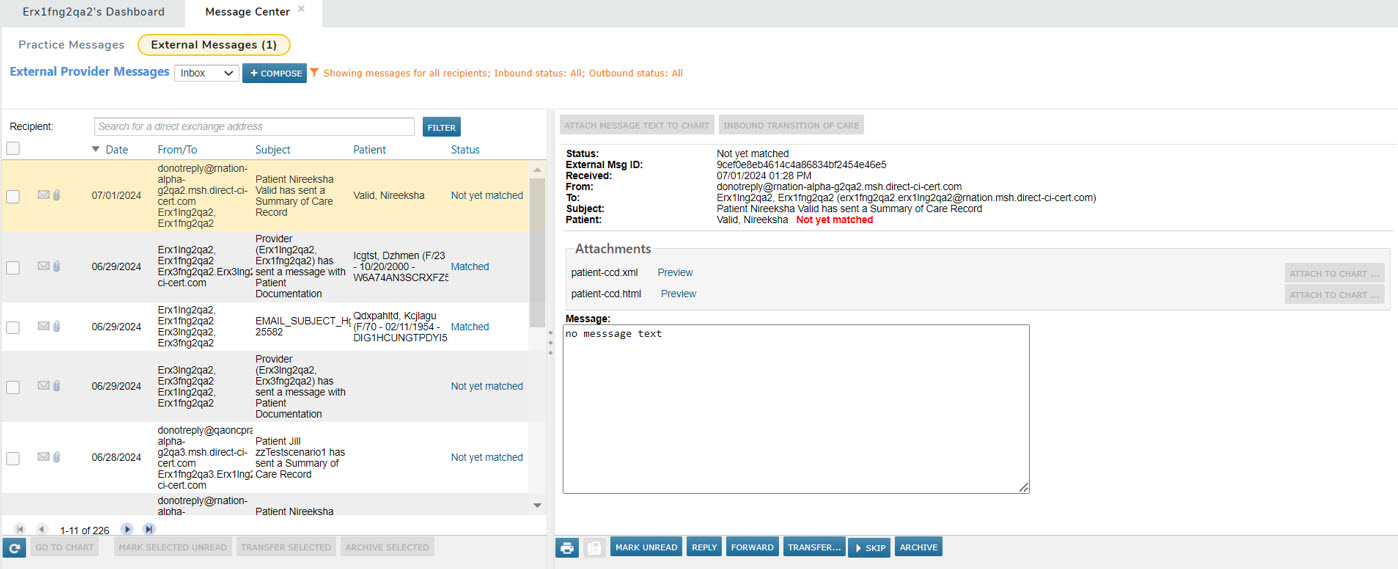
- If the provider uses iKnowMed, the message will appear in their Message Center > External Messages > Inbox.
- Enter the provider’s Direct Exchange address and click Send Records (callout 8).
- Download:
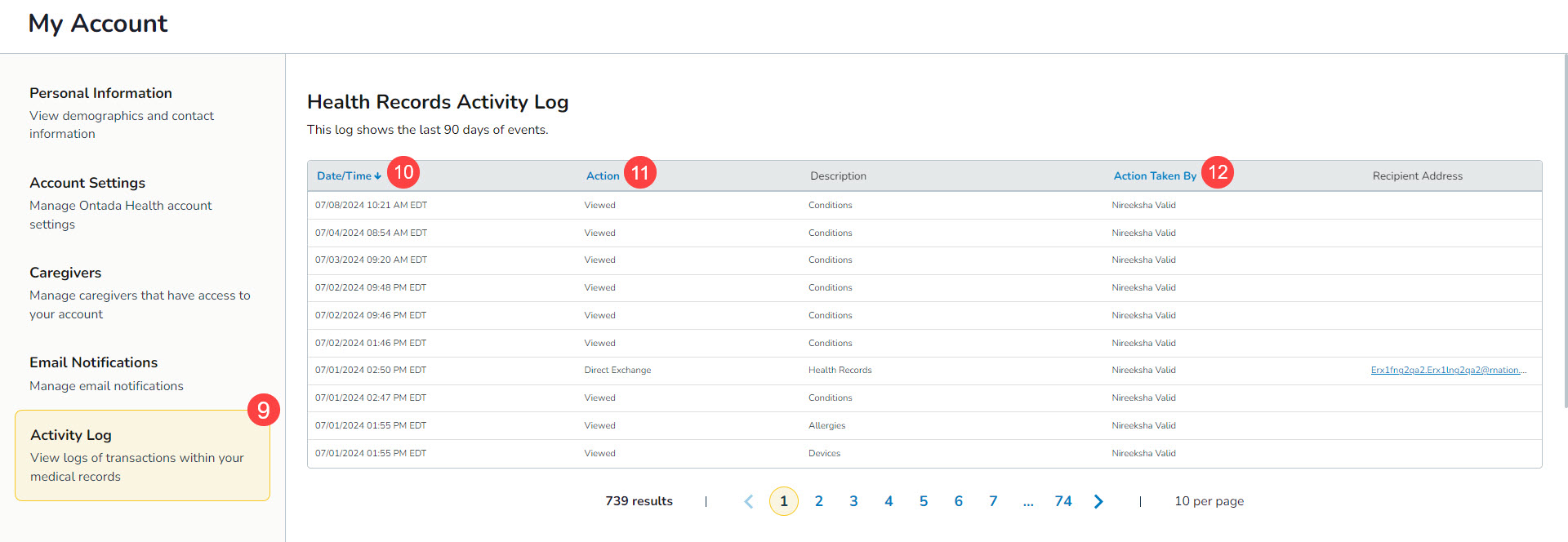
- Review record-sharing activities.
- Navigate to My Account in the upper-right corner of the patient portal.
- Click on the new Activity Log option from the left navigation (callout 9).
- The Health Records Activity Log page displays all record-sharing activities from the last 90 days, sortable by Date/Time, Action, and Action Taken By (callouts 10-12).