New feature to archive clinical notes Copied
We’re introducing a new clinical notes archive feature that helps practices manage clinical notes more efficiently by allowing authorized users to hide or unhide notes, even if the note is signed with an addendum (locked).
This simplifies the charting process, making it easier to organize notes while keeping a complete record of all actions taken. Practices no longer need to rely on workarounds or external support to manage note visibility, giving them more flexibility and control over patient documentation.
How to set permissions
- Go to Admin > Users.
- Select a user and click the Edit User button to adjust their settings.
- Select the Permission page.
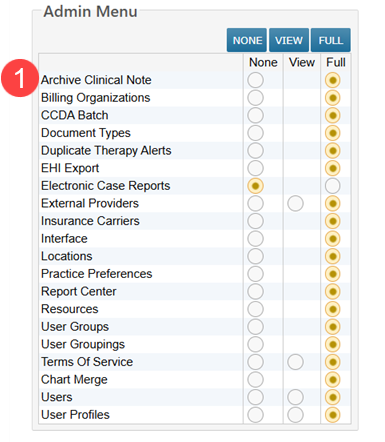
- Under Admin Menu, set the new Archive Clinical Note permission (callout 1) as follows:
- NONE: User cannot view archive/unarchive options or access archived notes.
- FULL: User can archive/unarchive notes and view archived notes.
- Save your changes to enable this feature.
To make these changes to a group of users, follow the Help site instructions that explain how to apply a specific user profile to one or more user accounts.
How use archive/unarchive notes
Archive a note
- Open the patient’s chart and go to the Documents tab.
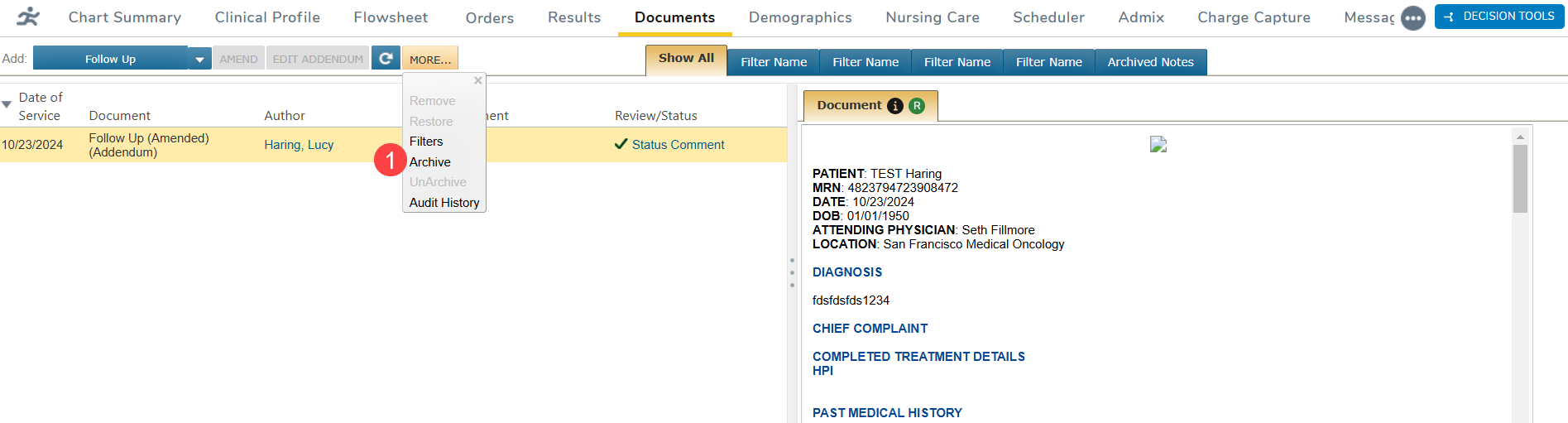
- Select a note, click the More button, and choose Archive from the drop-down (callout 1).
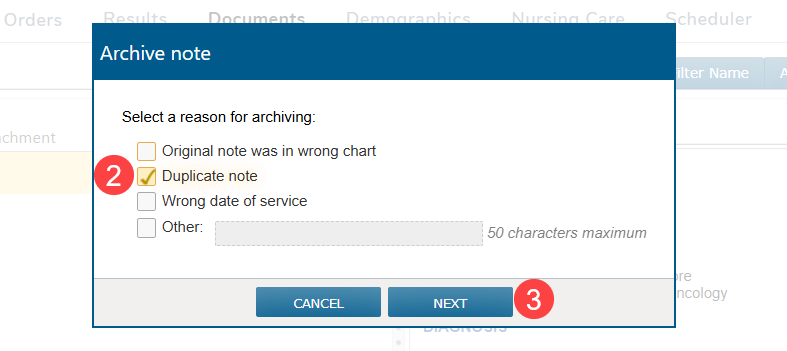
- In the pop-up window, choose the reason for archiving and click the Next button (callouts 2-3).
- This will move the note to the new Archived Notes tab (callouts 4-5).
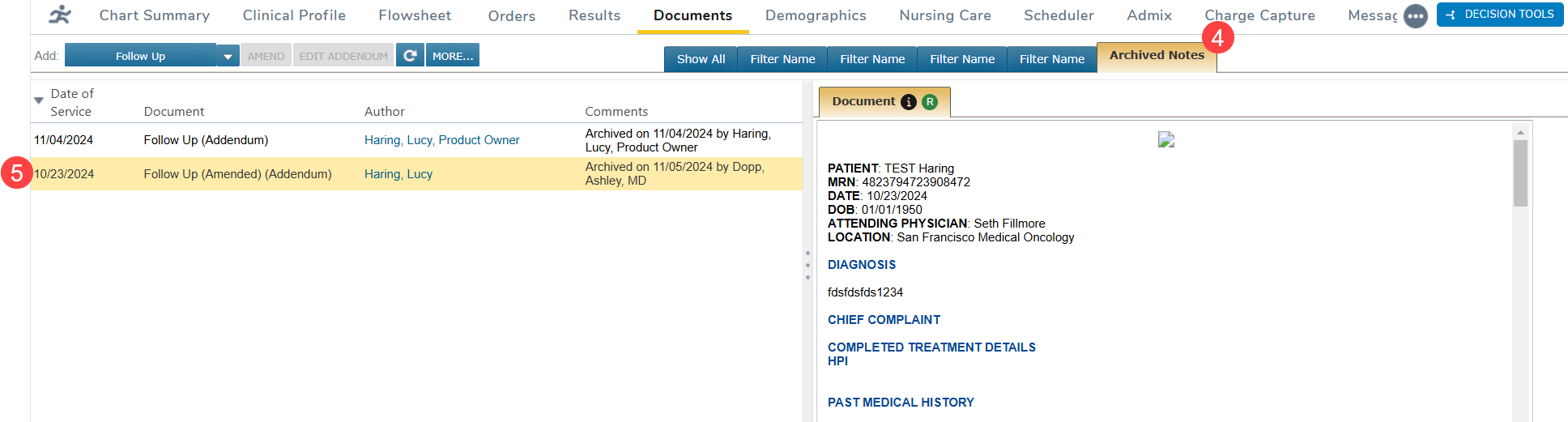
Unarchive a note
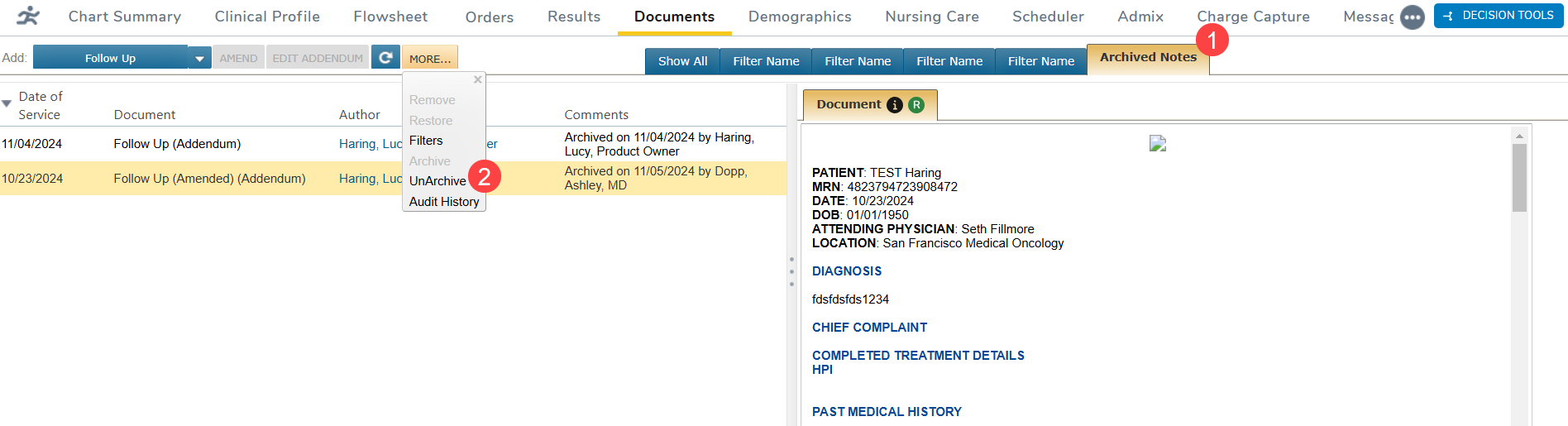
- Go to the new Archived Notes tab (callout 1).
- Select the note you wish to restore, click the More button, and choose Unarchive (callout 2).
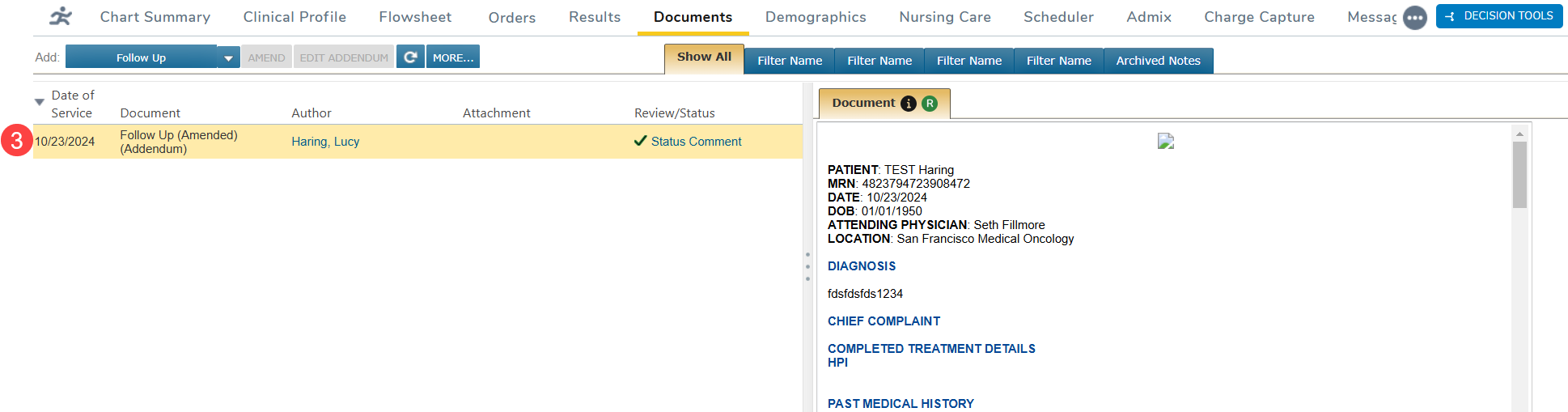
- The note will be returned to the main notes list (callout 3).
Audit trail for archiving/unarchiving actions
- All actions are still logged in the audit trail. To view the audit trail, click the More button and select the Audit History option (callout 1).
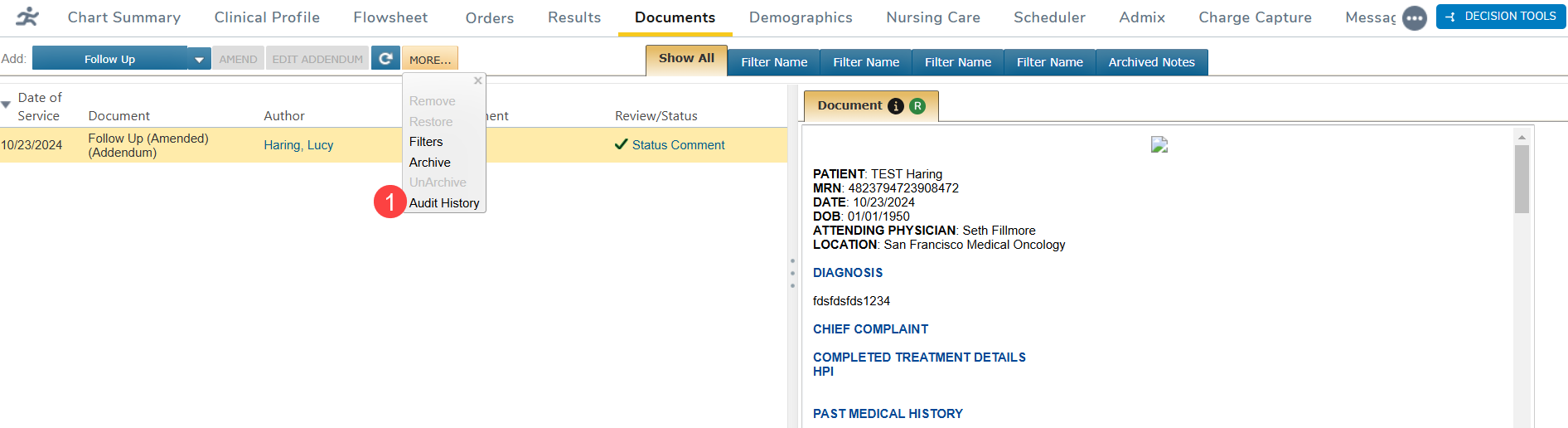
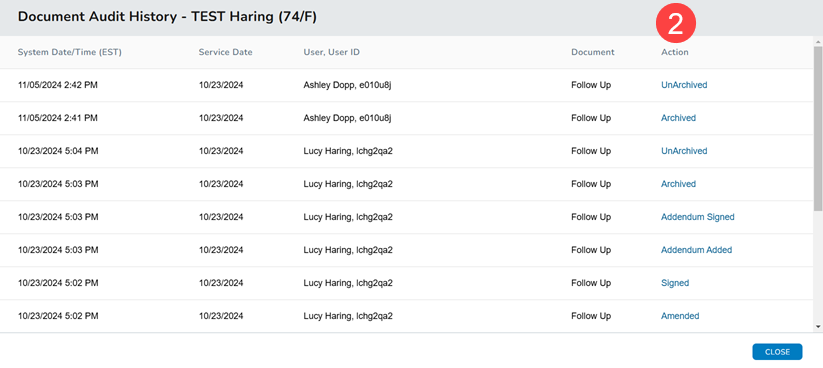
- The archive and unarchive actions will be captured under the Action column (callout 2). Click on an entry to view more details.
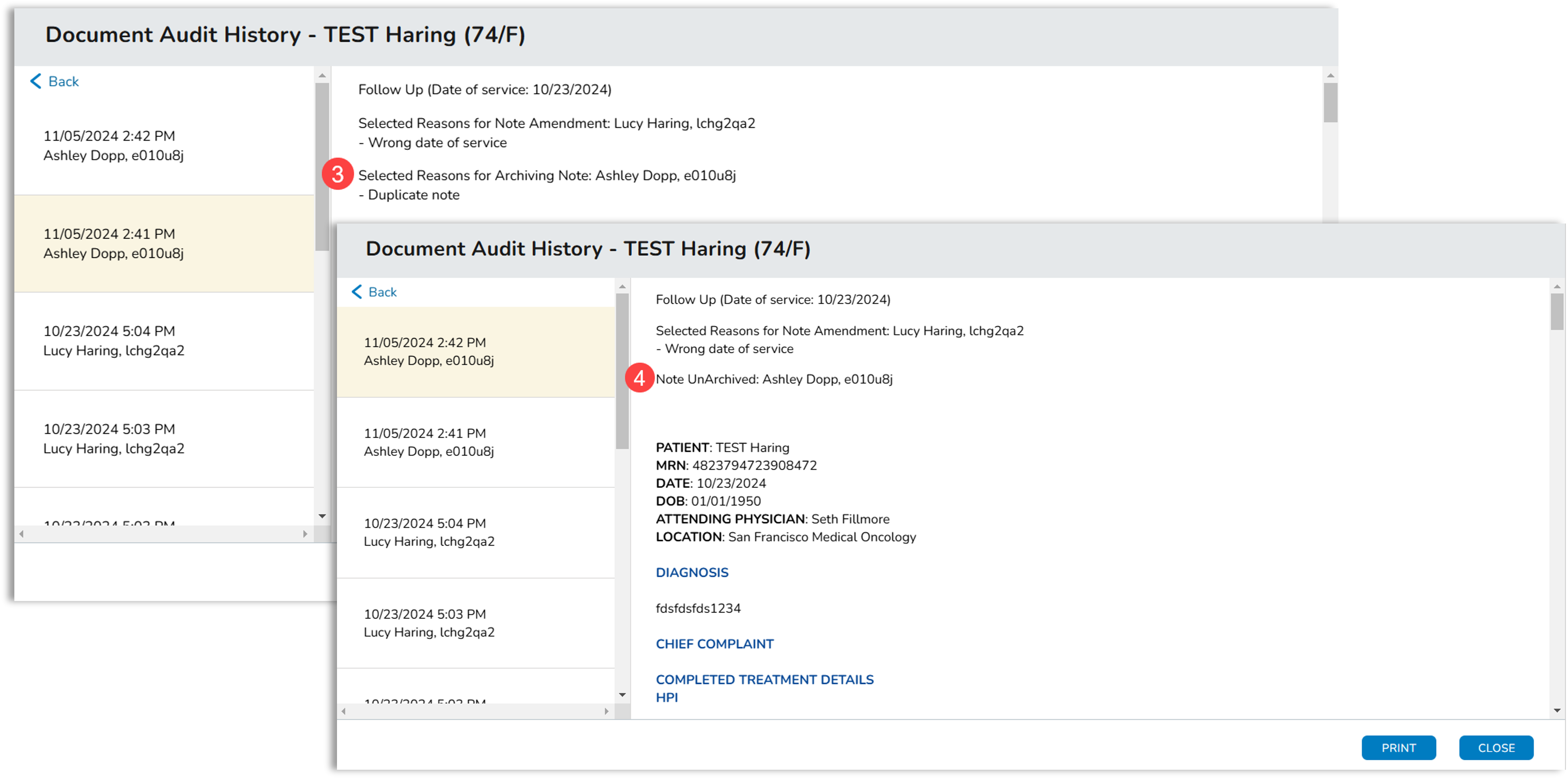
- For archived notes, the Selected Reasons for Archiving Note section will display the details of the action along with the user’s name (callout 3).
- For unarchived notes, the details will indicate Note Unarchived and include the user who made the change (callout 4).