New clinical note macro for NCCN Distress Thermometer Copied
A new NCCN Distress Thermometer macro will be available to add to your clinical notes, streamlining the process of capturing a patient’s details directly into notes and eliminating the need for manual data entry.
How to use the #NCCNDistressThermometer macro
- Access the Macro: From the top navigation, select Manage > Clinical Note Templates to edit or create a new clinical note template or visit the Documents tab within a patient chart and launch a new note template to select the new macro.
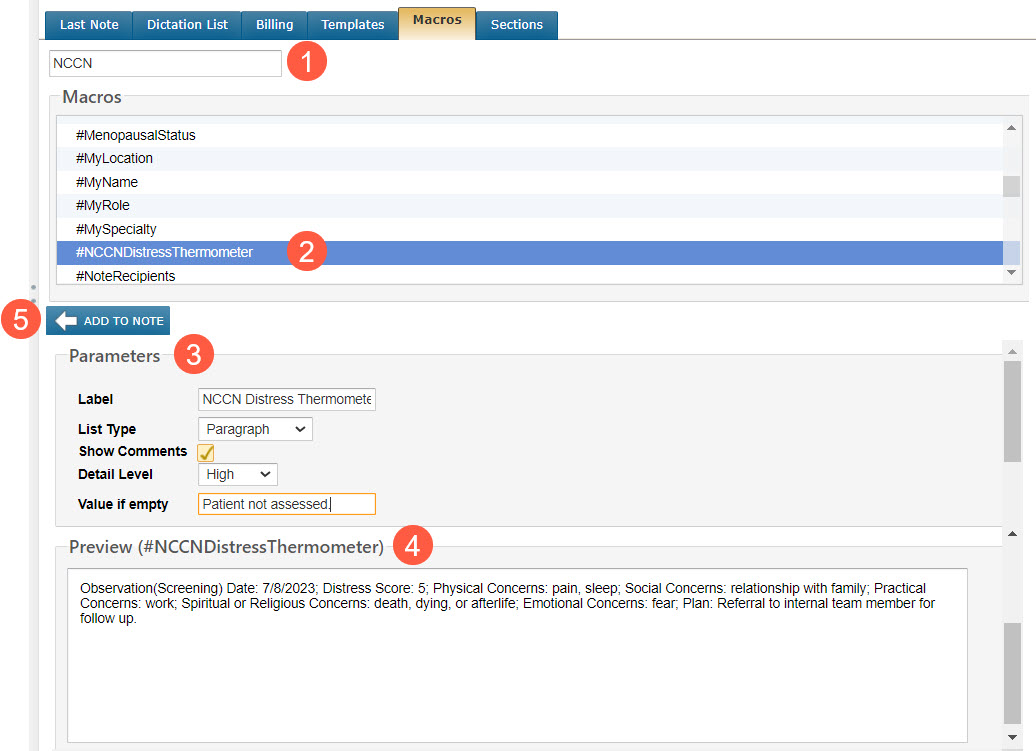
- Locate the Macro: Navigate to the Macros tab and use the search bar to find the #NCCNDistressThermometer macro (callout 1). Alternatively, scroll through the alphabetical list of available macros (callout 2).
- Customize the Parameters: Tailor the macro to your needs by adjusting the following parameters (callout 3):
- Label: Enter header content for the macro content (optional)
- List Type: Choose the format in which the macro content will be displayed (e.g., bulleted, numbered, paragraph, or alpha bulleted).
- Show Comments: Choose to display any comments recorded for the NCCN Distress Thermometer in the Patient Hx tab.
- Detail Level: Select from high, medium, or low detail levels.
- High: The note will display the Observation Date; Distress Level; items recorded for Physical Concerns, Practical Concerns, Emotional Concerns, Social Concerns, and Spiritual or Religious Concerns; and the Plan.
- Medium or Low: Medium and Low will only show the Observation Date, Distress Level, and Plan.
- If transitioning between detail levels (high, medium, or low), the macro will automatically adjust the displayed information accordingly.
- Value if Empty: Determine what will be displayed in the note if no data has been recorded for the patient’s distress thermometer.
- Preview the Content: Review the content appearance in the clinical note before finalizing (callout 4).
- Add to Note: Once parameters are set, click Add to Note to display the macro content (callout 5).