New Advance Care Planning and Social & Behavioral Health Code Types in Billing Screen Copied
In order to make certain codes more easily accessible to our users, we have created two new code types in the E/M section of the billing code selection screen.
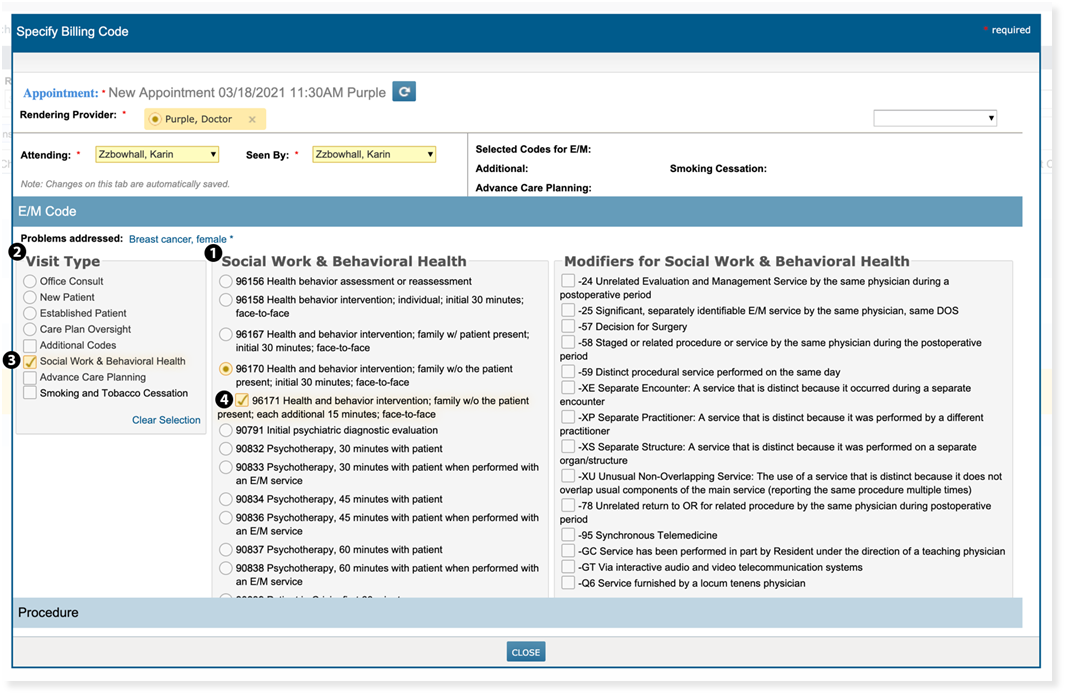
The Social Work & Behavioral Health section contains the most commonly used codes that social workers need to add for their visits (see callout 1). This section allows users to bill for their visit without having to go into the Procedure section to add their codes. The Associated Problems in the E/M section will apply to the codes selected under Social Work & Behavioral Health. Users can select codes from this code set or add them in addition to codes from the other codes listed under the Visit Type section (see callout 2).
To access these codes:
- Open the Billing Code Selection screen from the Visit List, Unfinished Charting, or Documents > Note > Billing.
- Check the box next to Social Work & Behavioral Health (see callout 3).
- Select a code using the radio buttons. If your selection has a time extender code, it will be accessible as a sub-menu item when you click on the primary code (see callout 4).
- Once you’ve selected your codes you may close the window.
- You will now see the codes you selected on the Visit List or Unfinished Charting instead of the word, Procedure.
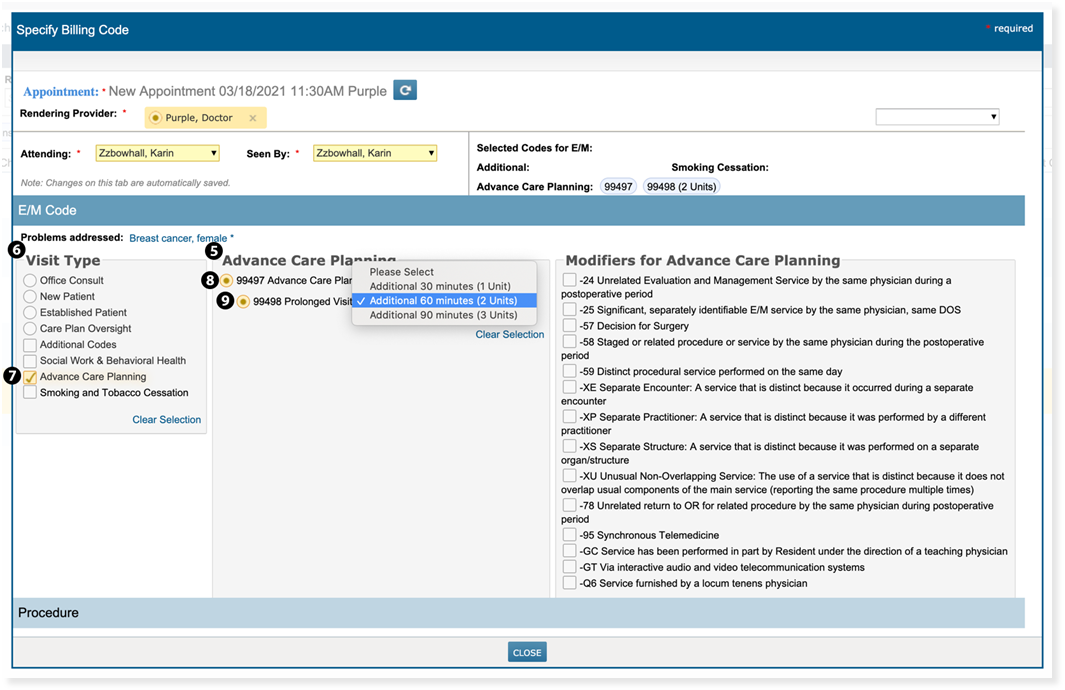
The Advance Care Planning section contains the primary and add-on codes for ACP billing (see callout 5). This section allows users to bill for their visit without having to go into the Procedure section to add their codes. The Associated Problems in the E/M section will apply to the codes selected in Advance Care Planning. Users can select codes from this code set or add them in addition to codes from the other codes listed under the Visit Type section (see callout 6).
To access these codes:
- Open the Billing Code Selection screen from the Visit List, Unfinished Charting, or Documents > Note > Billing.
- Check the box next to Advance Care Planning (see callout 7).
- Select the primary code 99497 using the radio button (see callout 8).
- Once you have selected the primary code, a drop down will appear below it to allow you to add up 90 more minutes of billable time (see callout 9).
- To add additional minutes, select 99498 and use the drop down to select the number of additional minutes you would like to add on to the visit.
- You will now see the codes you selected on the Visit List or Unfinished Charting instead of the word, Procedure.
The Advance Care Planning section contains the primary and add-on codes for ACP billing (see callout 5). This section allows users to bill for their visit without having to go into the Procedure section to add their codes. The Associated Problems in the E/M section will apply to the codes selected in Advance Care Planning. Users can select codes from this code set or add them in addition to codes from the other codes listed under the Visit Type section (see callout 6).
To access these codes:
-
Open the Billing Code Selection screen from the Visit List, Unfinished Charting, or Documents > Note > Billing.
-
Check the box next to Advance Care Planning (see callout 7).
-
Select the primary code 99497 using the radio button (see callout 8).
-
Once you have selected the primary code, a drop down will appear below it to allow you to add up 90 more minutes of billable time (see callout 9).
-
To add additional minutes, select 99498 and use the drop down to select the number of additional minutes you would like to add on to the visit.
-
You will now see the codes you selected on the Visit List or Unfinished Charting instead of the word, Procedure.