Locate biomarker test results faster using the new Molecular Results tab Copied

The new precision medicine feature can help find biomarker test results faster to determine the right treatment strategies for patients.
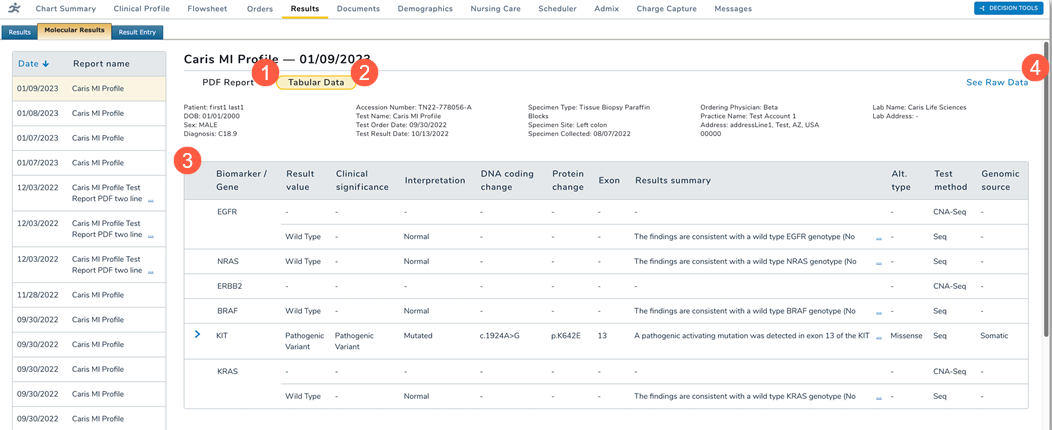
Genomic results can be viewed on the new Results > Molecular Results tab in a patient chart. This tab clearly displays the panel results right in iKnowMed as soon as they’re received from Caris Life Sciences and Foundation Medicine.
Biomarker panel PDF results will continue to appear in other iKnowMed locations (e.g., Results > Results tab, Lab worklist queue, Unified Sign Queue, Interval Summary, and/or Flowsheet > Genetics). But the Molecular Results tab specifically isolates the biomarker panel results, making them easier to locate and view.
To use this feature:
- Open a patient chart and go to the Results page. Click on the new Molecular Results tab.
- You can choose to view the results as a PDF or in a table (callouts 1 and 2).
- Choosing PDF Report displays the report created by the lab vendors.
- Choosing the tabular view displays the key biomarker(s) and the result(s) value in a table format (callout 3).
- You can also see the raw data shared from the lab vendors by selecting the See Raw Data link in the upper right corner of the page (callout 4).
NOTE: The new Molecular Results tab will only display biomarker panel result data received after the date when your practice turns on this feature. Any results received before that date will still be displayed in the existing locations listed above.