Introducing text message notifications for patients Copied
Text message notifications can help keep patients engaged by providing timely reminders for form completion. Patients are more likely to read and respond to text messages than emails, which can often be overlooked. Text messages ensure patients receive timely reminders for form completion and can reduce the chances of important communications being overlooked.
How patients opt-in for text messaging
- Patients can sign up for text messaging on their My Account page.
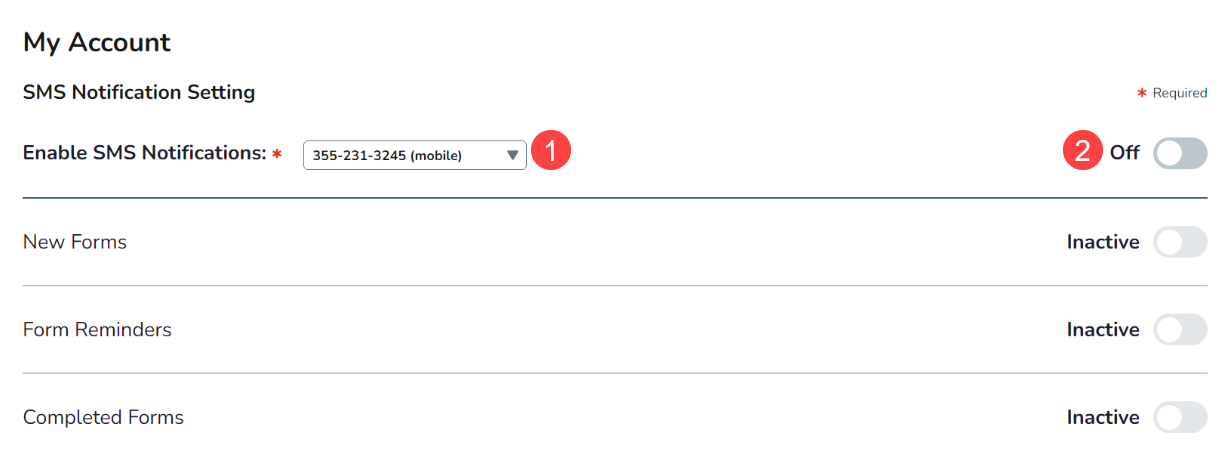
- Next, to Enable SMS Notifications, patients can choose from existing phone numbers listed in the Demographics tab of their iKnowMed patient chart (callout 1).
- Patients can then toggle the switch to turn on text messaging (callout 2).
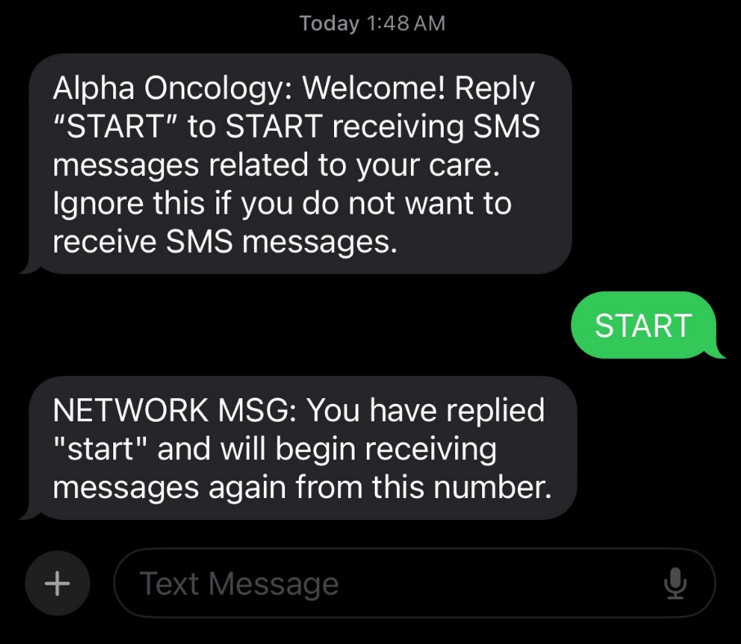
- They will receive an initial text message that requires them to reply with START to begin receiving text message communications.
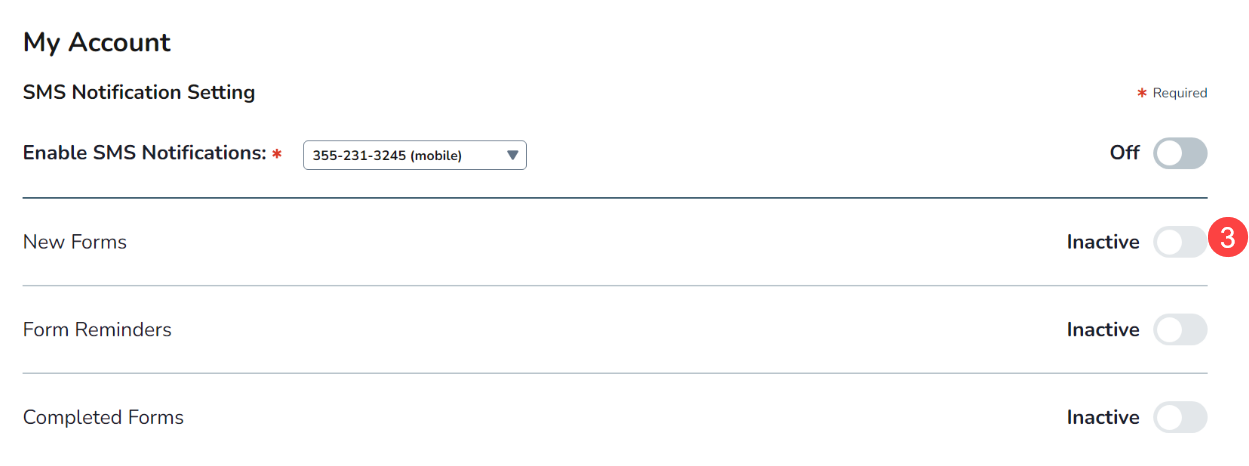
- Once confirmed, all text messaging preferences will be activated.
- Patients can then return to the patient portal to adjust which types of text messages they’d like to receive by toggling the individual options on or off (see callout 3 for example).
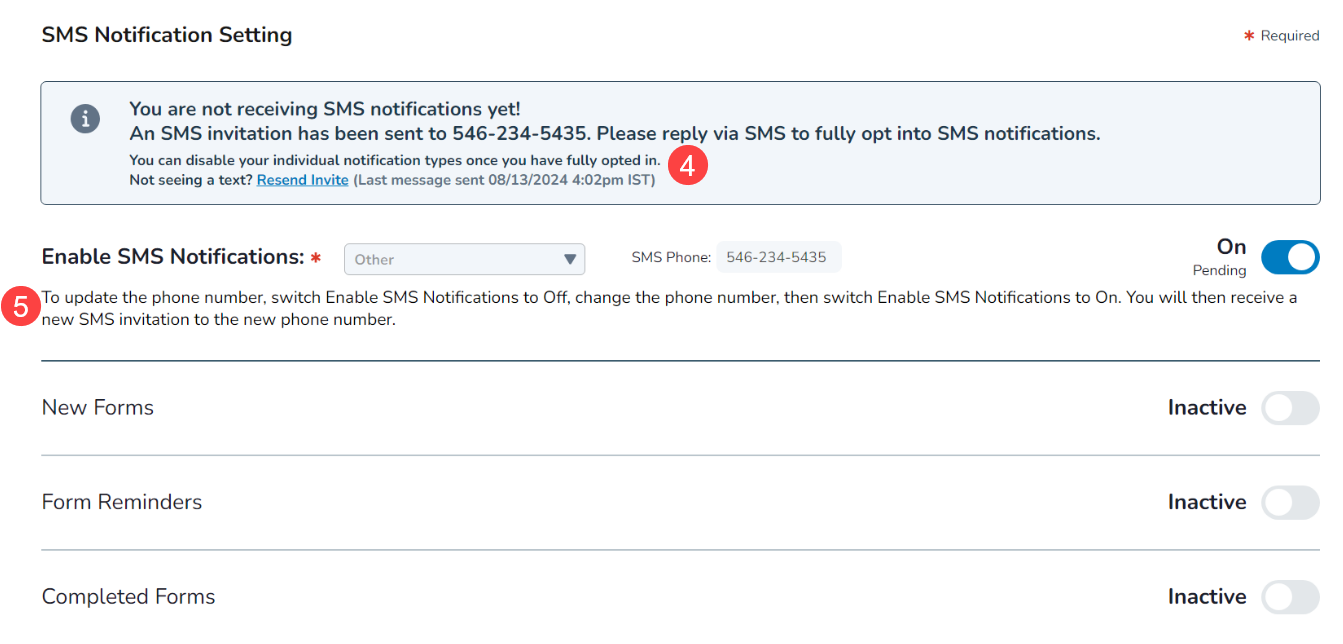
- If a patient needs to resend the invite to opt-in, they can do so from My Accounts. A message will be displayed on the portal with a “Resend Invite” link. Clicking this link will resend the opt-in text message (callout 4).
- If, at any time, a patient needs to change the phone number associated with their text message settings, they may do so from My Accounts. The page includes instructions on how patients may change their phone number (callout 5).
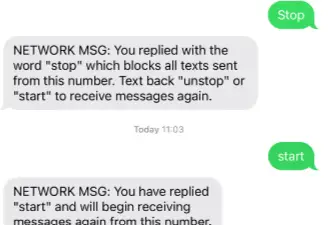
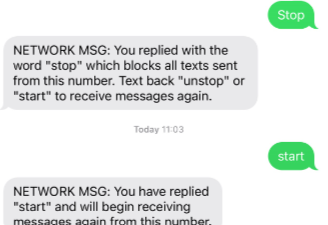
- If patients wish to stop receiving text messages, they may reply to any notification text message with STOP. They may opt back in via text message or the patient portal.
How practices opt-in patients for text messaging
- Practices can sign up patients for text messaging on the Patients page under Support Tools.
- By default, patients must manually opt-in for text messaging; however, Ontada Health offers a custom setting that allows practices to automatically opt-in all patients for text messaging. If you want this preference turned on, please contact your Ontada Health Account Manager.
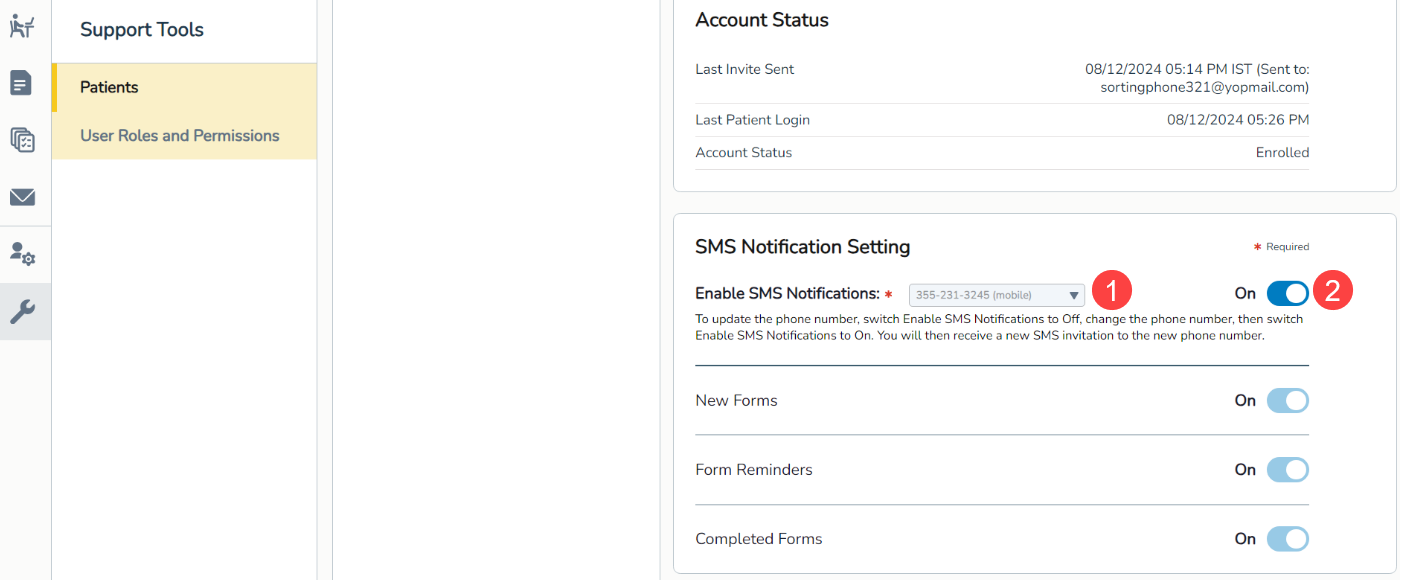
- Next to Enable SMS Notifications, choose from existing phone numbers listed in the Demographics tab of the patient’s iKnowMed patient chart (callout 1).
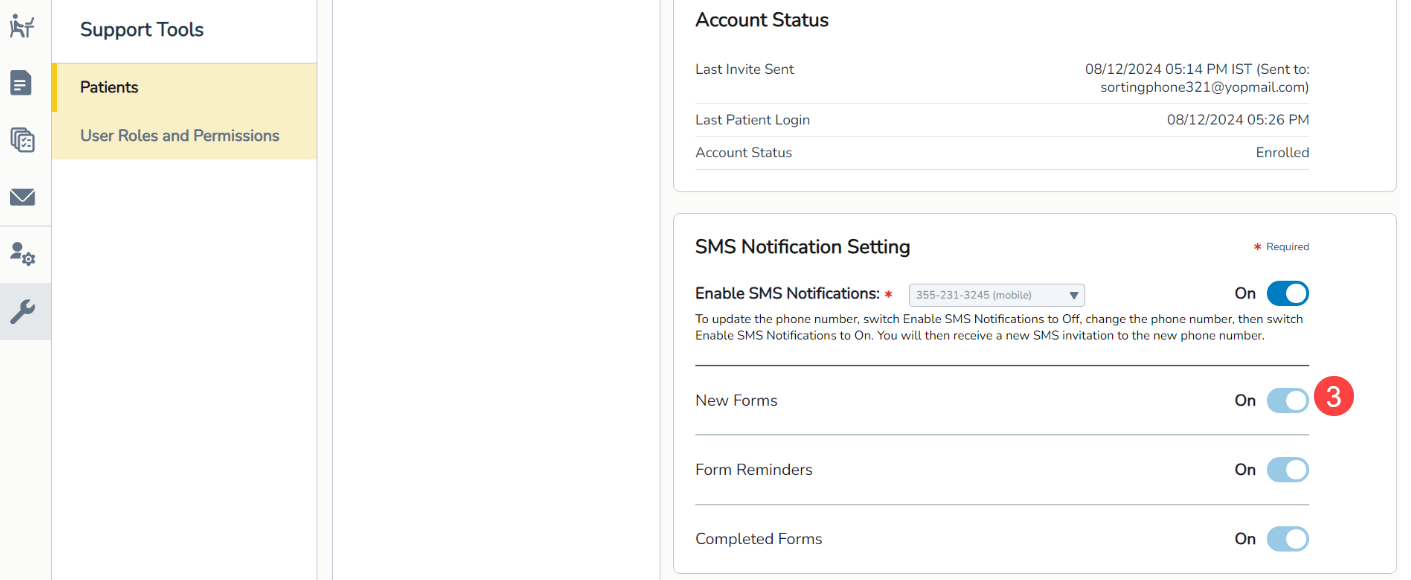
- Opt-in the patient by toggling the switch to turn on text messaging (callout 2).
- The patient will receive an initial text message that requires them to reply with START to begin receiving text message communications.
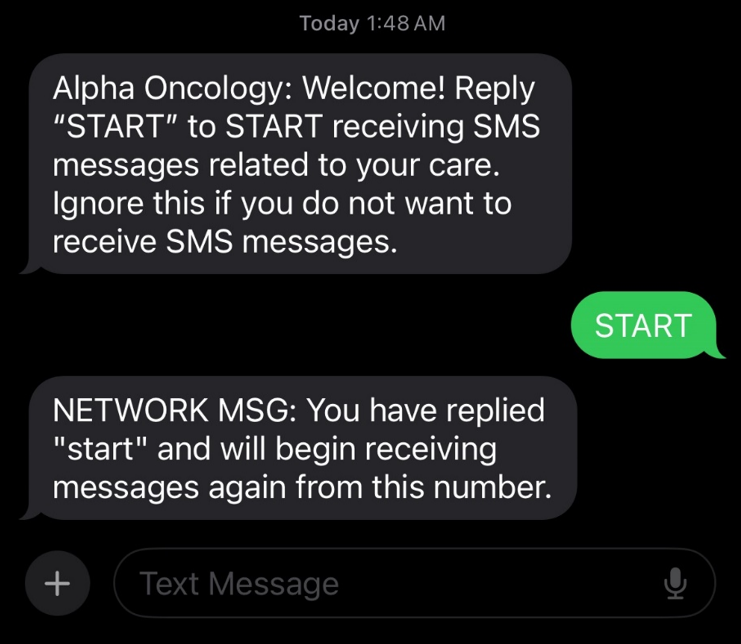
- Once confirmed, all text messaging preferences will be activated for the patient.
- You can return to Support Tools > Patients at any time see which types of text messages the patient toggled on or off (see callout 3 for example).
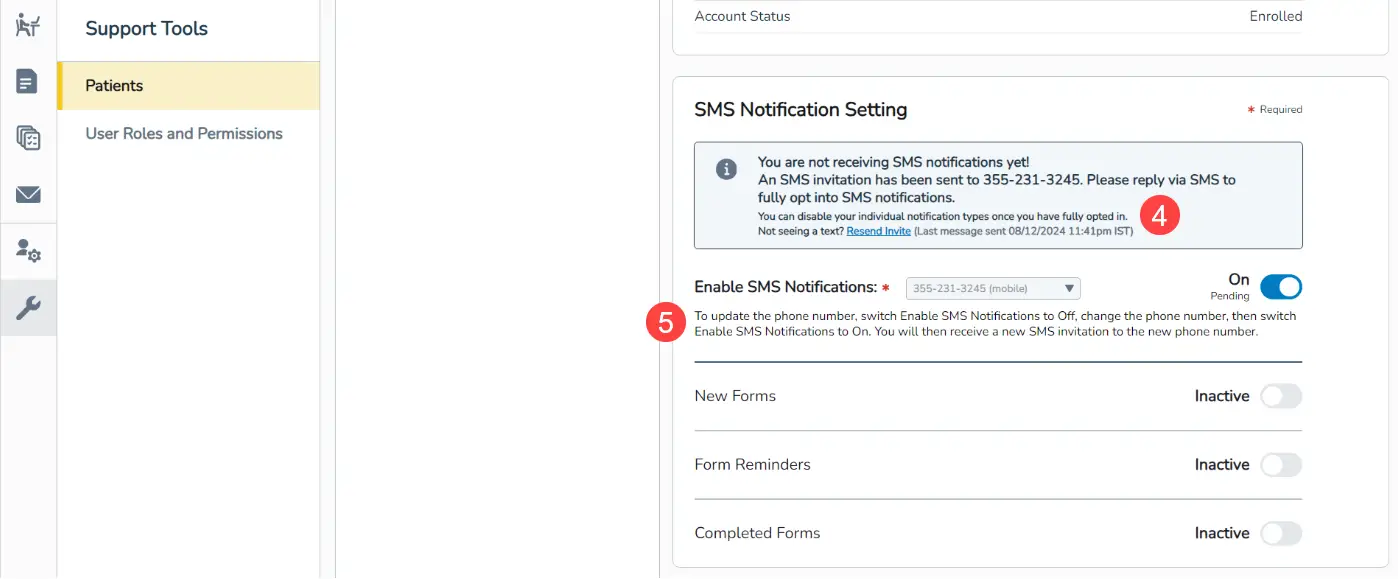
- If your practice needs to resend the invite to the patient to opt-in, you may do so from Support Tools > Patients. A message will be displayed on the page with a “Resend Invite” link. Clicking this link will resend the opt-in text message (callout 4).
- If, at any time, you need to change the phone number associated with the patient’s text message settings, you may do so from Support Tools > Patients. The page includes instructions on how to change the patient’s phone number (callout 5).
- If patients wish to stop receiving text messages, they may reply to any notification text message with STOP.
- They may opt back in via text message or the patient portal. Your practice may also opt them back in on the Support Tools > Patients page.