Improved Search Experience for Results Copied
Improved Search Experience for Results
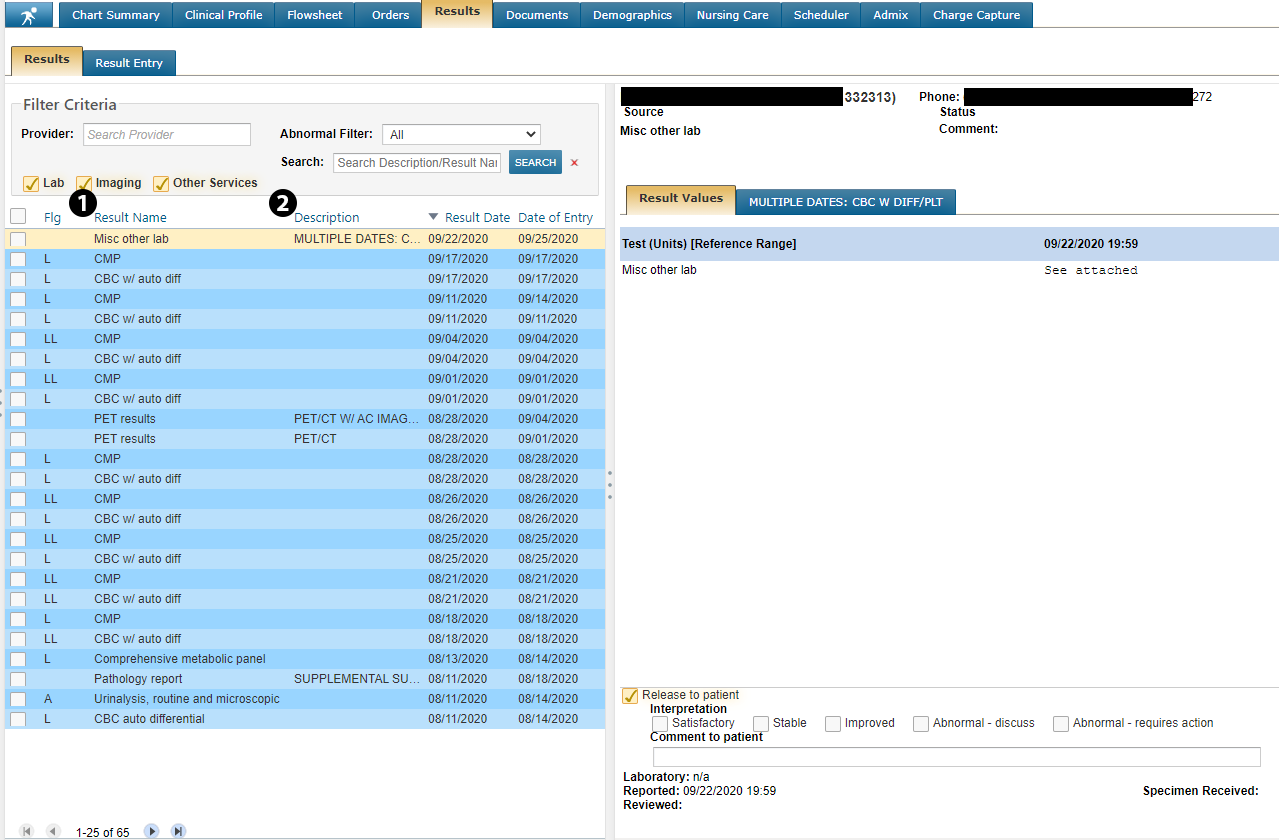
The Results page has been enhanced to provide search functionality on Result Name (see callout 1) and Description (see callout 2). The table no longer displays the patient’s name and a new Description column captures information entered during the process of manually attaching results to patient charts. For example, a pathology report might have the description, “Path report, NE Baptist, Abdominal Mass Bx.”
Please note that it is important for staff attaching documents and scanned documents to properly and consistently select the correct document type (which maps to Result Name) and enter appropriate descriptive information for the particular result.
To run a search:
-
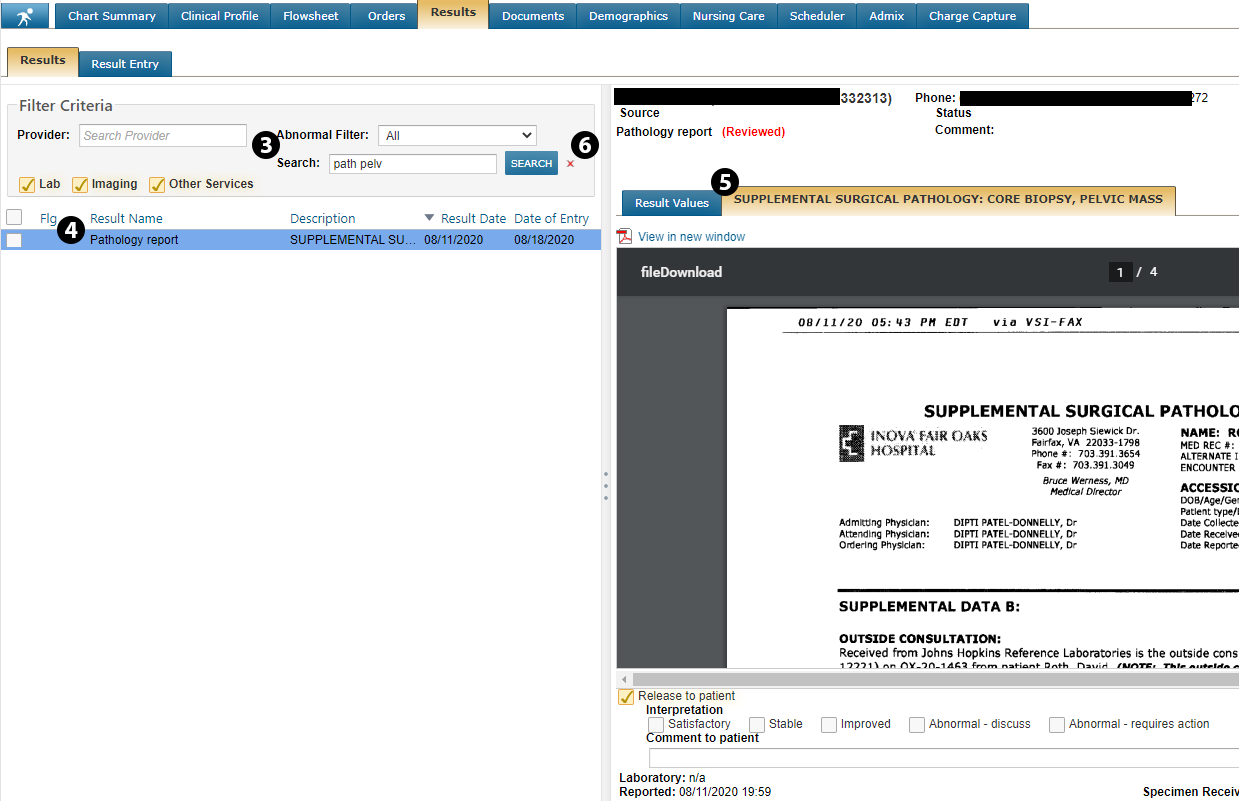
Enter a partial Result Name and/or Description in the Search box (see callout 3). Hit Enter on your keyboard or click the SEARCH button.
-
From the results that display in the left-hand window, select the item you wish to view (see callout 4).
-
Click the tab with the description of your document to view or download it (see callout 5).
-
To return to the default view, delete your search terms from the Search box and hit Enter on your keyboard or click the red X icon to clear the description field (see callout 6).