ePRO Enrollment Tracking in VBC Care Plan Copied
We’re adding a new ePRO Enrollment section to the Program Tracking area of the VBC Care Plan to help practices track electronically reported patient outcomes, a key component of the Enhancing Oncology Model (EOM) program.
How to document ePRO Enrollment
- Open a patient’s chart and navigate to Clinical Profile > Care Plan.
- Create a new or open an existing VBC Care Plan.
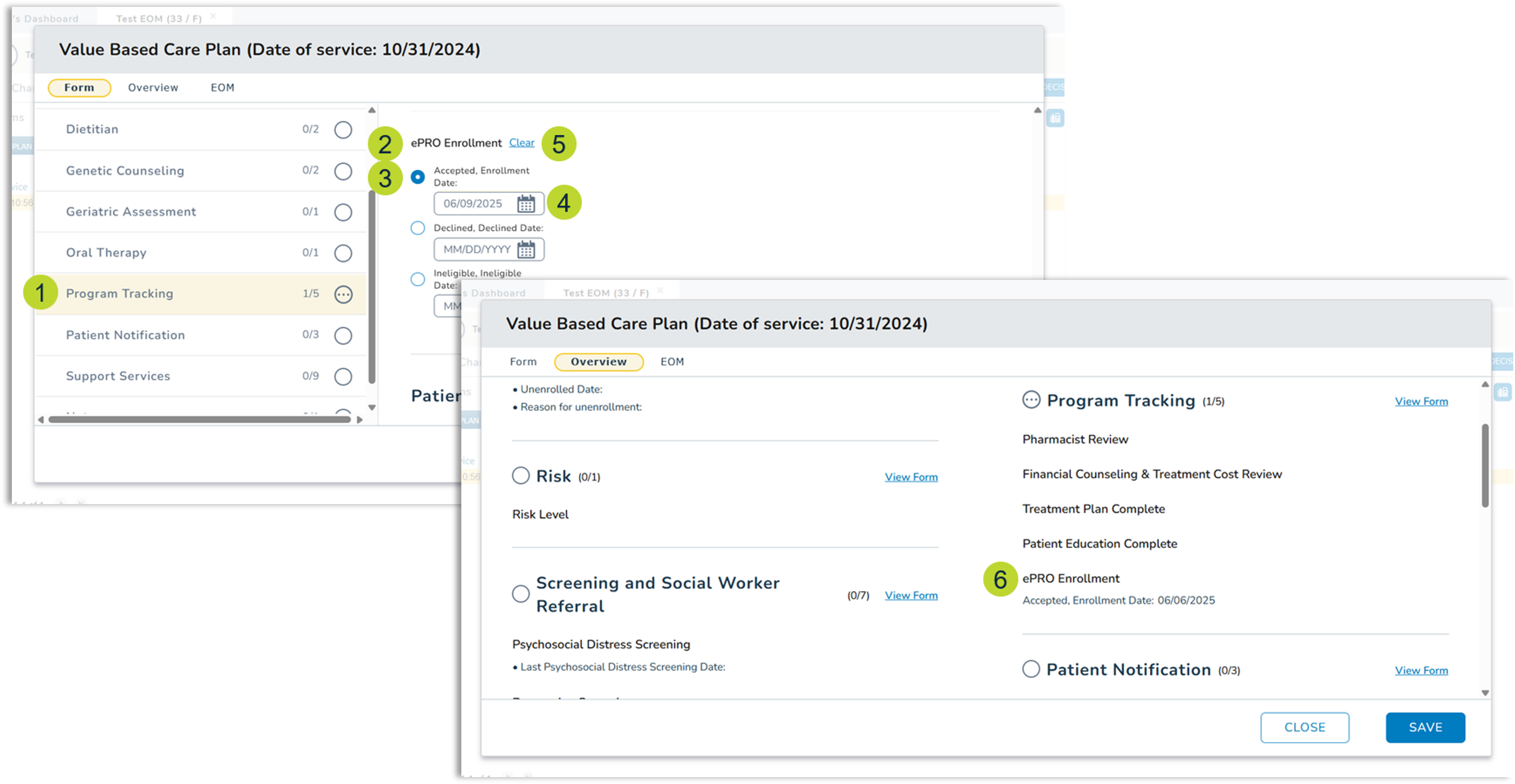
- Click the Program Tracking section and scroll to the new ePRO Enrollment subsection (callouts 1-2).
- Select an enrollment status – accepted, declined, or ineligible (callout 3).
- Add a date for the selection by clicking in the field or on the calendar icon (callout 4).
- If you need to remove a selection, click “Clear” (callout 5).
- Once a selection and date are entered, this information will automatically appear in the Overview section of the care plan under Program Tracking (callout 6).
- Be sure to save your changes to add this information to the care plan.