
Customize tasks to fit your practice’s needs in the new Orders Queue Copied
Administrative users with access to Practice Preferences may update the list of tasks used in the new Orders Queue. Go to the Additional Enhancements for more information on where to locate these preferences. A maximum of 15 tasks, whether active or inactive, can exist.
Inactivate or rename tasks
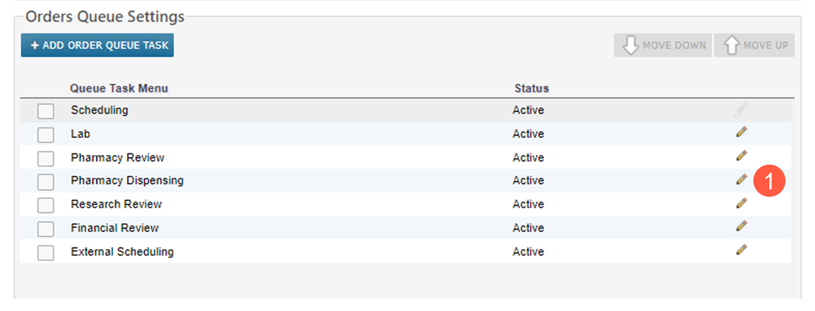
All tasks, except Scheduling, may be inactivated or renamed by clicking the pencil icon (callout 1).
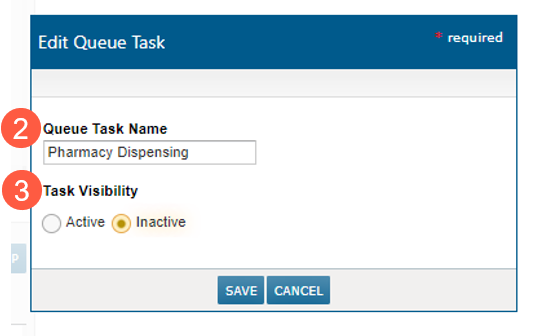
In the pop-up window, enter a new name in the Queue Task Name field (callout 2) or update the Task Visibility (callout 3) to activate or inactivate the task.
Reorder the tasks
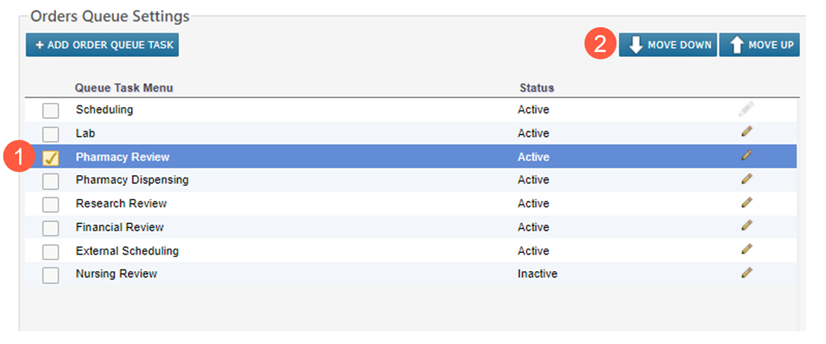
To change the sequence of the list of tasks, check the box next to a task (callout 1) and click either Move Up or Move Down (callout 2).
Add new tasks
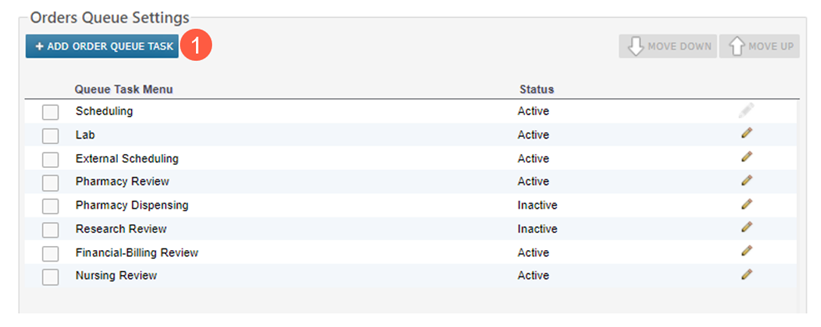
To add new tasks, click the Add Order Queue Task button (callout 1).
In the pop-up window, enter a name with 30 characters or less in the Queue Task Name field (callout 2). Choose whether the task should be Active or Inactive under the Task Visibility field (callout 3).
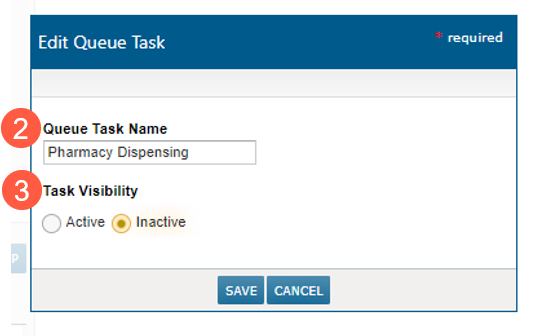
After saving the changes, the new task will be added to the bottom of the list.
NOTE: If you plan to make multiple updates to the task list, keep the newly added tasks inactive until you have completed the other updates.
View your changes
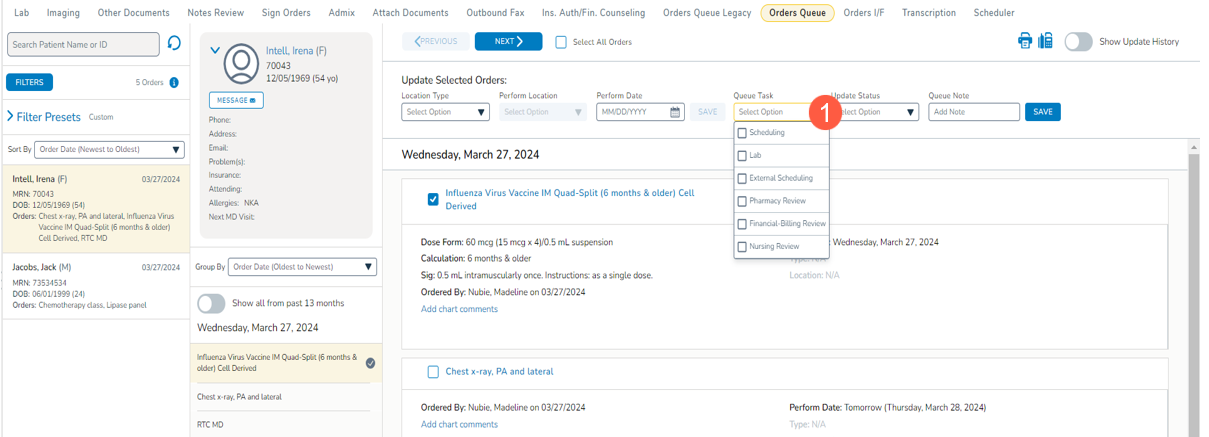
Once all changes are complete, the Queue Task drop-down in the new Orders Queue will match the changes made in Practice Preferences (callout 1).
Additional tips and tricks
- Practices not yet using the new Orders Queue should set up their preferences before the queue is enabled.
- Orders created after a new queue task is added will have a “Not Started” status for the new task.
- Orders created before a new queue task is added will not have any status for that task by default. The new task and its status can be applied to that order after creation.
- If a queue task was applied to an order and that queue task is later inactivated, the Update History section will continue to show when the task was applied.
- A queue task that has been inactivated will automatically be removed from any previously defined Filter Preset. If that task is later reactivated, it will be added back to the Filter Preset.