Customize Orders User Permissions Copied
Customize Orders User Permissions
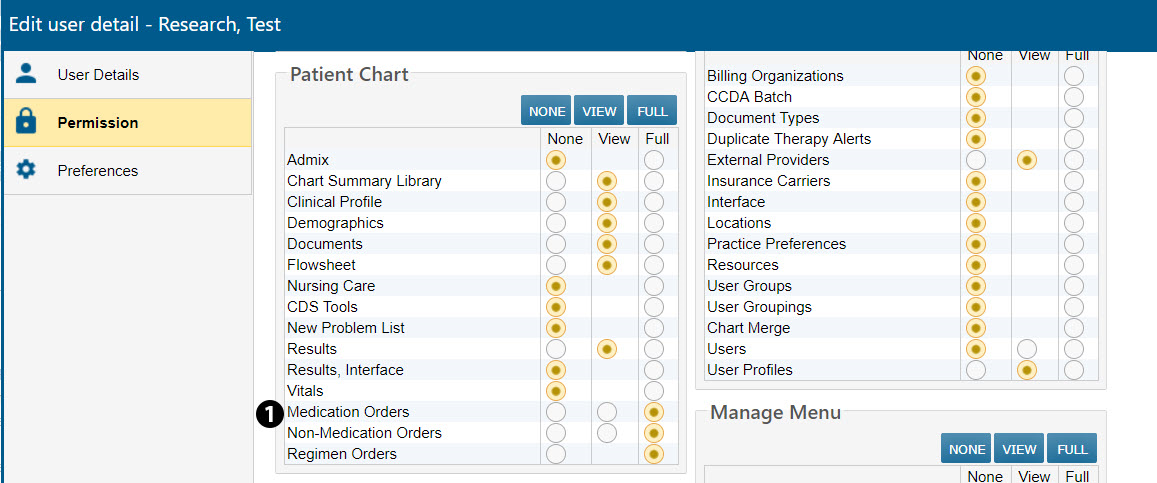
You now have more customization when determining which users at your practice can access and/or place orders. In this release, the previous Orders user permission has been split and renamed to Medication Orders and Non-Medication Orders.
Each of these options can be set as follows:
-
NONE – user will not see Orders tab so cannot view or place any orders
-
VIEW – user sees Orders tab but can only view patient’s order history
-
FULL – user sees Orders tab and has full access to all features, including the ability to draft and place new orders
Previous user permissions for Orders will be carried forward in this release. For example, any user that already had FULL permission for Orders will now automatically have their permission for the new Medication Orders and Non-Medication Orders set to FULL.
You do not have to make any changes to permissions unless you wish to change a user’s access.
To view or set user permissions:
-
Go to ADMIN > Users
-
Choose a user and select EDIT USER
-
Once in Permission, go to the Patient Chart section and locate the new Medication Orders and Non-Medication Orders options (see callout 1)
-
Set the permissions for this user as needed (i.e. NONE, VIEW, or FULL)
-
SAVE your changes
NOTE: Regimen Orders can only be set to FULL if the new Medication Orders and Non-Medication Orders are also set to FULL. Users will need to be able to access and place orders if they are to work on regimens.