Create Patient List Using MRNs Copied
Create Patient List Using MRNs
Instead of searching for patients to add to a patient list, you can now create a list using the patients’ MRNs. This can be done by entering the MRNs manually in the patient list window or by uploading an Excel or CVS file.
For practices using the Patient Explorer dashboard in Practice InsightsSM, this means you can now export a list of patients’ MRNs and then upload that file into iKnowMedSM Generation 2.
This feature allows you to create customized lists from a known list of MRNs, which can be restricted to certain users and utilized by research teams reviewing charts for potential study participants, or by any other workflow where there is an explicit set of patients that need a patient list. This feature does not work with MRNs that contain a comma “,” but will work with other special characters.
To create a patient list by MRN:
-
From the Patient List, click the CREATE LIST button
-
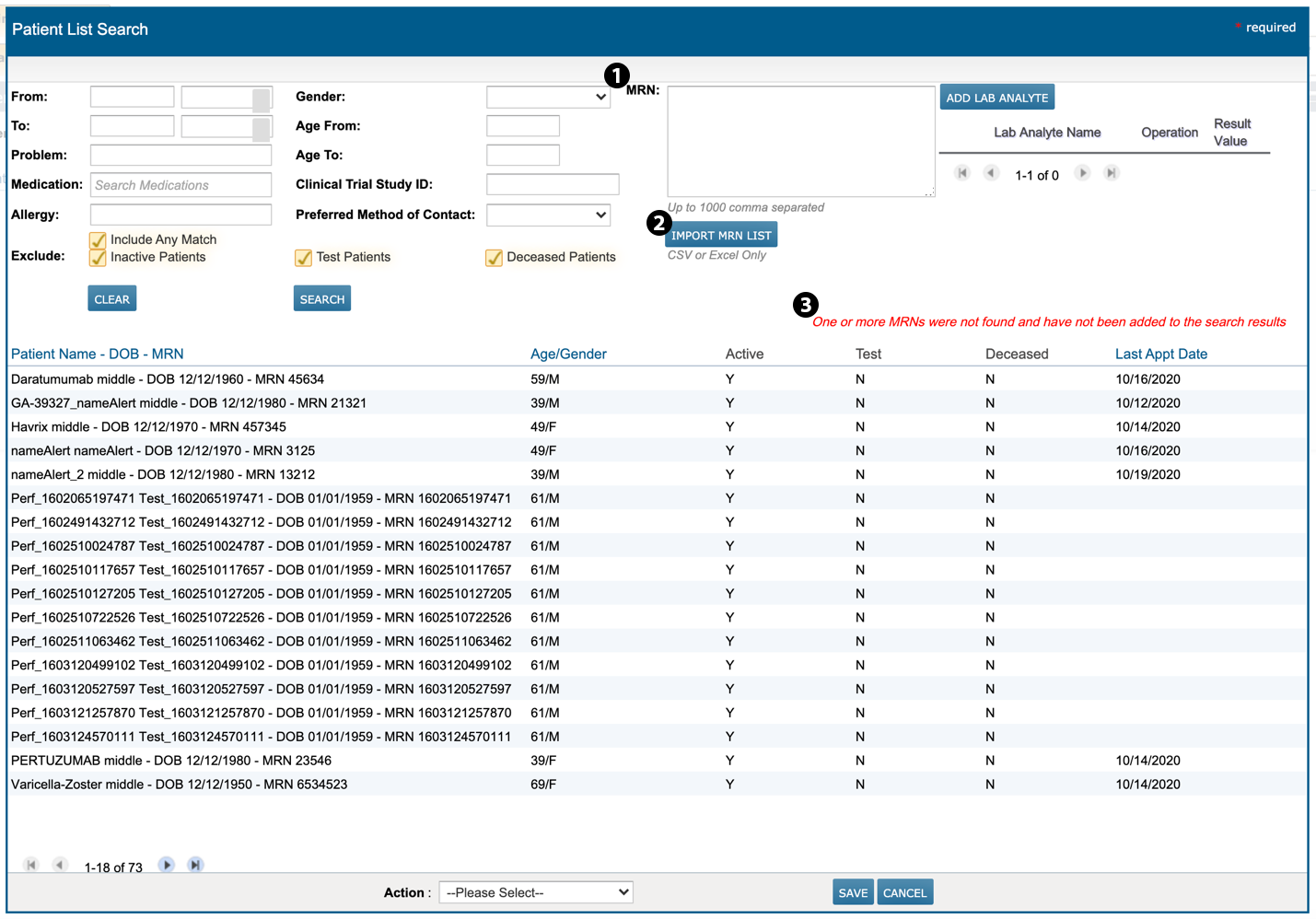
Manually add your list of MRNs in the new MRN box (see callout 1) or click the IMPORT MRN LIST button (see callout 2) to upload your Excel or CSV file
-
For an expanded view, click the lower right corner of the MRN box and drag it to your preferred size
-
-
Click the SEARCH button
-
If any MRN in your list is not found, a message will display stating that those MRNs were not included in the search results (see callout 3)
-
-
From the Action drop-down, choose whether you want to create a new patient list for these MRNs or add them to an existing list
-
SAVE your changes