
Add Medications to a Regimen Faster Using Streamlined Process Copied
It is common for physicians to add drugs to a patient’s treatment regimen. Users requested a way to do this more efficiently, particularly in cases where the drug being added should not be added to any of the treatment groups already in the regimen.
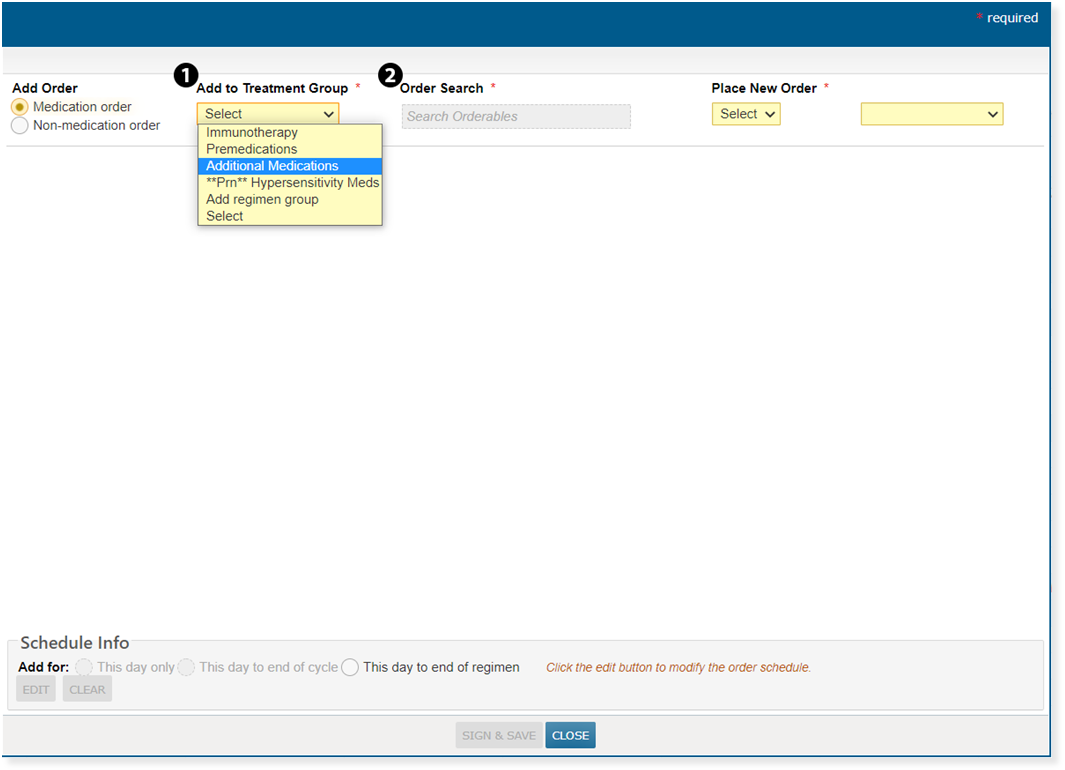
To streamline this process, the Additional Medications treatment group will always be an option, without searching, when adding the order. Users can also still search for and select a different treatment group if desired.
To quickly add a medication to a patient’s regimen:
-
From the patient’s chart, go to the Flowsheet.
-
Click the regimen cycle day header and from the pop-up choose Add an order.
-
From the Add to Treatment Group drop down, select the new Additional Medications option (see callout 1).
-
Search for and added the needed medication using the Order Search field (see callout 2).
-
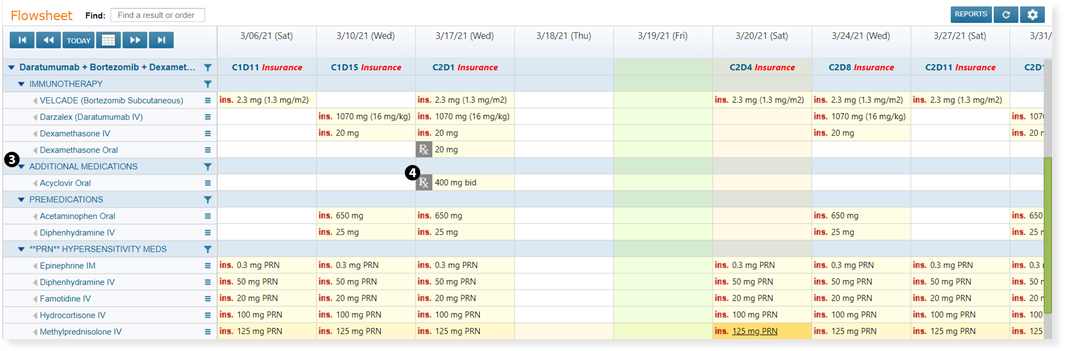
Once the medication details are completed and the drug is saved to the regimen, an Additional Medications treatment group will be added to the regimen.
-
If the regimen already contained a **PRN HYPERSENSTIVITY MED section, the Additional Medications section will appear just above it.
-
If the regimen did not contain a **PRN HYPERSENSTIVITY MED section, the Additional Medications section will be added to the bottom of the regimen (see callouts 3 and 4).
-