Add In-House Prescription Routing Options for Specific Drugs Copied
Add In-House Prescription Routing Options for Specific Drugs
Certain oncology drugs that do not get filled through in-office dispensing often result in loss of revenue for your practice and can create a gap in patient care when retail pharmacies are unable to educate or follow-up with the patient properly.
Now you can choose to automatically route certain medications to Medically Integrated Dispensing (MID) at your sites, based on series of settings that give your practice, locations, and the patients control over where their prescriptions are routed.
This feature also gives you control over which drugs may go to your MID, which MID they should go to, which patients want to use MID, and simplifies the workflow for the provider as it automatically selects the location for prescriptions based on the settings you and the patient have in place.
A few notes on how the logic is implemented:
-
If the Practice does not have a MID set, and the Prescribing Location does, then the location’s MID will be used.
-
If the patient already has a MID from the Practice or Location in their list and it is preferred, then that MID will be chosen first.
-
If there are multiple MIDs from the Practice/Location that are in the patient’s list, then they will be chosen in descending order. This ensures that the patient and the practice benefit from the logic.
To utilize this feature:
-
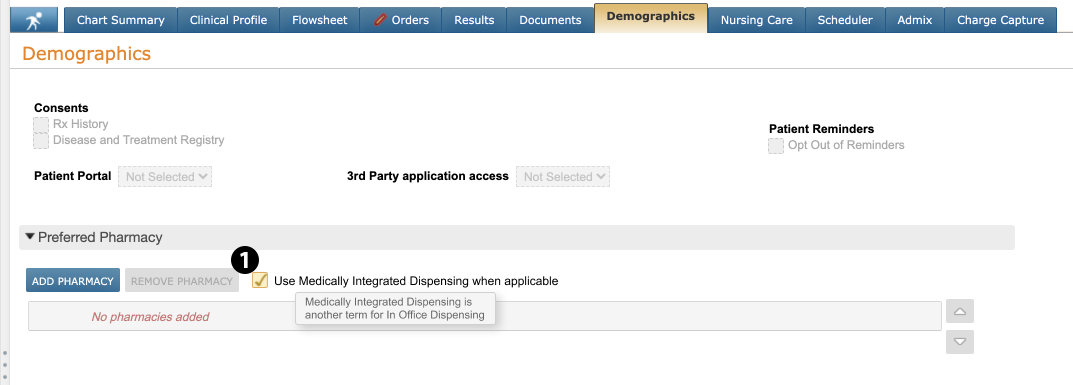
Pre-existing patients must first consent to medications being filled by your MID pharmacy. Document this consent in their chart under Demographics > Preferred Pharmacy. (To automatically set this for new patients moving forward see 5a below.)
-
Check the box to turn on the new Use Medically Integrated Dispensing when Applicable preference (see callout 1)
-
Hovering over this preference displays the definition of a medically integrated pharmacy.
-
-
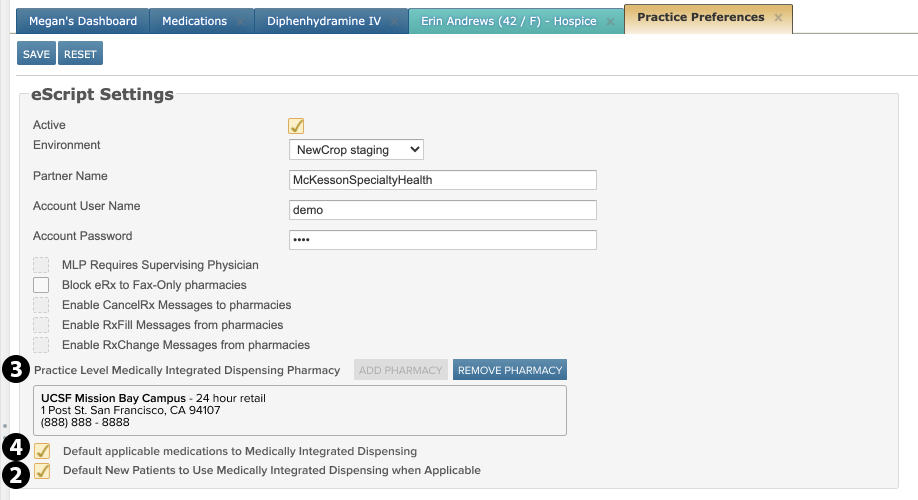
Now you can turn on MID dispensing at the practice level in ADMIN > Practice Preferences.
-
Under eScript Settings, turn on the following preferences:
-
Default New Patients to use Medically Integrated Dispensing when Applicable, which will automatically opt in new patients going forward by checking the setting in their demographics (see callout 2).
-
Practice Level Medically Integrated Dispensing Pharmacy, which will assign a preferred MID location for your overall practice (see callout 3)
-
If an MIDP is not already listed, you must click the ADD PHARMACY button and fill out the needed information manually or search for your preferred In House Dispensing pharmacy to assign it to your practice
-
-
Default Applicable Medications to Medically Integrated Dispensing. This setting tells iKnowMed Generation 2 that your Practice would like to consider MID pharmacies when determining the routing ordering of certain medications (see callout 4).
-
-
SAVE your changes.
-
If certain sites within your practice want orders to route to a different MID location than the one selected by the practice, or if you have a location that would like to utilize this functionality separately from the practice, this can be done on the Locations page.
-
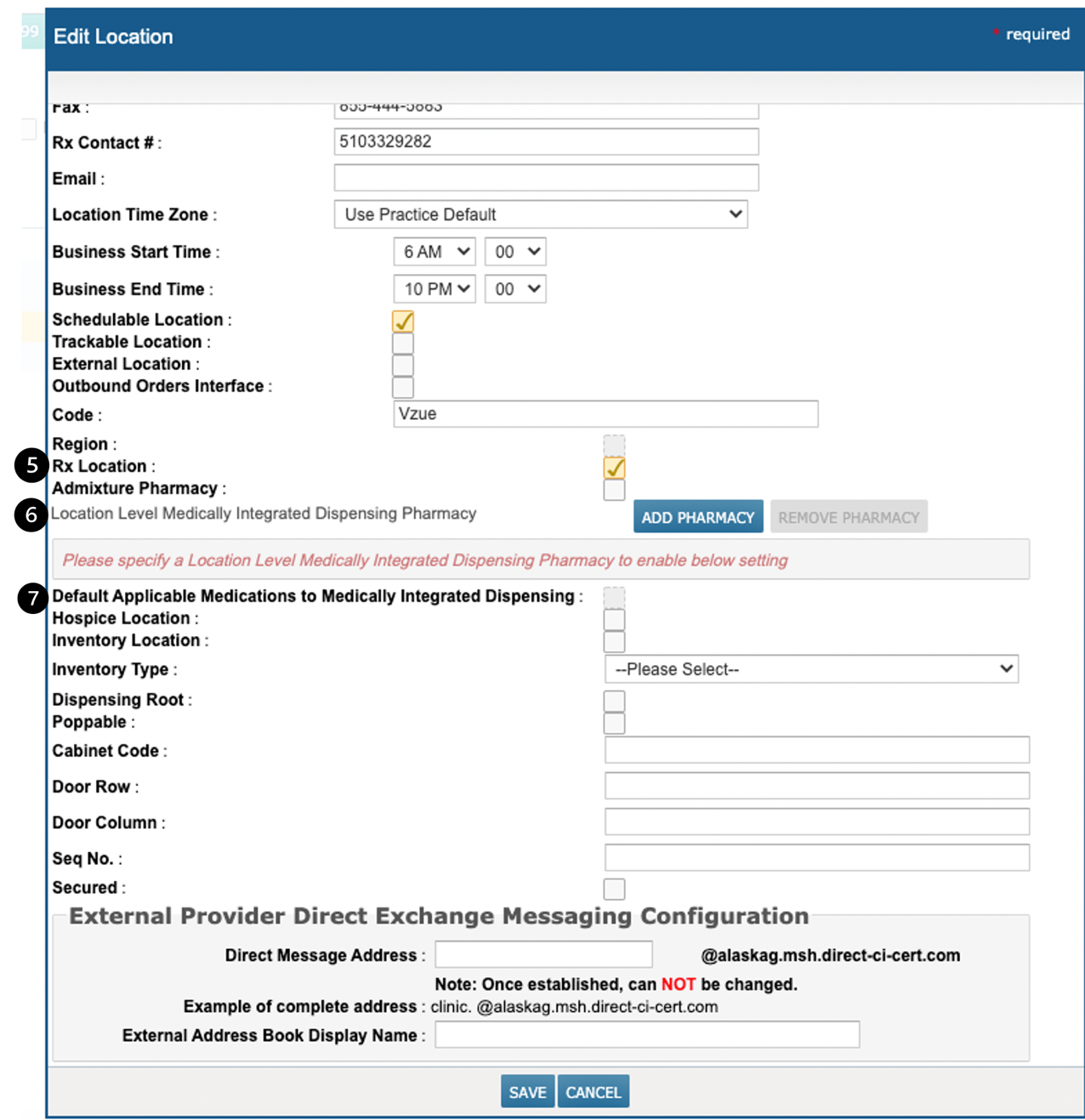
Find the Location that wishes to choose a different MID location, click the EDIT button, and turn on the following preferences:
-
Rx Location (see callout 5) must be checked in order to continue set up
-
Location Level Medically Integrated Dispensing Pharmacy must have a pharmacy added assigned in order to be checked (see callout 6)
-
If an MID pharmacy is not listed, add one by clicking the ADD PHARMACY button. Fill out the needed information manually or search for your preferred In House Dispensing pharmacy to assign it to the site
-
Location Level Medically Integrated Dispensing Pharmacy will be used before the Practice level Medically Integrated Dispensing Pharmacy
-
-
Default Applicable Medications to Medically Integrated Dispensing, which marks the listed pharmacy as the location’s default MID pharmacy for patients that opt into this dispensing method (see callout 7)
-
-
SAVE your changes
-
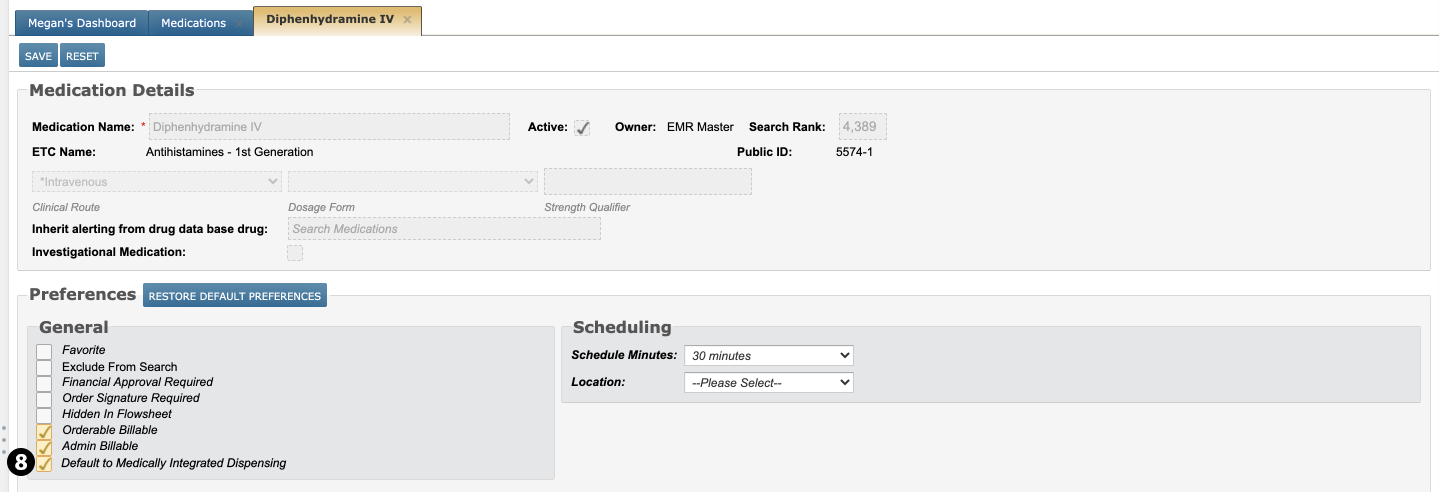
To send medications to MID, you must also turn on a preference for each medication that should be eligible for routing with this logic.
-
This is done by opening that medication and going to its Preferences
-
Under General, turn on the new Default to Medically Integrated Dispensing preference (see callout 8).
-
SAVE your changes.
-
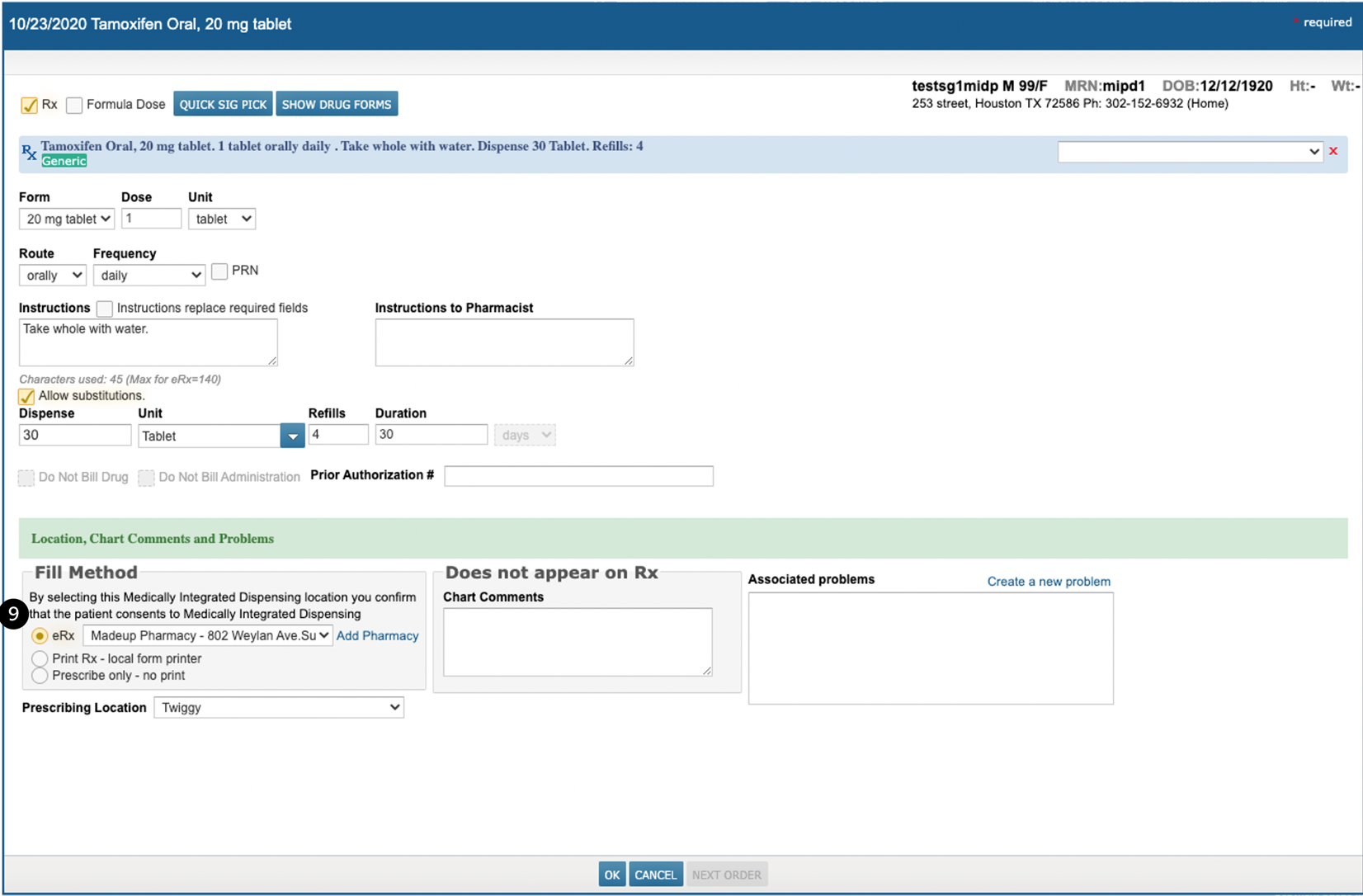
Now that setup is complete, when placing an order for that medication on the Orders page, the eRx pharmacy automatically selected under Fill Method will be your practice or location’s preferred MID if the patient has opted in (see callout 9).
-
When iKnowMed Generation 2 has defaulted the drop-down for the user based on the logic and settings, a consent message will also display stating that your use of the MID pharmacy confirms that the patient has opted into this dispensing method.
-
When one of the settings rules out the use of this feature, the Orders screen will not change, and the patient’s preferred pharmacy will default in the drop-down as it has prior to this release.
-