Admix Worklist Queue Updates Copied
To provide more flexibility for how Worklist Queues > Admix can be used, the following enhancements were made in iKnowMed version 3.0.22:
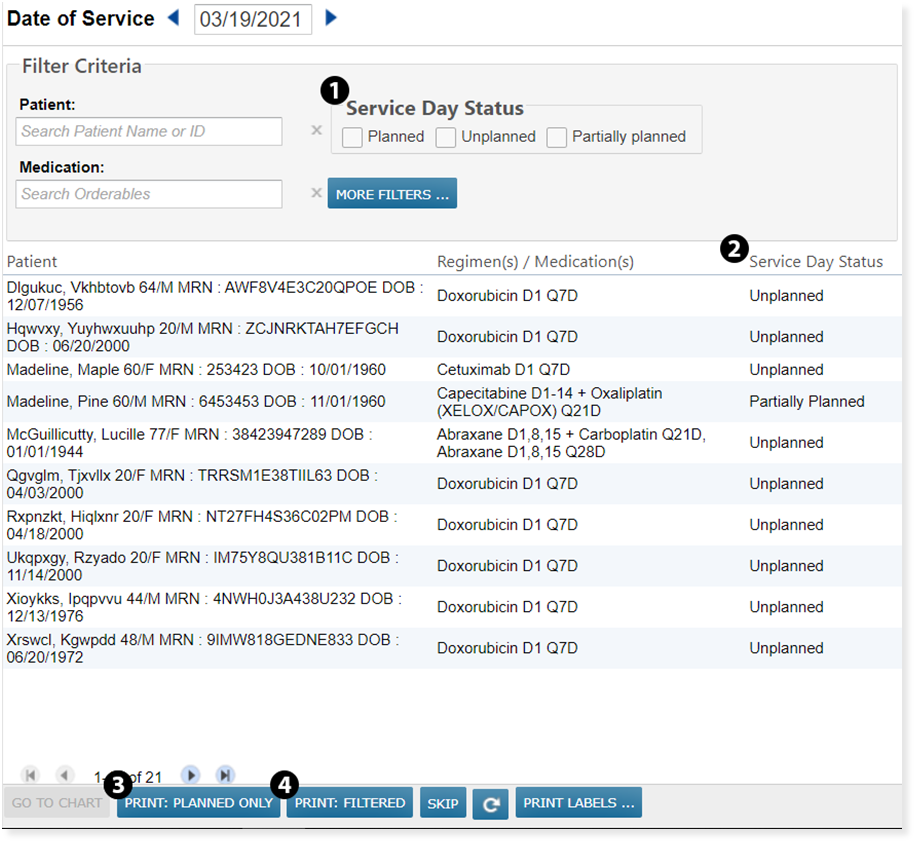
- The Status section on the landing page has been renamed to Service Day Status for clarity, as this feature filters by the status of the entire service day, not each individual order (see callout 1). The table was also updated to reflect Service Day Status for consistency (see callout 2).
- The PRINT REPORT button has also been renamed. The button is now labelled as PRINT PLANNED ONLY to reflect that only orders with an admixture status of planned will appear in the report (see callout 3). There is also a PRINT FILTERED button that will print a report based on the filters applied to the page (see callout 4).
- Additional information has been added to the printed report:
- Spacing was added in the Regimen column between the name of the regimen and the name of the treatment group.
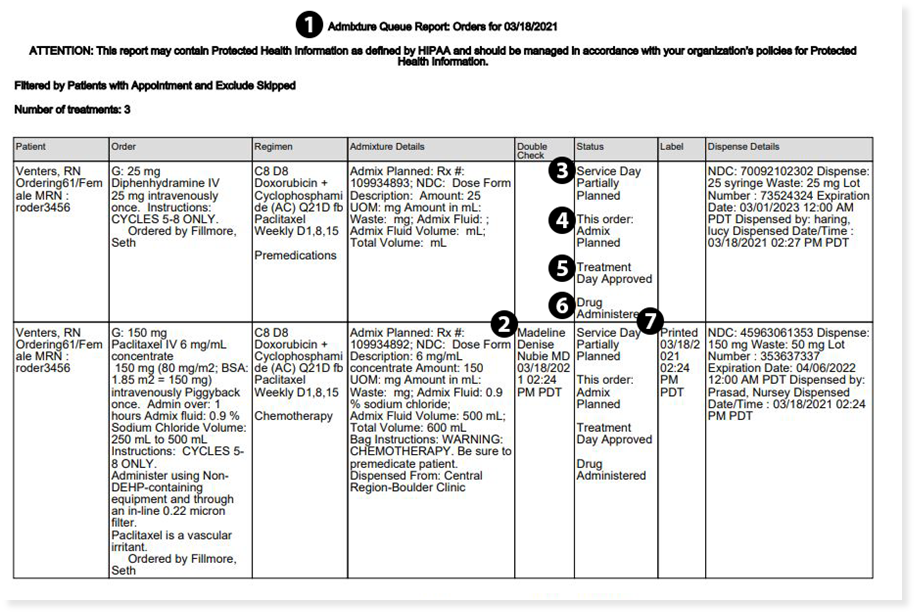
- The Double Check column displays the date and time of the double-check, as well as the name of the user who did the double-check (see callout 2).
- In the Status column the following details have been added:
- The report is now be titled, Admixture Queue Report: Orders for MM/DD/YYY (see callout 1).
- The status that currently displays is the status of the collection of orders for the day, so the words Service Day will appear before the display of the status (see callout 3).
- A new status appears below the Service Day status in the column to denote the admix status of the order in focus. This status is labelled as This order: and displays the status as Admix Planned or Admix Skipped (see callout 4). For unplanned orders, This order: status will not display in the column.
- Below the This order: status, another new status appears for Treatment Day approval. If the treatment day is approved, the column displays Treatment Day Approved (see callout 5). If it has not been approved, the Treatment Day status will not appear in the column.
- Lastly, below the Treatment Day approval status, a new Drug Administered status will appear. If the drug has been administered to the patient, the column will display Drug Administered (see callout 6). If it has not been administered, the Drug Administered status will not appear in the column.
- The Label column will display the most recent date and time the label was printed (see callout 7). If the label was not printed, this column will be blank.