Add Pharmacy to Medication Labels Copied
Add Pharmacy to Medication Labels
Prior to this release, the location that printed on medication labels was either the location of the patient’s appointment or the location where the order was made. Now you can tag locations as a pharmacy and have that print on the label instead.
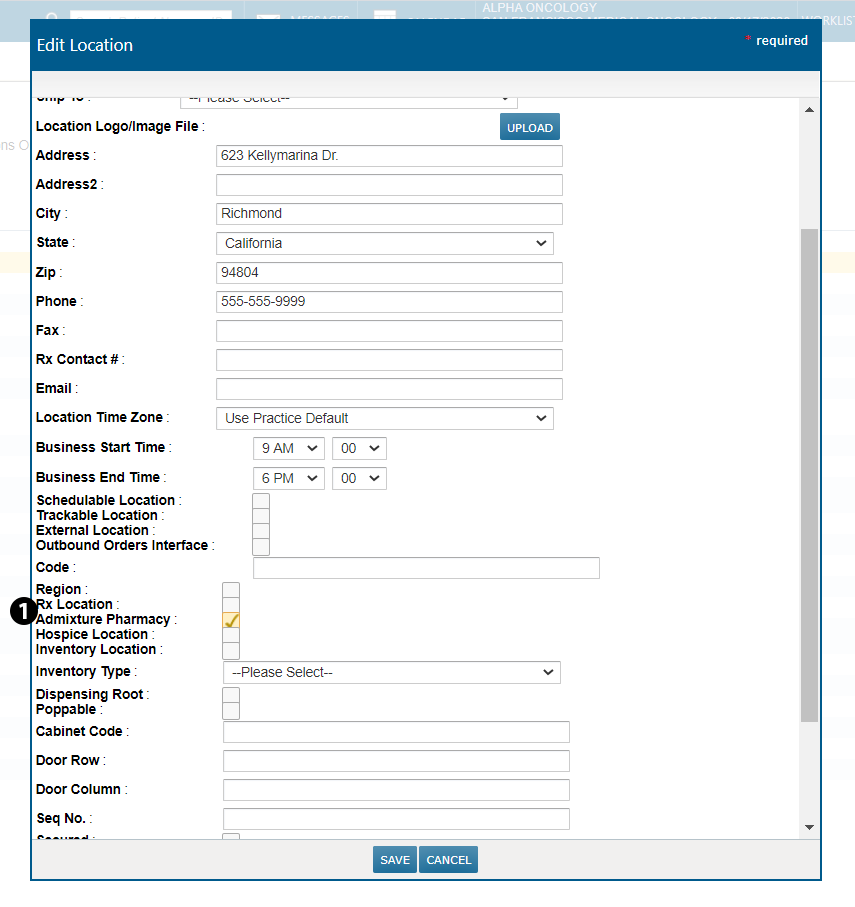
Go to ADMIN > Locations. Create a new location by clicking the ADD LOCATION button and filling in the name and address of your location. Tag this location as a pharmacy by checking the new Admixture Pharmacy box (see callout 1). Click the SAVE button to confirm your changes.
To change an existing location, select your location’s name and click the EDIT button. Check the new Admixture Pharmacy box (see callout 1) and click the SAVE button to confirm your changes.
Now when adding instructions to a medication using the patient’s Admix tab or in Worklist Queues > Admix, you can choose your location from the Pharmacy Location drop-down and have it display on the medication label. Otherwise, the label will continue to show the location of the patient’s appointment or the location where the order was made.