Find and replace or remove a medication in multiple order sets Copied
To improve the quality of Order Sets, we have created a new tool that allows users to make the same change to multiple Order Sets at the same time.
Find a group of Order Sets that contain a particular medication, and then choose to remove the medication from selected order sets or replace the medication with another in the selected order sets.
To remove a medication from a selection of Order Sets:
- Navigate to Manage > Order Sets.
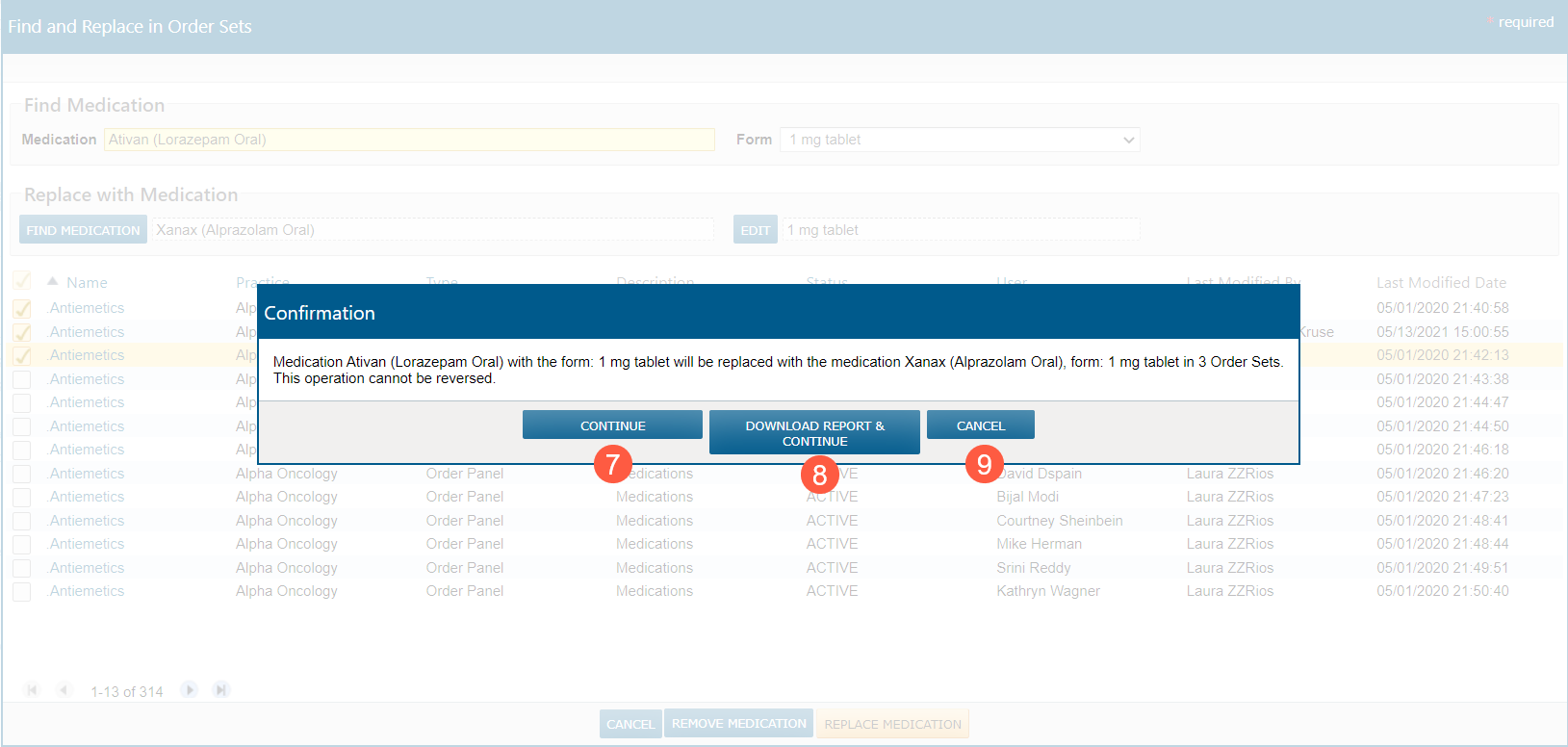
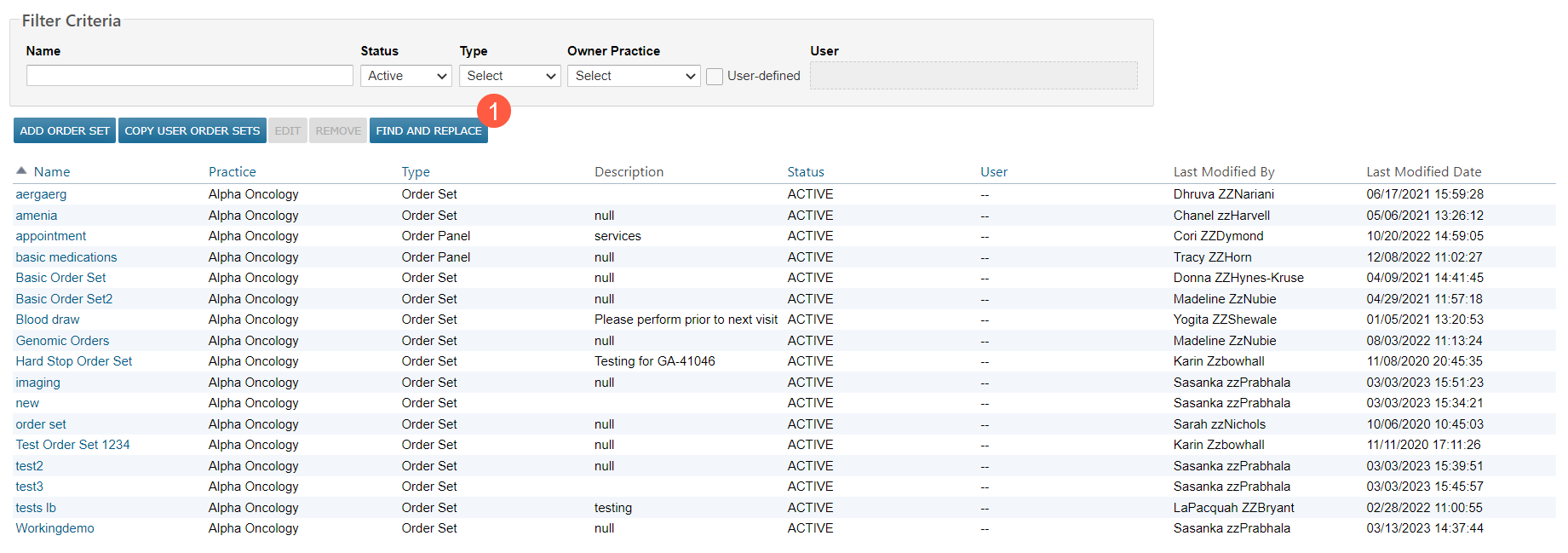
- Click on the Find and Replace button (callout 1).
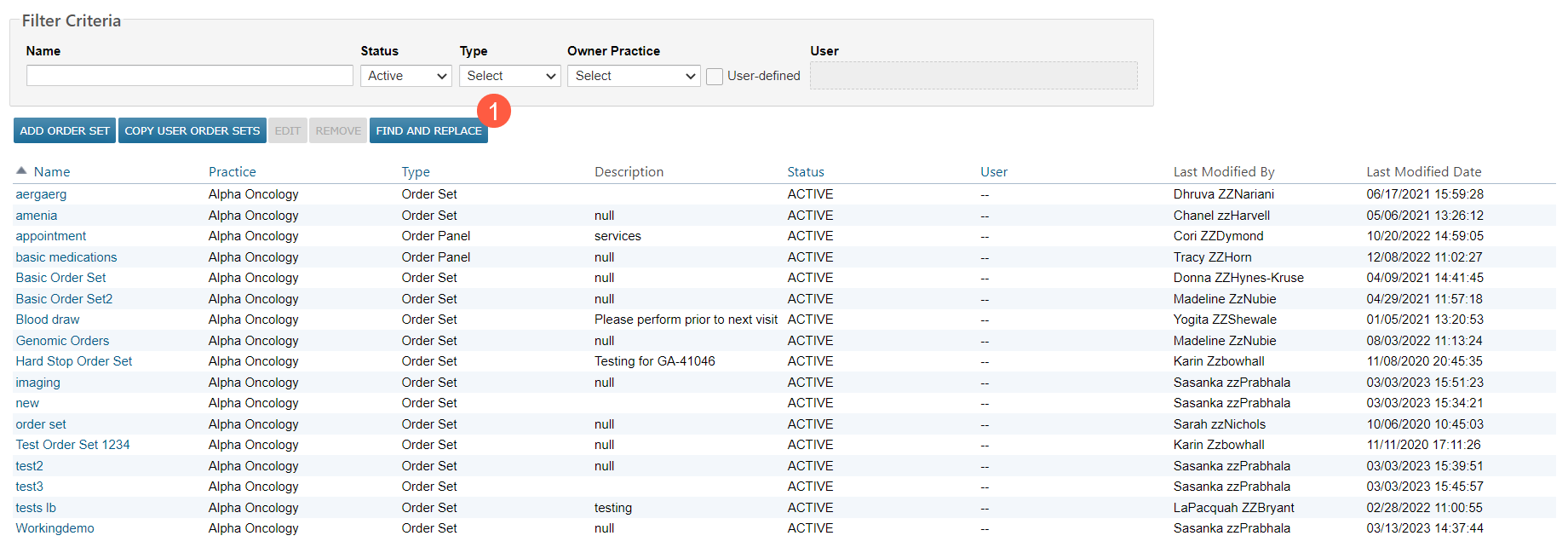
- In the pop-up window, enter a Medication and a Form to filter the results (callouts 2 and 3). This is the medication that will be removed.
- The window defaults to show all order sets, but once a medication is selected, the results will be filtered to only include order sets that contain that medication, and if Form is selected, only those that contain that specific form will display.
- Use the checkboxes to select individual order sets to remove the medication or select all.
- Use the pagination buttons at the bottom to go through all results.
- Click the Remove Medication button (callout 4).
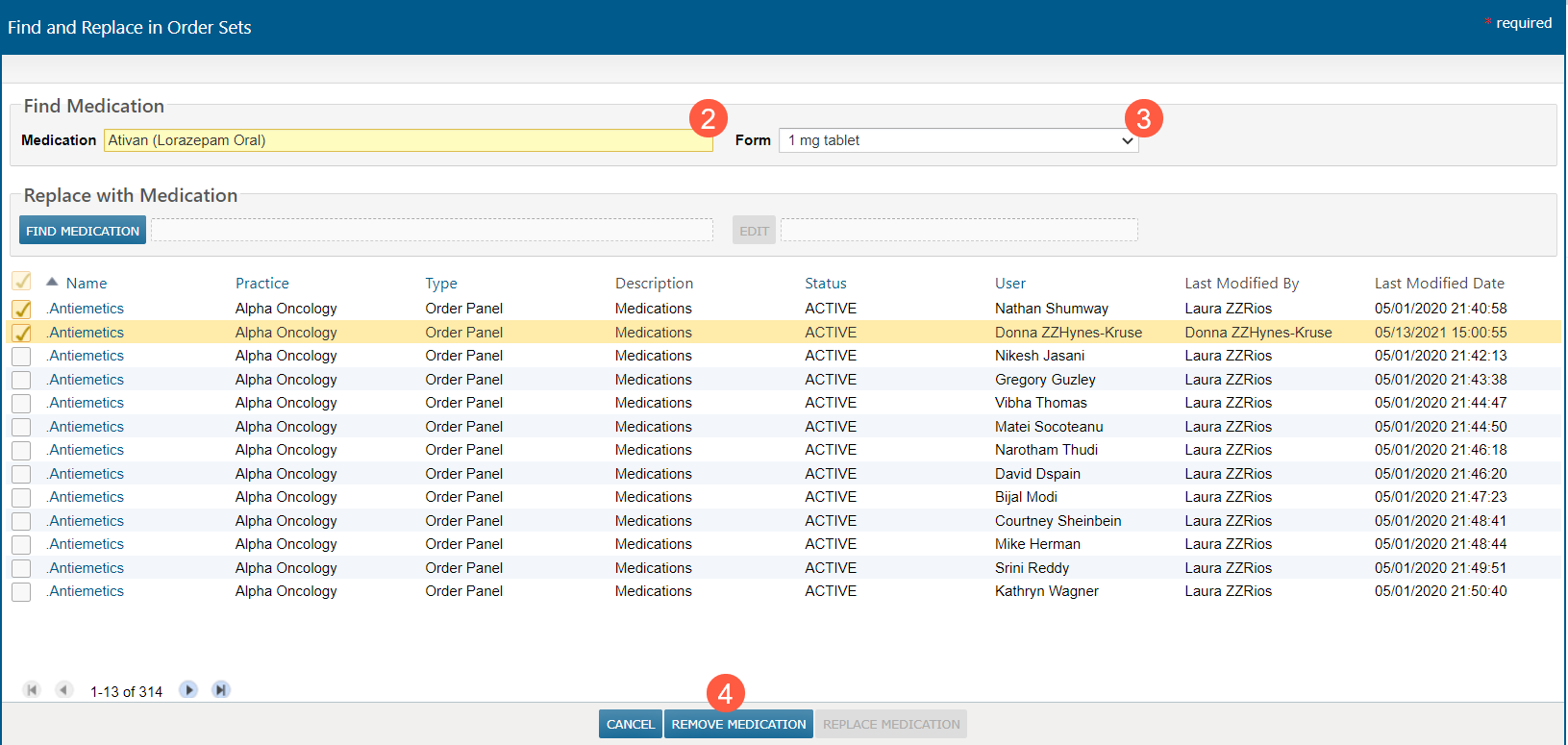
- A confirmation pop-up appears with the details of the changes that are about to be made.
- When you are ready to make the changes, click Continue to perform the changes (callout 5), click Download Report & Continue to perform the changes and receive a PDF and Excel spreadsheet listing the changes (callout 6), or click Cancel to exit and not perform any changes (callout 7).
To replace medication in a selection of Order Sets:
- Navigate to Manage > Order Sets.
- Click on the Find and Replace button (callout 1).
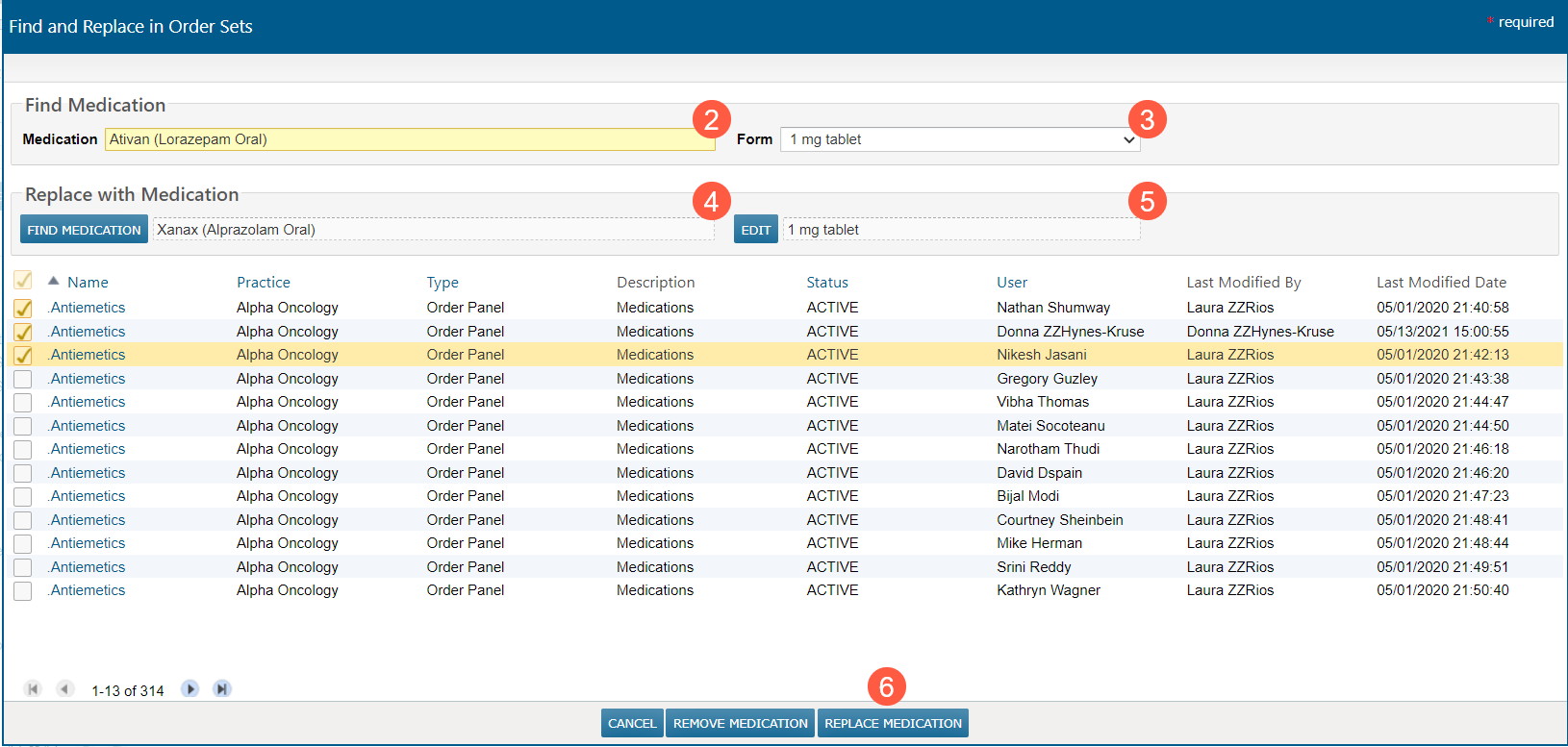
- In the pop-up window, enter a Medication and a Form to filter the results (callouts 2 and 3). This is the medication that will be replaced.
- The window defaults to show all order sets, but once a medication is selected, the results will be filtered to only include order sets that contain that medication.
- Click on Find Medication to find and select the replacement medication (callout 4).
- Click Edit to update the properties of the medication you selected (callout 5).
- Once your edits have been made, the Replace Medication button becomes enabled signaling that the system has the information it needs to perform the replacement.
- Use the checkboxes to select individual order sets to remove the medication from or select all. Use the pagination buttons at the bottom to go through all results.
- Click the Replace Medication button (callout 6).
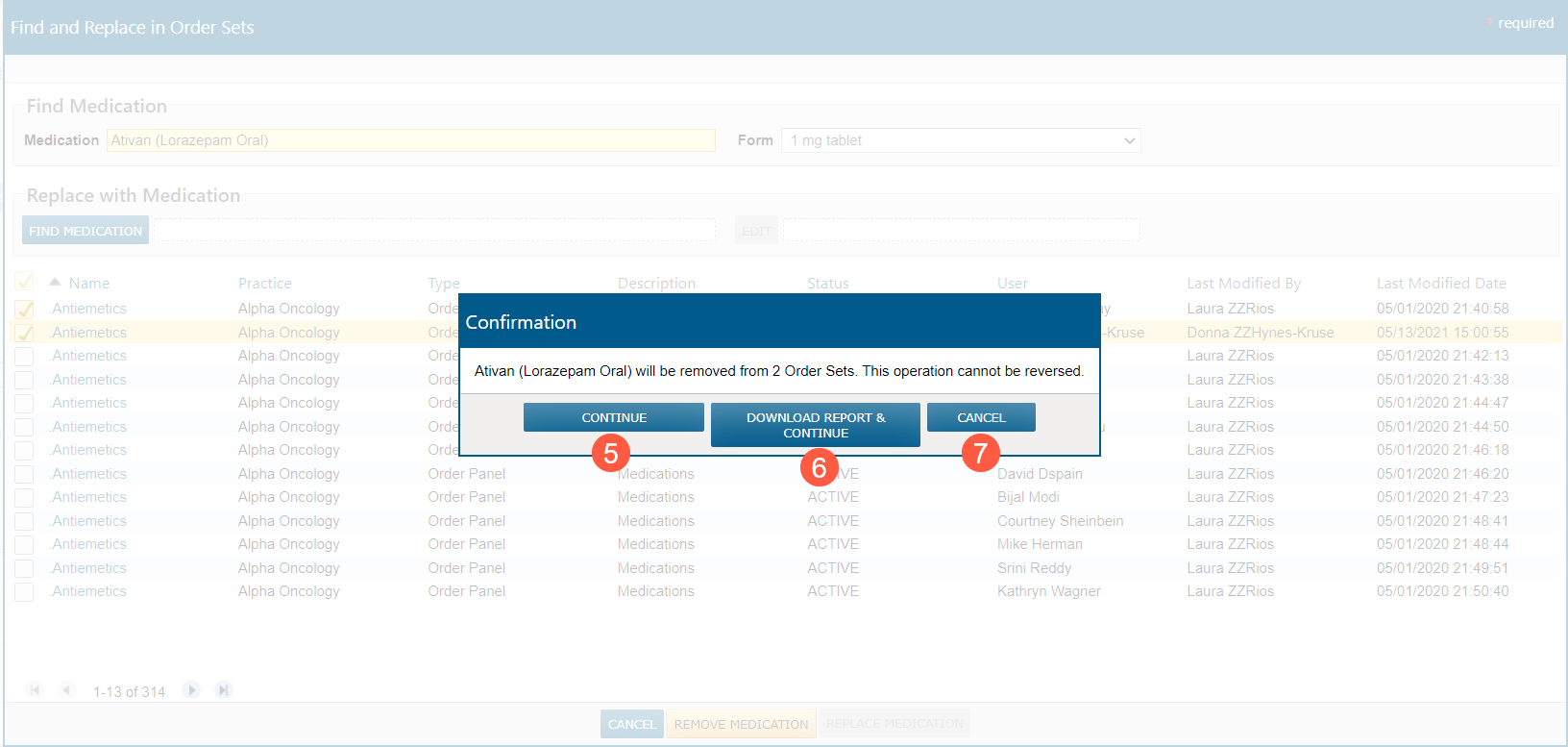
- A confirmation pop-up appears with the details of the changes that are about to be made.
- When you are ready to make the changes, click Continue to perform the changes (callout 7), click Download Report & Continue to perform the changes and receive a PDF and Excel spreadsheet listing the changes (callout 8), or click Cancel to exit and not perform any changes (callout 9).