Do Not Bill custom modifier for interface charges Copied
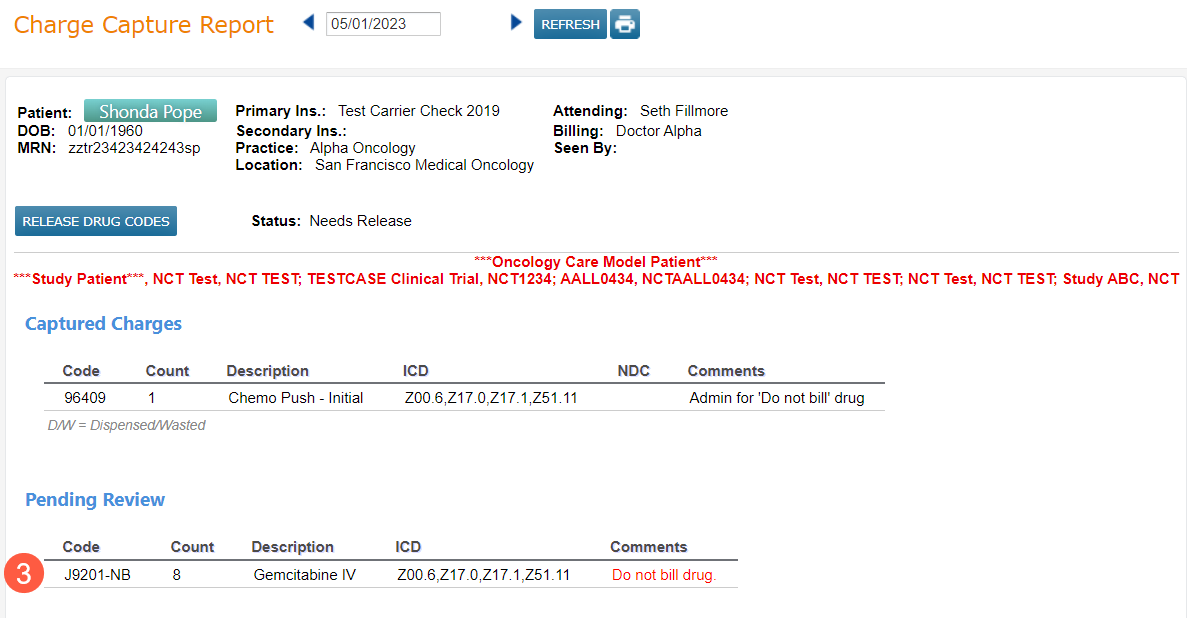
To improve the Do Not Bill workflow and allow practices to handle do not bill charges appropriately in their practice management system, we have created a new practice preference that will append a custom modifier to Do Not Bill charges to differentiate them from other charges. When these charges are received by the practice management system, rules can be put into place to handle these charges automatically per the payer’s rules.
To use this feature:
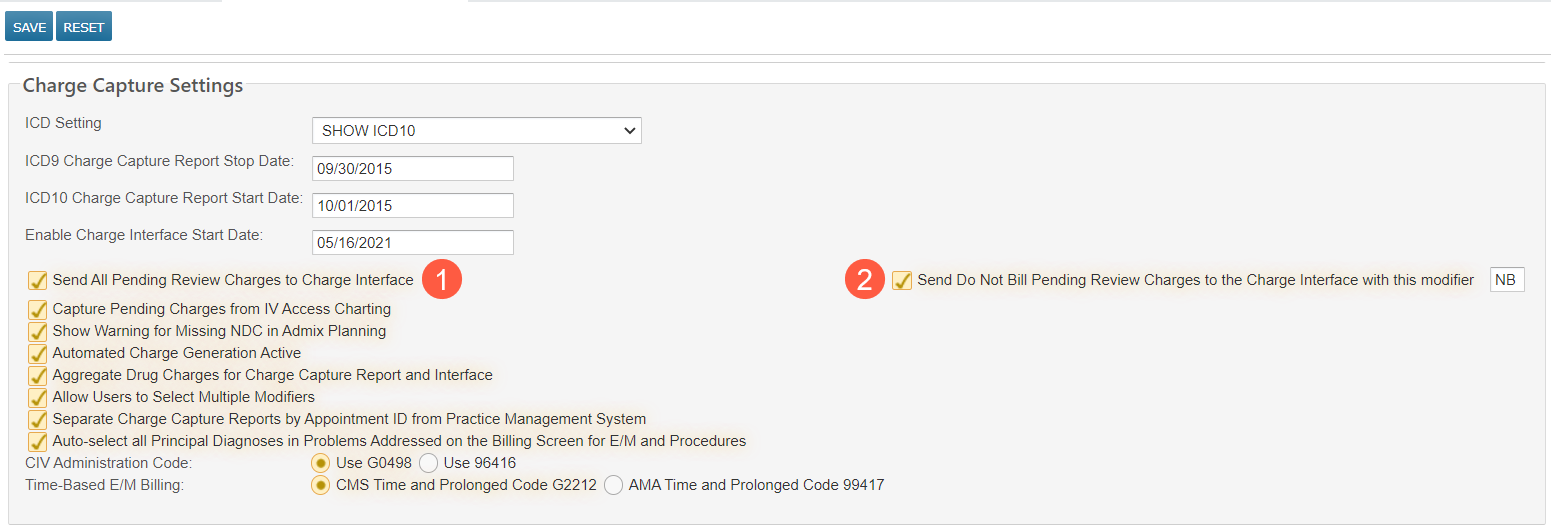
- Navigate to Admin > Practice Preferences > Charge Capture Settings.
- Check the box for Send All Pending Review Charges to Charge Interface (callout 1).
- Check the box for Send Do Not Bill Pending Review Charges to the Charge Interface with this modifier and enter a two-character alphanumeric modifier in the text box (callout 2).
- When selecting a modifier to use, make sure to use a modifier that is not in the current modifier code set.
- For your practice management system to handle the charges properly, choose a modifier that is not used currently. The modifier should only be used for handling Do Not Bill charge
- Save your changes.
- After the Practice Preference is set up, all charges that have not been previously released will have the modifier appended to them.
- The charges will show in Pending Review on the Charge Capture Report with the modifier appended to the billing code (callout 3).