
Control user access to upcoming Carequality external records search Copied
As we gear up for the next phase of Carequality, you can begin determining who at your practice can request patient information from your community partners. Users will not see any changes until the external records search is enabled for your practice.
To set an individual user’s permission:
- Go to Admin > Users.
- Select a user and click the Edit User button.
- In the window, select the Permission tab.
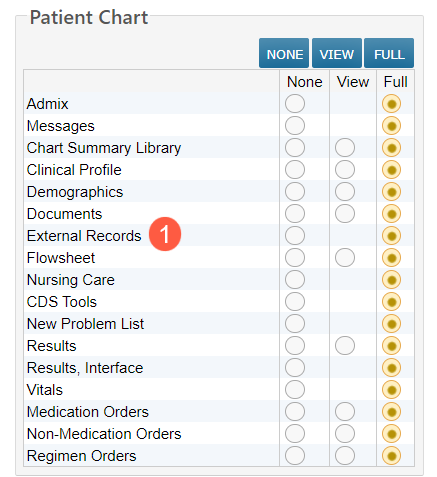
- Scroll to the Patient Chart section and set the new External Records permission to Full (callout 1). It will be set to None by default.
NOTE: The user must also have View or Full permission for Documents to access the External Records tab.
- Save your changes.
To set permission for a group of users, follow the Help site instructions that explain how to apply a specific user profile to one or more user accounts.
Once the search is enabled for your practice, users with the External Records permission set to full can request patient information from your community partners using the Documents tab in the patient’s chart.