Medications and Allergies full integration with Ontada Health e-Registration Copied
Starting Thursday, June 26, 2025, the “Pending” status that was introduced in the Medications and Allergies tabs of the patient chart will become fully functional. This enhancement allows practice staff to electronically review, reconcile, and verify patient-submitted updates, eliminating the need for manual data entry.
How it works
Patients without reported medications or allergies
If a patient has not reported any medications or allergies through Ontada Health e-Registration, the Medications and Allergies tabs in their chart will display a message indicating that no information was submitted (see callout 1 for example).
This message will prompt staff to confirm that the patient has no known medications or allergies. To document this in the chart, simply check the box labeled “No Known Medication Allergies” or “No Known External Medications” (see callouts 2 for example) and click the Yes button.
Once selected, this information will be saved to the patient’s chart, ensuring accurate and complete documentation.

Patients with reported medications or allergies
When a patient completes the Medications & Allergies section of the e-Registration form, their responses will automatically populate the Medications and Allergies tabs in their chart. These entries will appear with a “Pending” status until reviewed by practice staff.
To review and reconcile pending medications:
- Open the patient’s chart and navigate to Clinical Profile > Medications.
- The Pending status box will be checked automatically (callout 1).
- An alert will appear in the table to notify you that items need to be reviewed (callout 2).

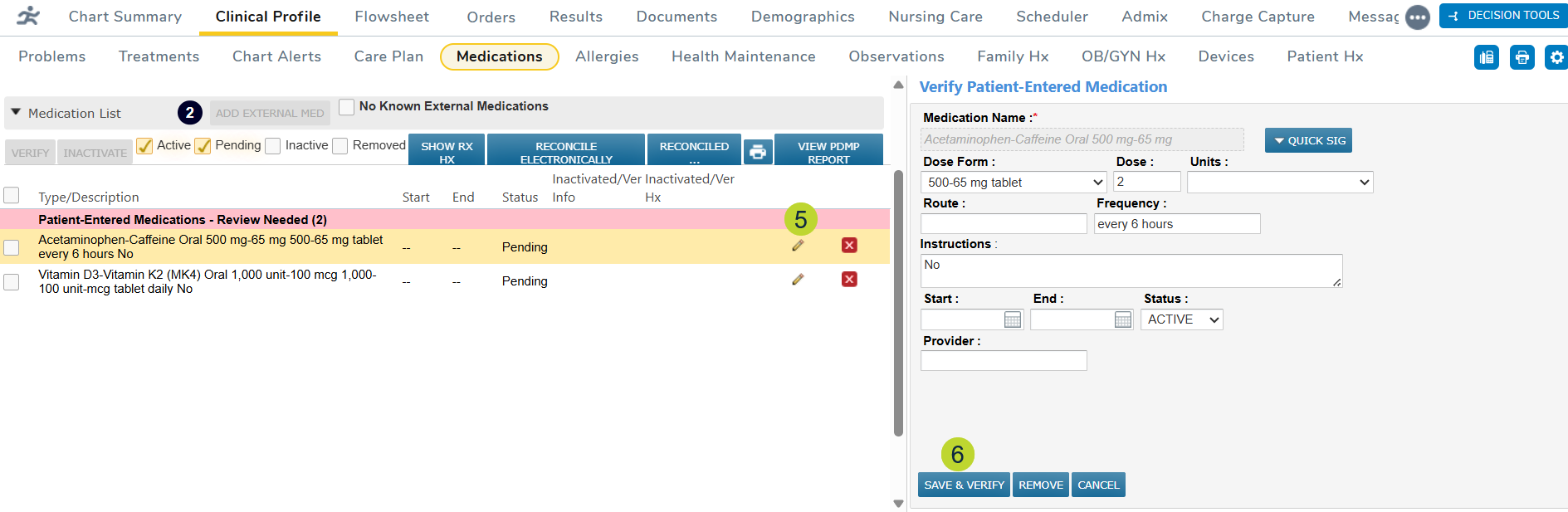
- If you wish to verify all items (including removals) in bulk, check the select all box or check the box next to each of the desired items (callout 3).
- Click the Verify button above the table to enact all patient-reported changes (callout 4).

- If you need to review or update any pending items before verifying them, click the edit icon (callout 5).
- After confirming or updating the information, click Save & Verify (callout 6).
- The status of the item will change to Active (callout 7).

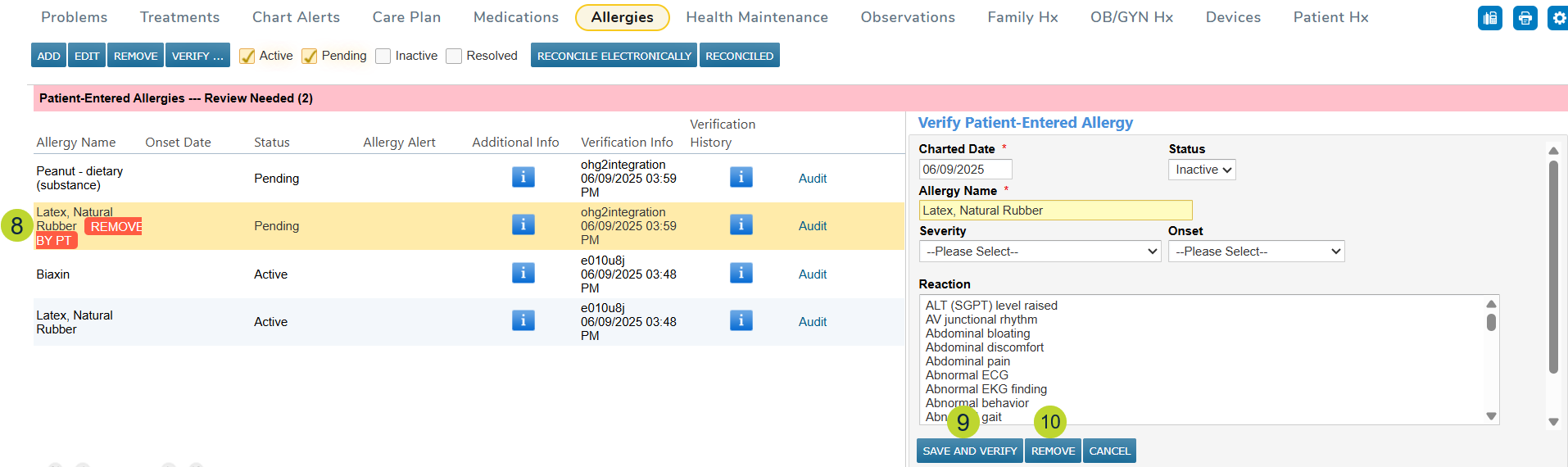
- Removed items will be marked with a red REMOVED BY PT badge (callout 8).
- You may click the red box to remove item (callout 9) or open the item to view the details before clicking Save & Verify or Remove to remove it from the patient’s chart (callouts 10-11).
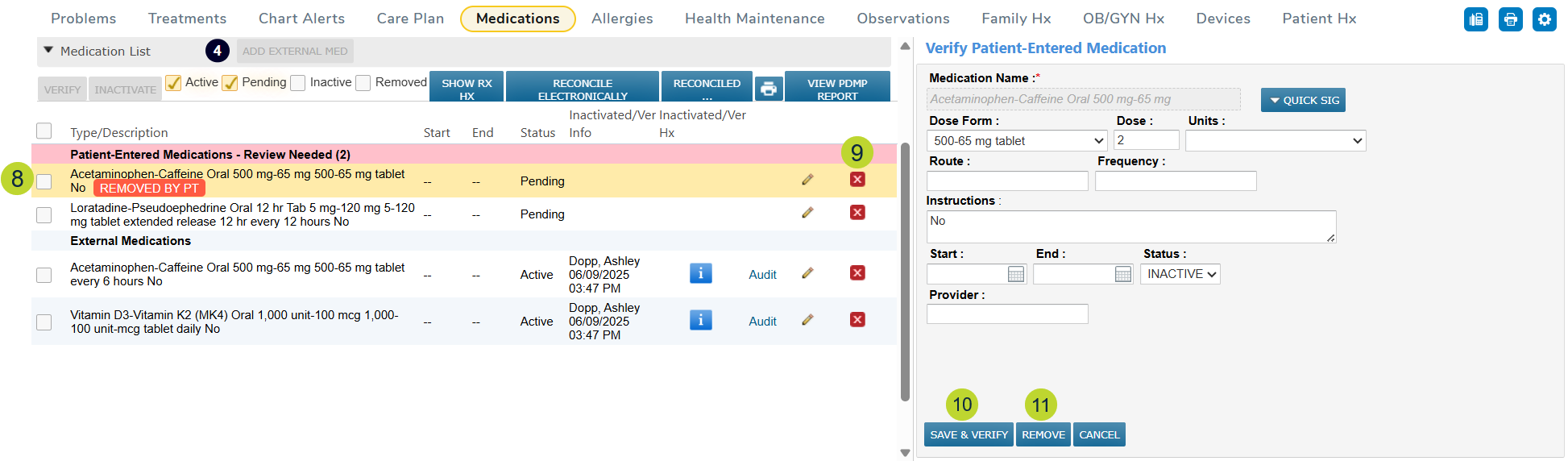
NOTE: Only external medications can be updated or removed in the Medications tab. For practice prescribed medications, you must continue to update or discontinue the prescription in the patient’s Flowsheet. Then, remove medication from pending status using the red box in the medications tab.
To review and reconcile pending allergies:
- Open the patient’s chart and navigate to Clinical Profile > Allergies.
- The Pending status box will be checked automatically (callout 1).
- An alert will appear in the table to notify you that items need to be reviewed (callout 2).
- If you wish to verify pending items (including removals) in bulk, click the Verify button above the table (callout 3).

- A window will appear where you can review all the changes. If it looks correct, click the Verify button to enact all patient-reported changes (callout 4).
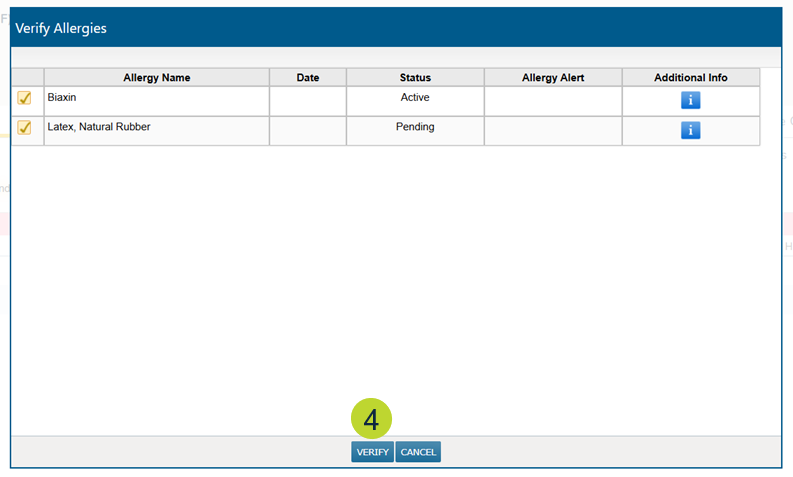
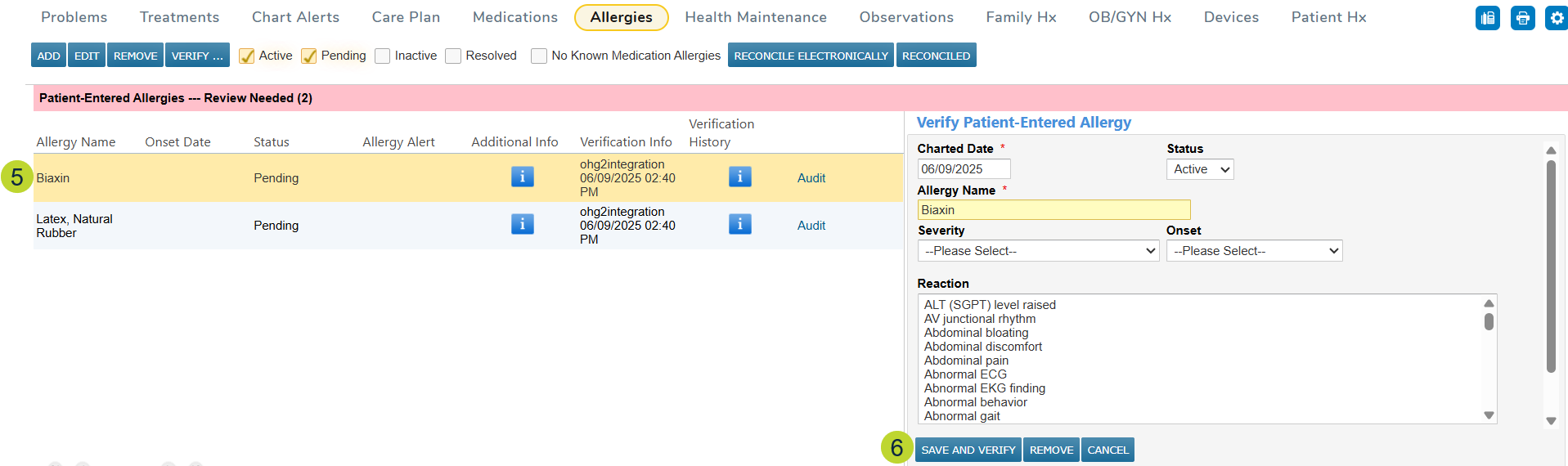
- If need you need to review or update any pending items before verifying them, click on the item (callout 5).
- After confirming or updating the information, click Save and Verify (callout 6).
- The status of the item will change to Active (callout 7).

- Removed items will be marked with a red REMOVED BY PT badge (callout 8).
- Click on the item to view the details before clicking Save and Verify or Remove to remove it from the patient’s chart (callouts 9-10).