Self-Service Reporting: Forms Completion Report for better data collection Copied
We know getting the information you need when you need it is important for your practice. With Ontada Health reporting, we’ve created standard self-service reports, allowing you to run them as needed. Self-service reporting aims to decrease practice wait times for custom reports with standard reports that can be downloaded on demand.
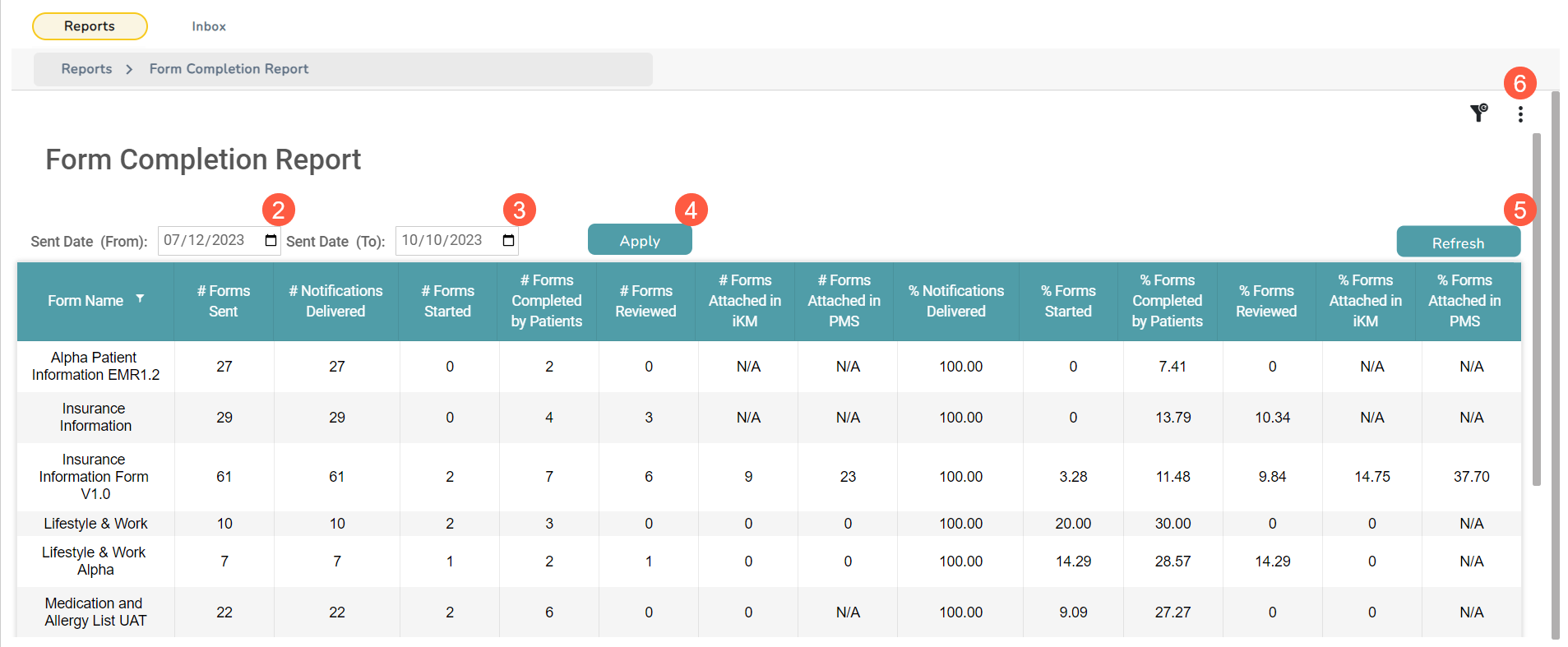
The Form Completion Report displays metrics related to form completion rates to help you keep track of form submissions, identify trends, and take steps to improve the completion rates, ultimately leading to better data collection and reduced time spent collecting and entering patient data.
NOTE: The reports are permission-based and will appear based on your role in the practice. Please work with your practice administrator to access reports.
Granting report permissions
Only those with user permissions under Admin Menu > Users set to FULL can assign reports to users based on their role in the practice.
To grant permissions:
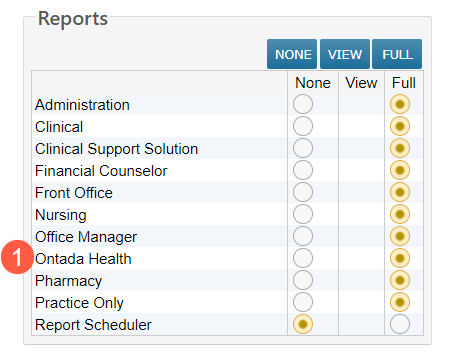
Go to Permission in the user’s profile, locate the Reports section, and change the Ontada Health setting from None to Full (callout 1).
NOTE: The changes will not take effect until the next nightly refresh is complete.
Accessing the reports
To access the reports:
- Go to Admin > Reports from the top navigation.
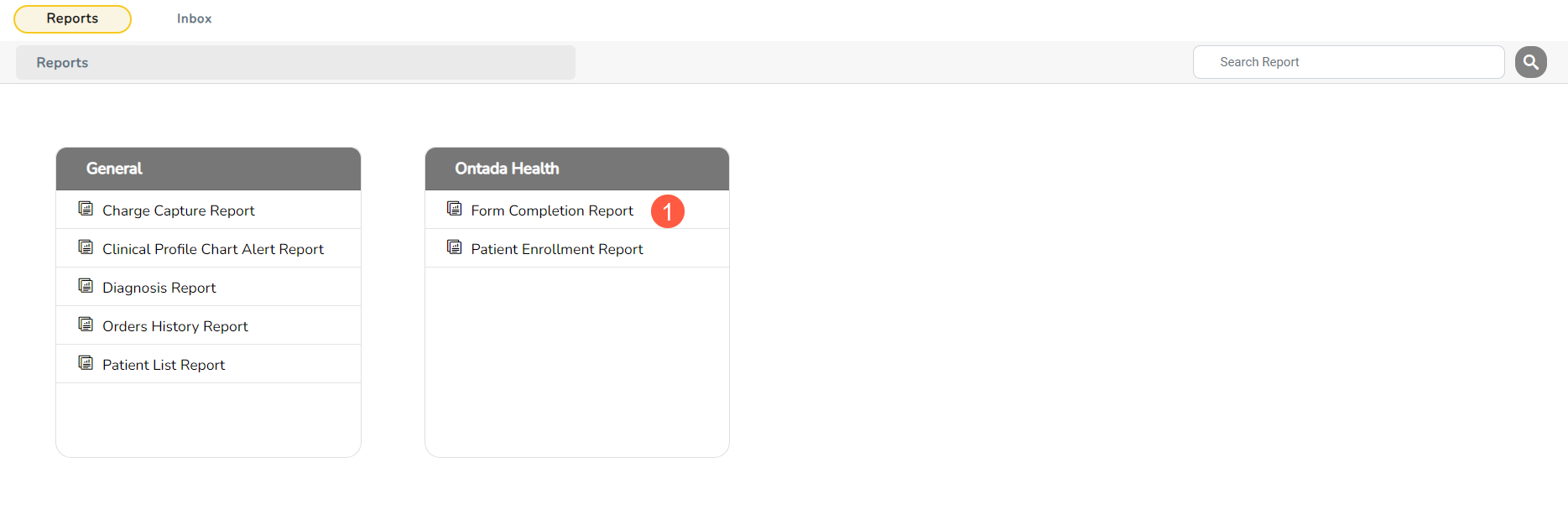
- To open the Form Completion Report, click the title of the report (callout 1).
- Filter your report by the sent dates using the from/to date fields (callouts 2 and 3).
- Once you select your filters, click Apply to generate the report (callout 4) or click Refresh to update your results in the table (callout 5).
- To export the report, click on the 3 dots in the upper right corner (callout 6) and then select your preferred download option.