
Therapeutic Interchange: Enhancements Copied
What’s changing
This release includes four updates to Therapeutic Interchange (TIC) configuration and visibility.
Delete TIC practice preferred entries
Practice users can delete a TIC practice preferred entry directly from the Manage Preferred screen.
To remove an entry, navigate to Manage > Therapeutic Interchange, select the applicable therapeutic group, click Manage Preferred, and use the new Delete option beneath the Comments section.
Note: Deletion is only available for entries that have not been applied to any patient regimen orders. The system will prevent removal of entries already in use.
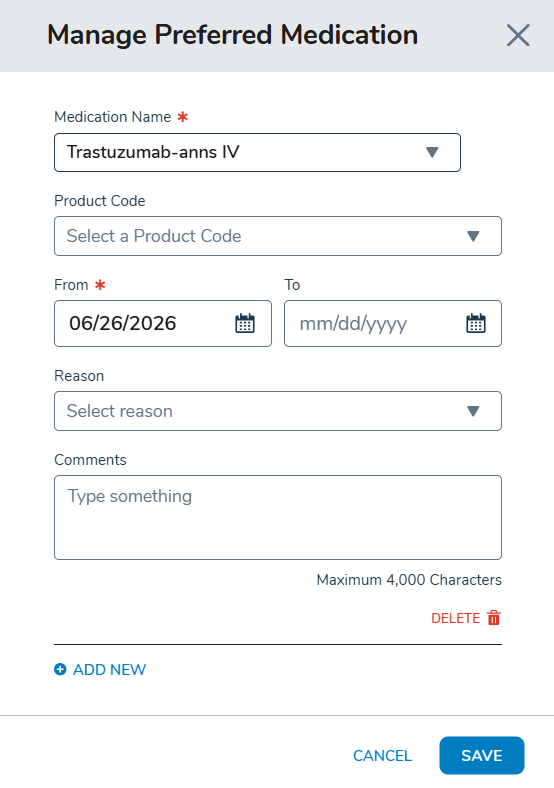
Step-by-step guide: Delete TIC practice preferred entry
Delete TIC payer rules
Similarly, practice users can delete a TIC payer rule when it has not been applied to any patient regimen orders.
To remove an entry, navigate to Manage > Therapeutic Interchange, select the applicable therapeutic group, expand the configured payer rules for the applicable medication, and use the new Delete option.
Note: Deletion is only available for rules that have not been applied to any patient regimen orders. The system will prevent removal of rules already in use.
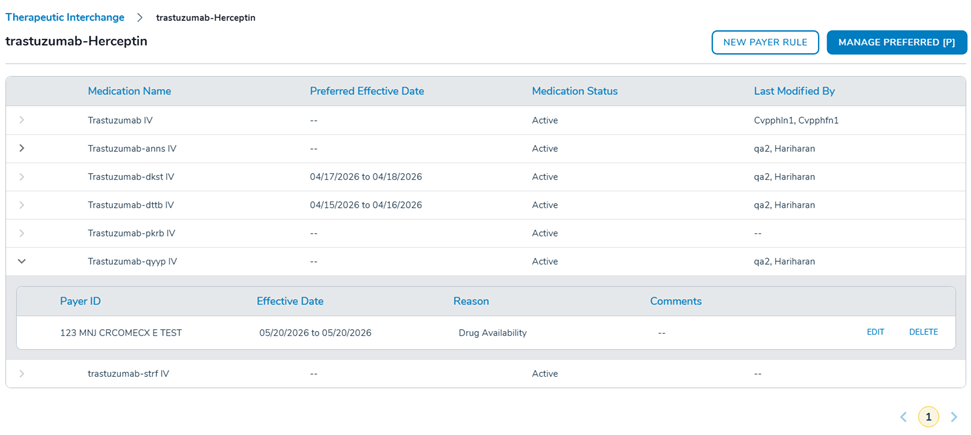
Step-by-step guide: Delete TIC payer rules
Restricted editing for TIC payer rules based on From date
Editing a TIC payer rule will be governed by whether the rule’s From date is in the past or future.
When a rule’s From date is in the future, the full rule, including the From date, can be edited. When a rule is already in effect, the From date and Payer fields cannot be edited to preserve the audit record.
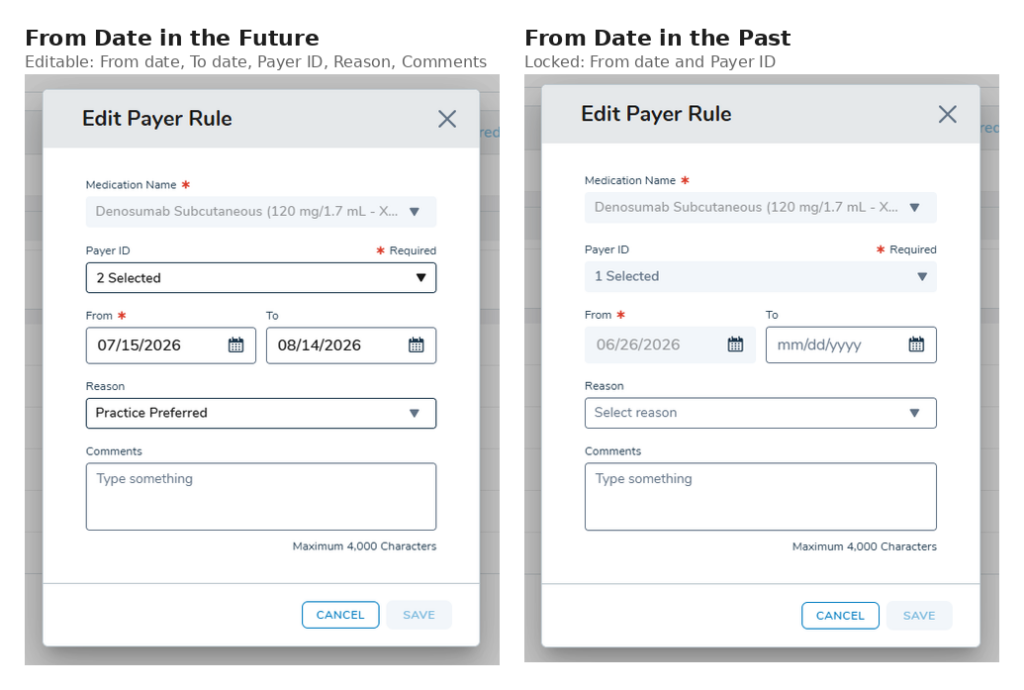
Step-by-step guide: Edit TIC payer rules
Override comments visible on OTIC hover
When a user selects a TIC override reason and enters comments, those comments will be visible to other users by hovering over the OTIC icon.
This tooltip displays the practice preferred designation, the overriding user, the override date, the reason selected, and any comments entered. This applies in the Ordering Regimen view, the Orders Queue, and the Ins. Auth/Fin. Counseling queue.
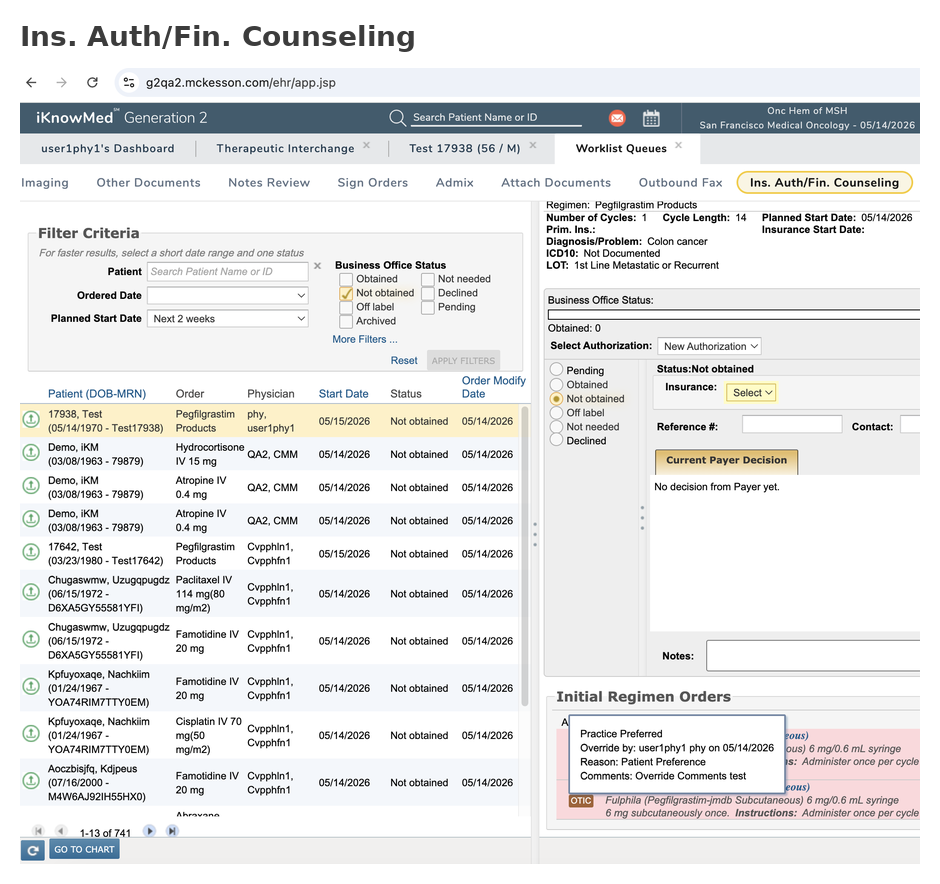
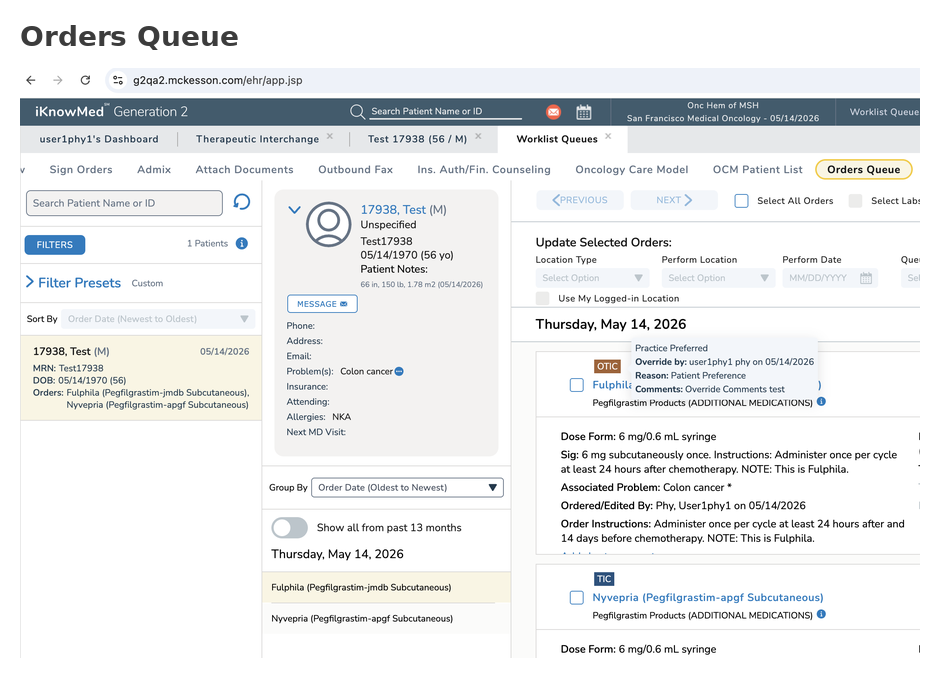
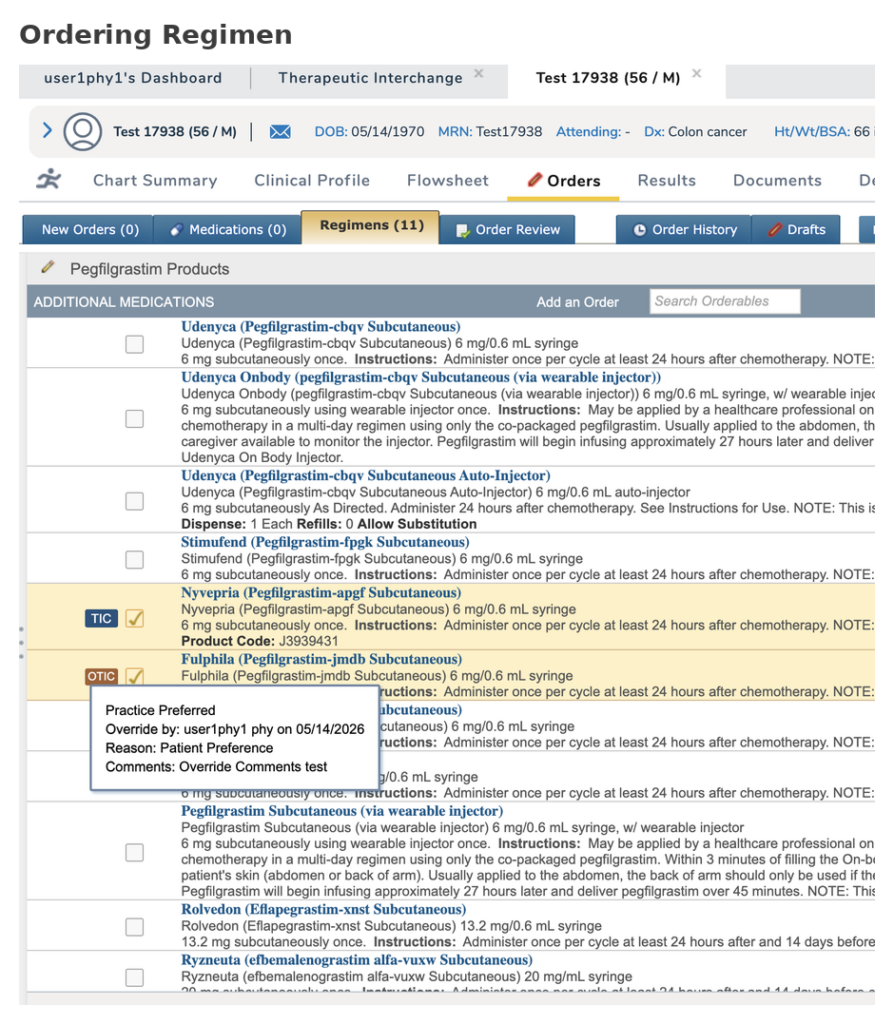
Step-by-step guide: View OTIC Override Comments
Why this matters
These updates give practice users more control over keeping TIC configurations clean and accurate, while adding safeguards to protect rules that are actively in use.