New and Improved Help Experience Copied
In this release, we are introducing a new Help Menu experience for Clear Value Plus℠. The redesigned Help Menu is accessed via an in-app pop-up and allows users to quickly search for answers to their questions without leaving the page they are viewing.
How to Access Help
In-App Pop-Up
Click the Help (?) icon on the navigation bar (callout 1) to open the new in-app pop-up in the bottom-right corner of the screen (callout 2).
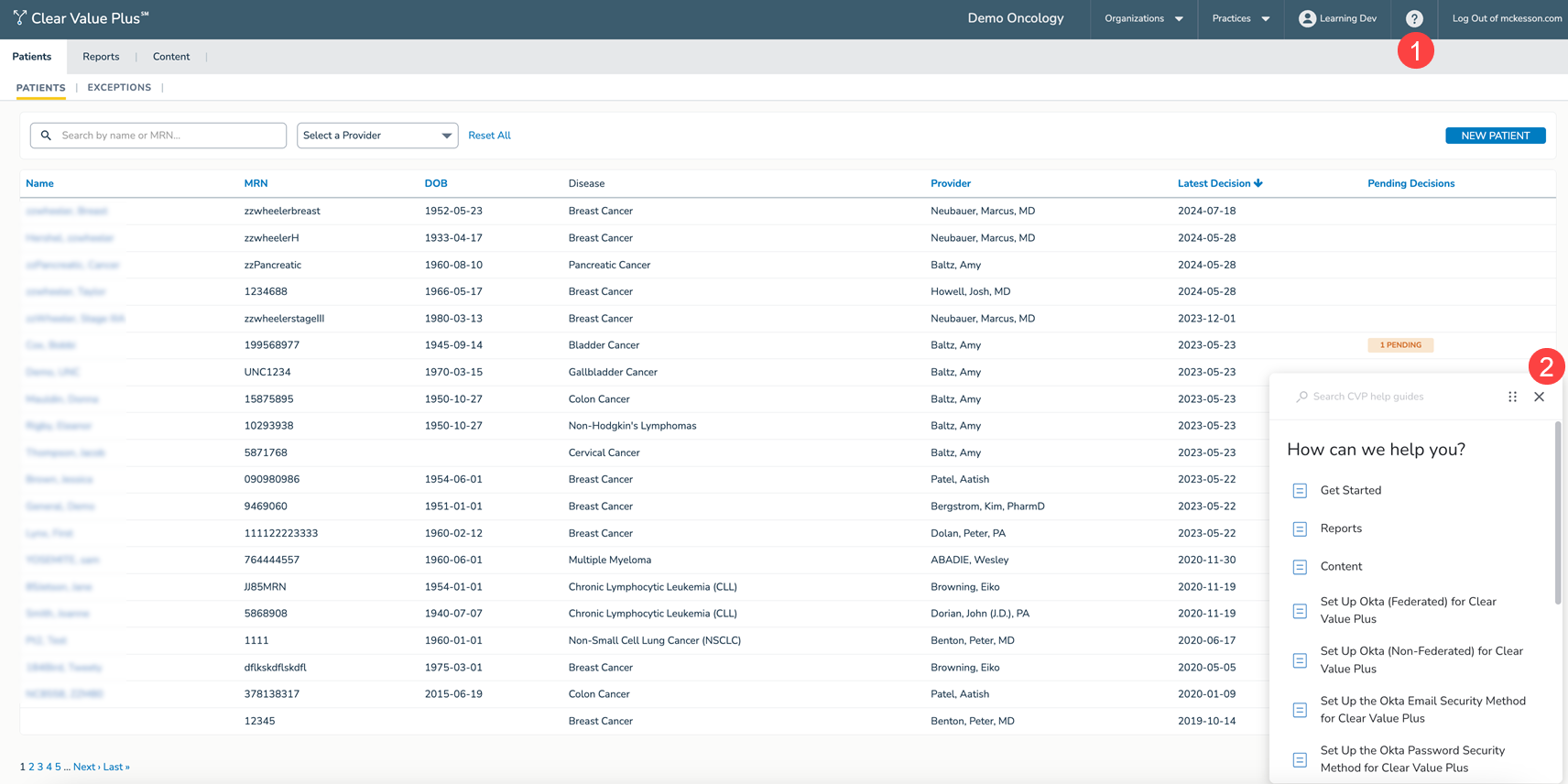
To use the pop-up:
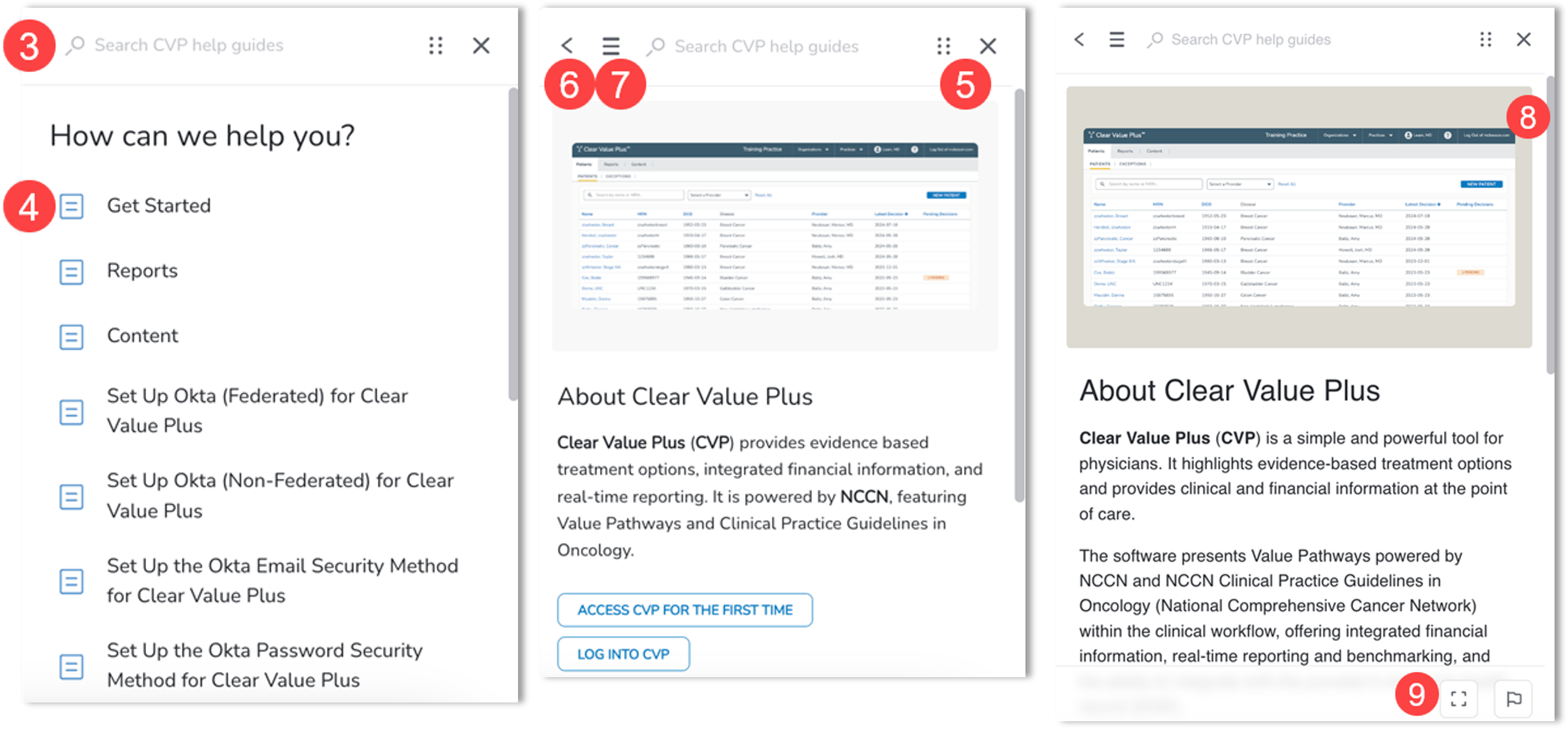
- Search by desired topic (callout 3) or click through the list of available guides (callout 4).
- Use the six dots in the upper-right corner to move the pop-up around the screen as needed, or use the adjacent X to close it (callout 5).
- Click the arrow to the left of the search field (callout 6) to return to the list of available guides.
- Alternatively, click the menu icon (callout 7) and select Clear Value Plus Help Menu to return to the list of available guides.
- To view an image more closely, click on it to make it full-screen (callout 8). Click the image again to close it.
- If present, additional images can be viewed by clicking the blue arrow(s) next to the image.
- Like the images, a larger version of the guides can be viewed by clicking the full-screen icon in the bottom-right corner of the pop-up (callout 9). Click it again to return to the smaller pop-up size.
Your Feedback Matters
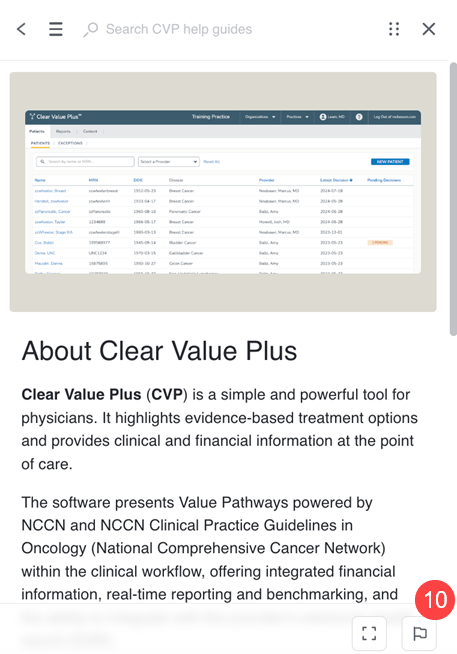
We are dedicated to constantly improving the Help content and ensuring it meets your needs. Your feedback is invaluable, so please do not hesitate to share your thoughts, suggestions, or concerns with us by using the flag icon to Report an issue on this step (callout 10) while viewing any of the guides.
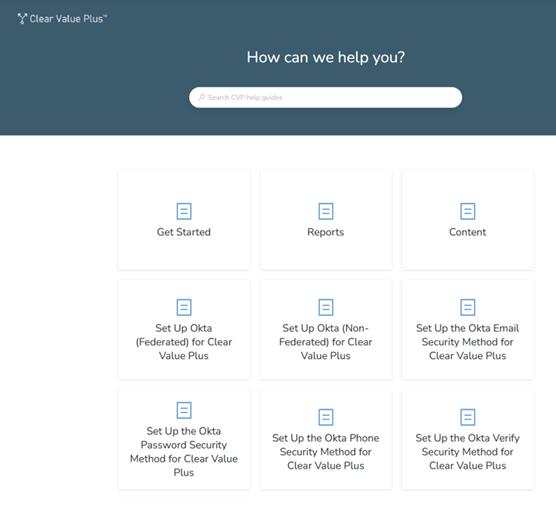
Standalone Help Menu
Users can also access the standalone CVP Help menu at any time by going to https://clearvalueplus.help.mckesson.com/kb/en.